GrowerIQ uses a structured provisioning workflow for custom API integrations. Every integration passes through a defined lifecycle, from initial request through approval, activation, and (if necessary) suspension or revocation. This workflow ensures SOC 2 compliance with separation of duties; the person who requests an integration cannot be the same person who approves it.
In This Article
- Prerequisites
- Requesting an Integration
- Selecting Scopes
- Approval Workflow
- Activating an Integration
- Updating an Integration
- Suspending an Integration
- Reactivating an Integration
- Revoking an Integration
- Lifecycle Summary
- Tips and Best Practices
- Troubleshooting
Prerequisites
Before you begin, confirm the following:
- Your account has the administration_integrations_access permission.
- Your organisation has at least two admin users. The dual-approval requirement means a different administrator must approve each integration request.
Requesting an Integration
- Navigate to Administration > Integrations.
- Click Create Integration.
- Pick a vendor from the list. Common ERP, accounting, CRM, ecommerce, marketing, workflow-automation, and cultivation/IoT systems are recognised and shown with their logo in the integrations list. If your system isn't on the list, choose Custom Integration -- the integration works exactly the same way, it just won't have a vendor logo on the card.
- Enter a Name and Description for the integration.
- Assign an Owner (the person responsible for this integration going forward).
- Click Submit.
The integration is now created in Requested status. It cannot access any data until it has been approved and activated.
Selecting Scopes
During creation (or when updating an existing integration), select the scopes that define what the integration can access. Only grant scopes that the integration actually needs.
| Category | Read | Write | What It Grants |
|---|---|---|---|
| Inventory | Yes | Yes | Lots, batches, plants, rooms, locations |
| Consumables | Yes | Yes | Consumable lots and classes |
| Orders | Yes | Yes | Orders, order items, shipments, manifests |
| SKUs | Yes | Yes | SKU definitions and price tables |
| Equipment | Yes | Yes | Equipment records: sensors, controllers, actuators, monitors. Supports external IDs. |
| Sensors | -- | Yes | Batch-ingest sensor readings, up to 500 per request with partial success |
| Taxonomies | Yes | -- | Varieties, categories, equipment types (read-only) |
| Compliance | Yes | Submit | CAPAs, deviations, recalls |
| Reports | Yes | Execute | Generate and download reports |
| Quality | Yes | -- | SOPs, colour grades, quality data (read-only) |
| Finance | Yes | -- | Transactions, invoices, taxes (read-only) |
| CRM | Yes | Yes | Accounts and contacts (contains PII) |
| Tasks | Yes | Yes | Tasks, comments, assignments |
| Activities | Yes | -- | Activity log entries (read-only) |
| Webhooks | -- | Manage | Manage webhook subscriptions |
PII and Financial Data
The CRM scope grants access to personally identifiable information (PII), including contact names, emails, and phone numbers. The Finance scope exposes transaction and invoice data. Grant these scopes only when the integration has a legitimate business need, and review them during quarterly audits.
Using Priva? No integration needed
Priva climate systems connect natively, with no API integration to request. See Setting Up the Priva Integration. The scopes below are for pushing readings from a system GrowerIQ does not connect to directly.
Running a different climate system and want GrowerIQ to connect to it directly? [Submit a support ticket](/hc/groweriq/articles/submit-a-support-ticket) naming the vendor and model. Customer Success keeps a list of the systems customers ask for.
IoT and Sensor Integrations
For IoT or environmental monitoring systems, enable both the Equipment and Sensors scopes. The Sensors write scope supports batch ingestion of up to 500 readings per request with partial success. If some readings fail validation, the valid ones are still persisted and the response indicates which entries were rejected.
Approval Workflow
Dual-Approval Requirement (SOC 2)
A different administrator must approve the integration. The user who submitted the request cannot approve their own integration. This separation of duties is enforced by the system and satisfies SOC 2 audit requirements.
- A second administrator navigates to Administration > Integrations.
- Open the integration in Requested status.
- Review the selected scopes, owner, and description.
- Click Approve.
The integration moves to Approved status. It is now ready to be activated.
Activating an Integration
- Open the approved integration.
- Click Activate.
- The system generates API credentials (client ID and client secret) and displays them on screen.
Save Your Credentials Immediately
The API credentials are shown only once. After you close the dialog, the secret is stored as a one-way hash and cannot be retrieved. Copy the credentials to a secure vault (such as your secrets manager) before closing the window. If you lose the credentials, you must suspend and reactivate the integration to generate new ones.
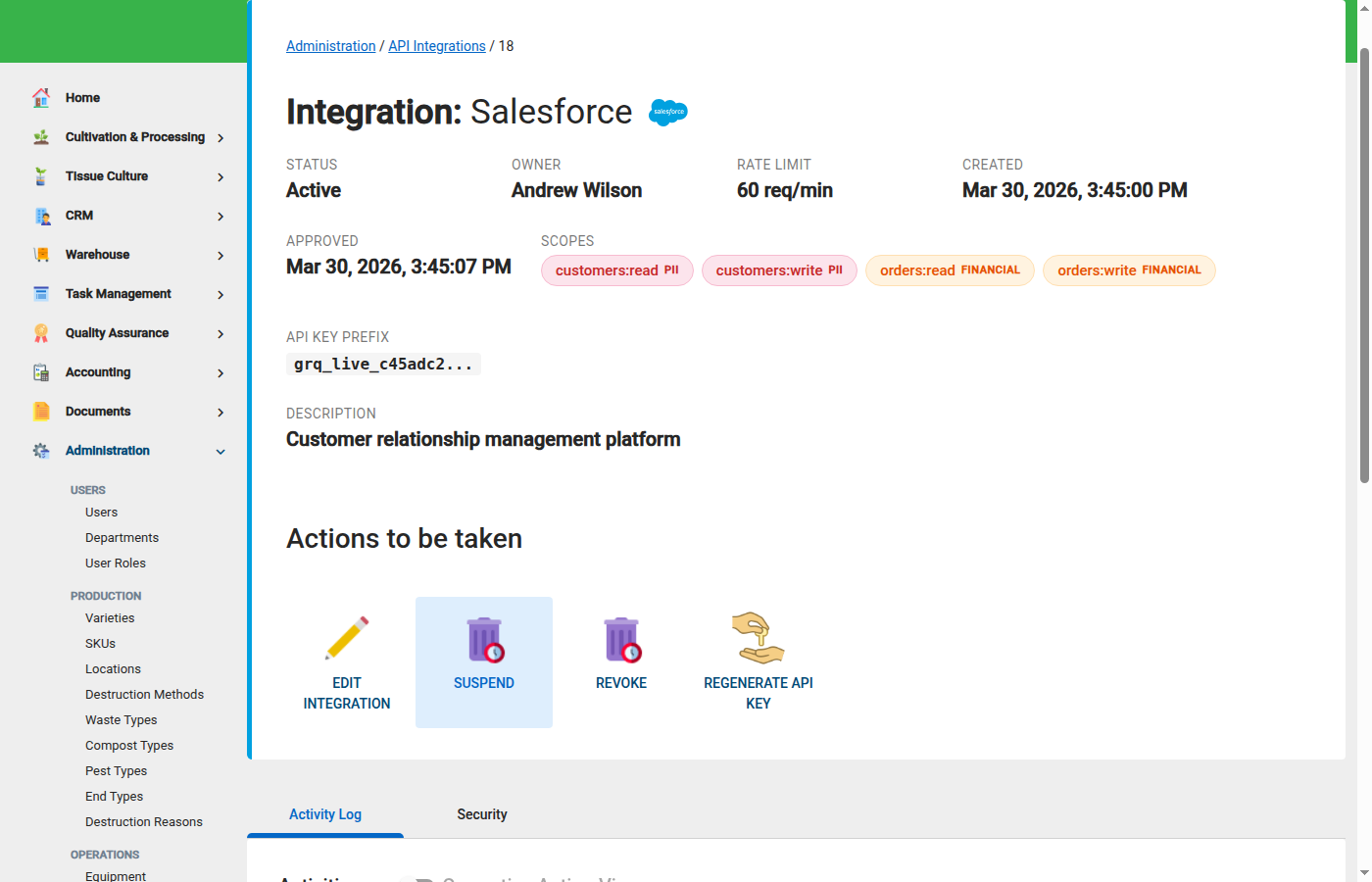
The integration is now Active and can make API calls within the granted scopes.
Updating an Integration
You can modify an active integration without suspending it:
- Scopes: Add or remove scopes as business needs change.
- Rate limits: Adjust the requests-per-minute or daily quota.
- Owner: Reassign the integration to a different team member.
Navigate to the integration detail page, make your changes, and click Save. Scope changes take effect on the next API call.
Suspending an Integration
Suspend an integration when you need to temporarily disable access without permanently revoking it. Common reasons include:
- A security concern that requires investigation.
- A partner offboarding or contract pause.
- Unexpected API behaviour that needs review.
To suspend:
- Open the integration.
- Click Suspend.
- Enter a reason for the suspension (required for audit trail).
- Confirm.
The integration's API key is invalidated immediately. All configuration, scopes, and history are preserved. Any in-flight API calls will receive a 401 Unauthorized response.
Reactivating an Integration
Dual-Approval Required
Reactivation requires a different administrator than the one who suspended the integration. This maintains the separation-of-duties control throughout the lifecycle.
- A different administrator opens the suspended integration.
- Click Reactivate.
- New API credentials are generated and displayed on screen.
Save the new credentials immediately (the previous credentials are permanently invalidated). The integration returns to Active status.
Revoking an Integration
Revocation is permanent and terminal. Use it when an integration is no longer needed.
- Open the integration.
- Click Revoke.
- Confirm the action.
The integration moves to Revoked status. Its API key is invalidated, and the integration cannot be reactivated. If you need the same integration in the future, create a new one from scratch.
Lifecycle Summary
Every integration follows this state machine:
Requested ──> Approved ──> Active <──> Suspended
    │             │           │             │
    └─────────────┴───────────┴─────────────┘
                      │
                      v
                   Revoked (terminal)
- Requested: Awaiting approval from a second administrator.
- Approved: Approved but not yet activated (no credentials issued).
- Active: Credentials issued, integration can make API calls.
- Suspended: Temporarily disabled, credentials invalidated, configuration preserved.
- Revoked: Permanently disabled, cannot be restored.
Tips and Best Practices
- Maximum integrations: Each organisation can have up to 20 active integrations at a time. Plan accordingly.
- Use descriptive names: Name integrations clearly (for example, "SAP Procurement Sync" rather than "SAP"). This helps during quarterly reviews.
- Review quarterly: Audit active integrations every quarter. Revoke any that are no longer in use.
- Document the business purpose: Use the description field to record why the integration exists and which business process it supports. This context is invaluable during audits and team transitions.
- Principle of least privilege: Grant only the scopes the integration actually needs. You can always add more later.
Troubleshooting
"I can't approve my own integration." This is by design. The dual-approval workflow requires a different administrator to approve each request. Ask a colleague with admin access to review and approve it.
"My integration is stuck in Requested status." A different administrator needs to approve it. Check that your organisation has at least two users with the administration_integrations_access permission.
"I hit the 20-integration limit." Revoke integrations that are no longer in use. Suspended integrations also count toward the limit, so revoke (rather than suspend) integrations you will not need again.