How to Record a Visual Inspection in GrowerIQ
Learn how to record a visual inspection for a vessel batch in the Tissue Culture module.
Before You Start
Make sure you have:
- Access to the Tissue Culture module
- A vessel batch with an active visual inspection stage (typically in QA)
- Knowledge of the inspection results to record
Step 1: Navigate to the Vessel Batch
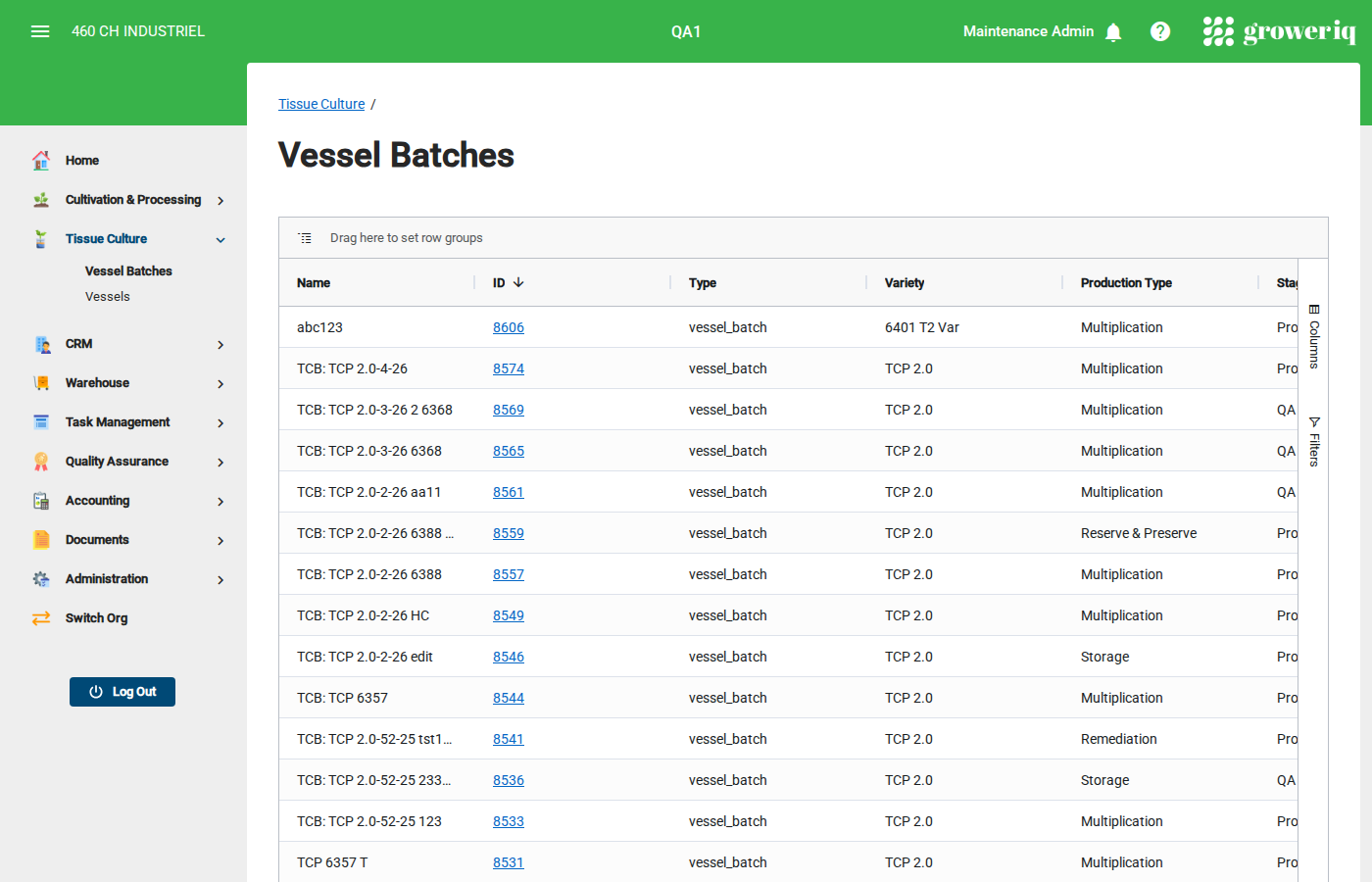
From the main menu, click Tissue Culture then Vessel Batches.
Find and click on the batch you want to record an inspection for.
Step 2: Open the Batch Detail Page
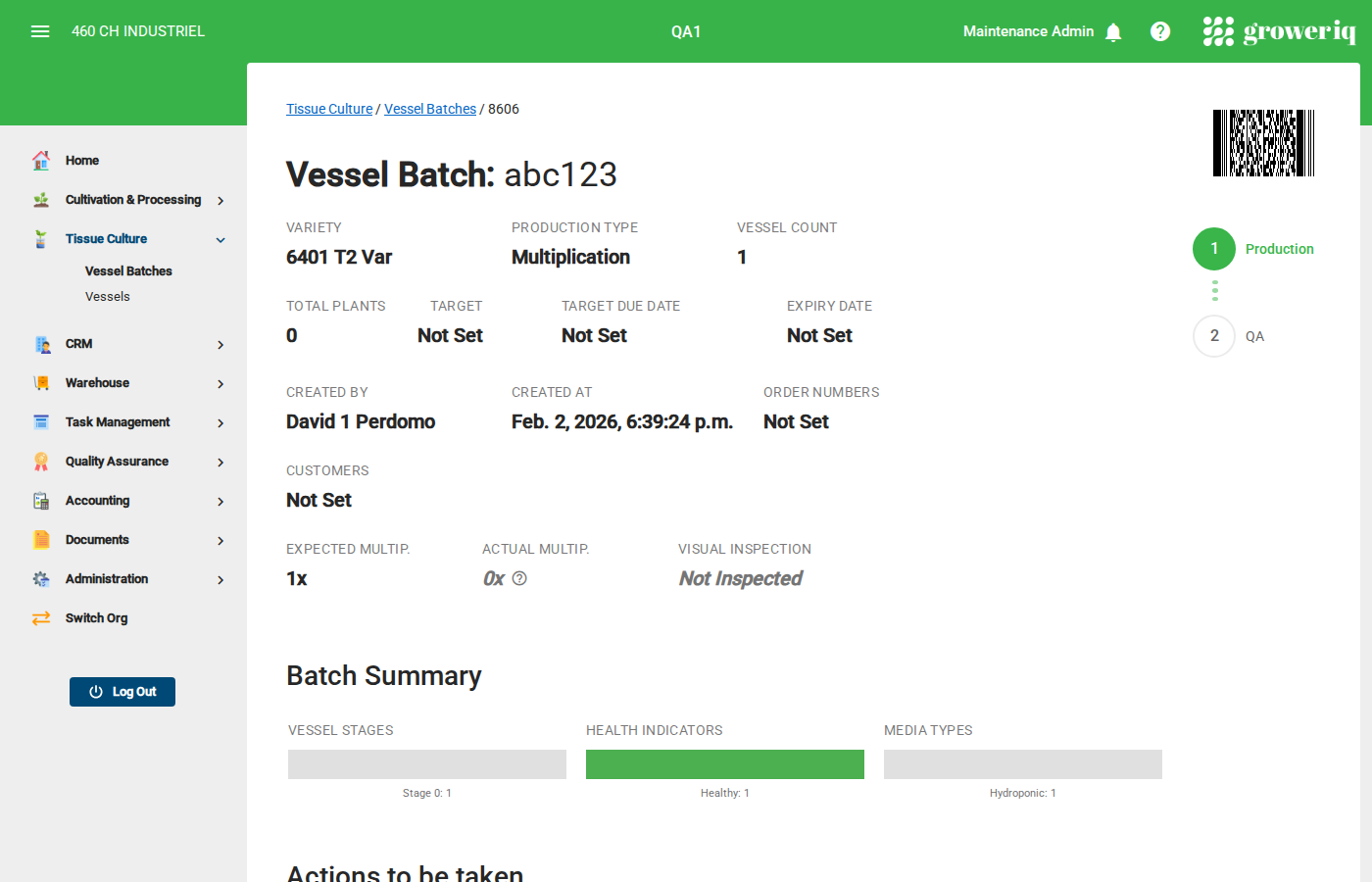
On the batch detail page, you will see the batch properties and available actions.
Look for the Visual Inspection button in the Actions section.
Note: The Visual Inspection button is only active when the batch is in a stage that requires inspection (such as QA).
Step 3: Open the Visual Inspection Dialog
Click the Visual Inspection button.
A dialog will open where you can record your inspection findings.
Step 4: Record Inspection Results
In the inspection dialog, fill in:
- Inspection Date - When the inspection was performed
- Inspector - Who performed the inspection
- Health Status - The observed health of the plants
- Contamination - Whether any contamination was found
- Notes - Any additional observations
Tip: Be specific in your notes. Record details like color changes, growth patterns, or any abnormalities you observe.
Step 5: Submit the Inspection
Review your entries and click Submit to save the inspection record.
The inspection will be recorded in the batch's activity log and may affect the batch's health indicator.
You're Done!
You have successfully recorded a visual inspection for the vessel batch.
Next steps:
- Review the inspection in the batch's Activity Log
- If contamination was found, consider queuing affected vessels for destruction
- Continue with the next scheduled inspection
Need Help?
If you run into issues, contact support at support@groweriq.ca