How to Transfer a Batch to Lot in GrowerIQ
Learn how to transfer a vessel batch from Tissue Culture to a cultivation lot.
Before You Start
Make sure you have:
- Access to the Tissue Culture module
- A vessel batch that has passed quality assurance and is ready for transfer
- The batch must be in a stage that allows transfer to lot (typically the final QA stage)
Step 1: Navigate to the Vessel Batch
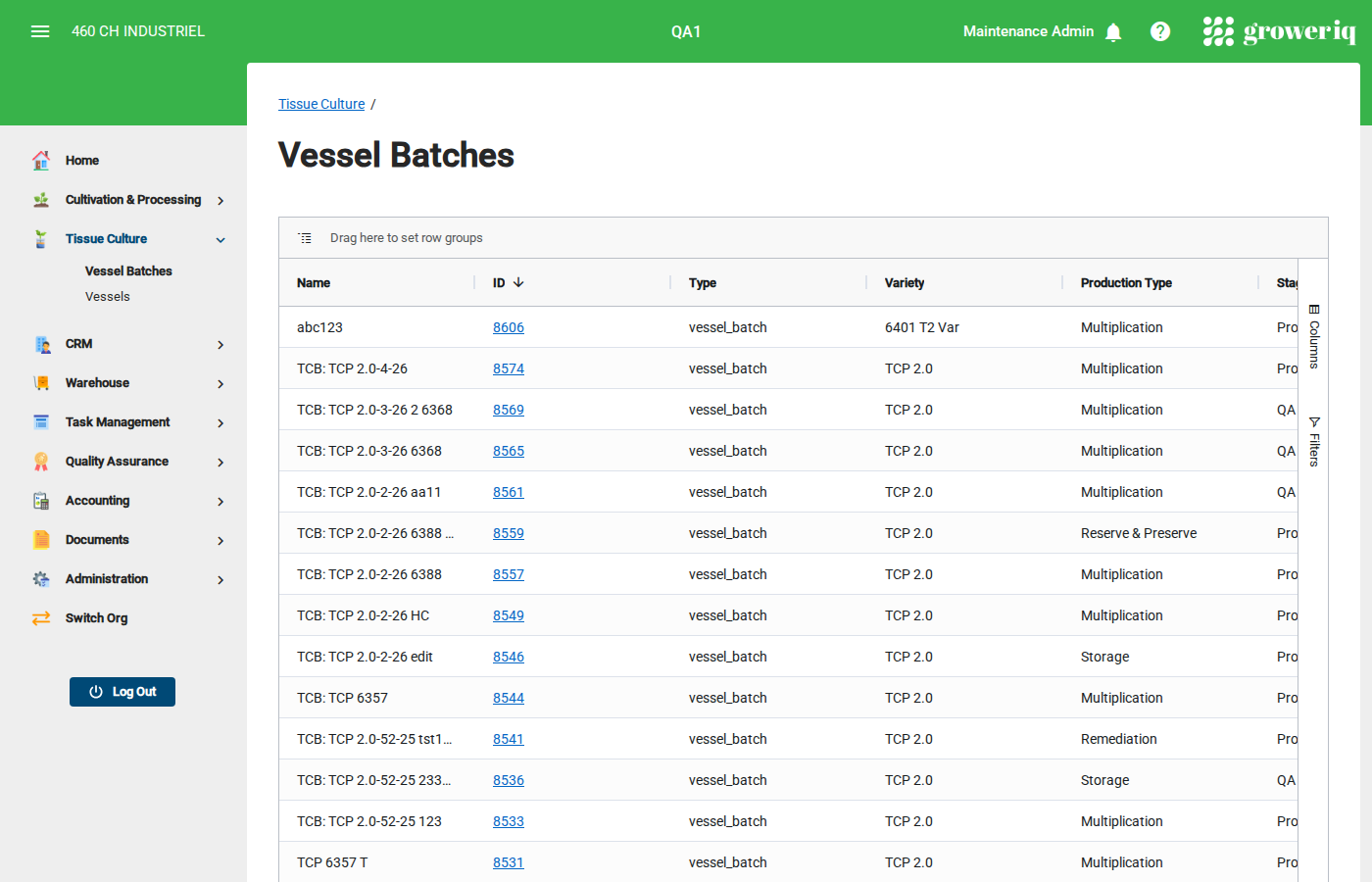
From the main menu, click Tissue Culture then Vessel Batches.
Find and click on the batch you want to transfer.
Step 2: Check the Batch Status
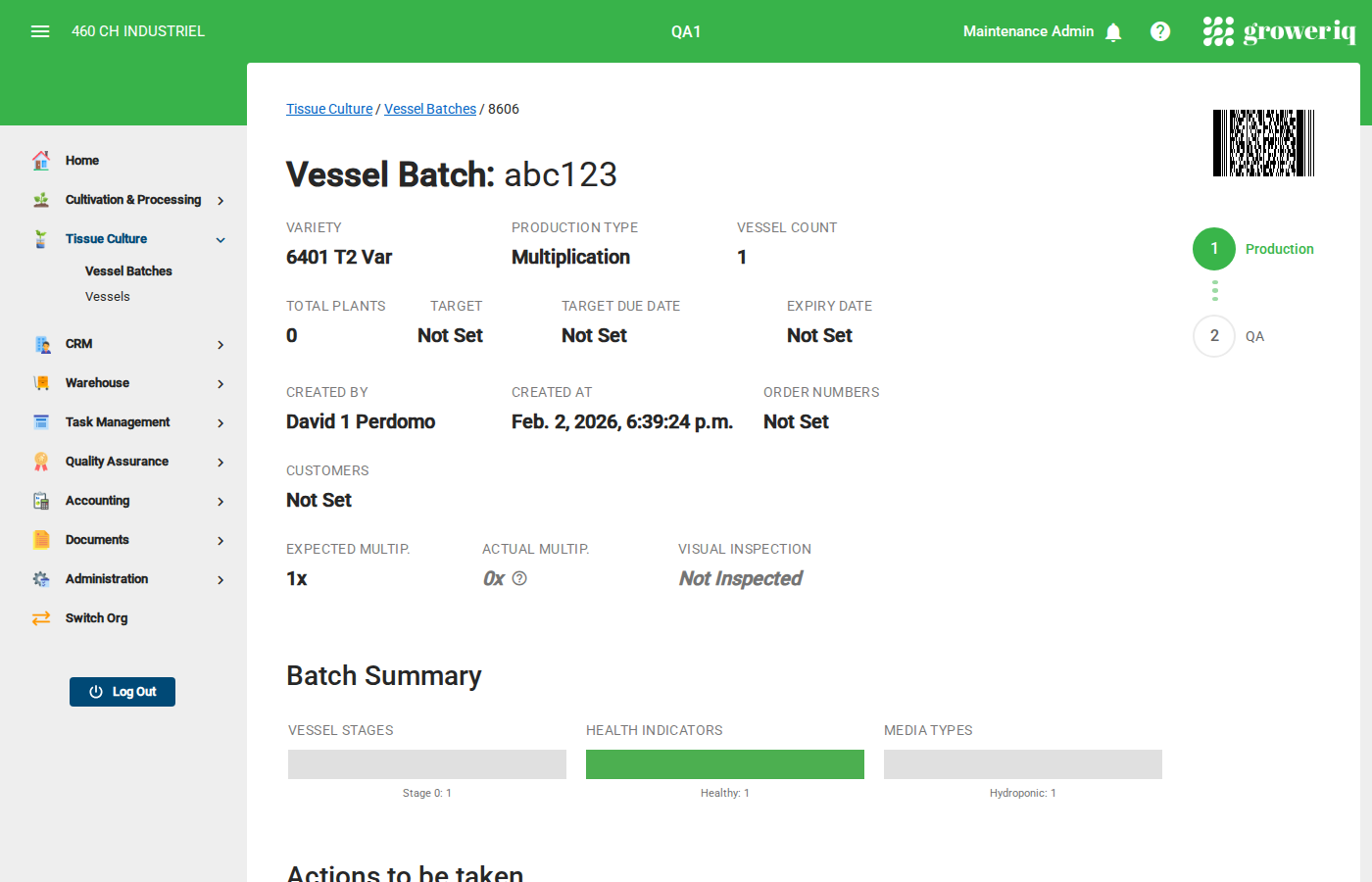
On the batch detail page, verify that:
- The batch is in the correct stage for transfer
- All required inspections have been completed
- The stage chart shows the batch has progressed through the necessary stages
Look for the Transfer to Lot button in the Actions section.
Note: The Transfer to Lot button is only active when the batch meets all the requirements for transfer.
Step 3: Open the Transfer Dialog
Click the Transfer to Lot button.
A dialog will open with the transfer options.
Step 4: Configure the Transfer
In the transfer dialog:
- Select the Lot - Choose an existing lot or create a new one
- Verify Plant Count - Confirm the number of plants being transferred
- Set the Location - Choose the destination room or area
- Add Notes - Include any transfer notes
Tip: Double-check the plant count before confirming. Once transferred, the vessels will be removed from Tissue Culture.
Step 5: Confirm the Transfer
Review the transfer details and click Confirm to complete the transfer.
The system will:
- Move the plants from Tissue Culture to the selected lot
- Update the batch status to show it has been transferred
- Record the transfer in the activity log
You're Done!
You have successfully transferred a vessel batch to a lot.
Next steps:
- Navigate to the Cultivation module to find your new lot
- Set up the growing environment for the transferred plants
- Continue monitoring in the cultivation workflow
Need Help?
If you run into issues, contact support at support@groweriq.ca