GrowerIQ provides layered security controls for every integration. Apply the principle of least privilege: grant only the access an integration needs, restrict where it can connect from, and limit how often it can call the API.
In this article
- Scopes: What Can an Integration Access?
- Rate Limits
- IP Allowlisting
- Responding to a Security Incident
- Quarterly Review Checklist
Scopes: What Can an Integration Access?
Scopes define which areas of GrowerIQ an integration is allowed to read or write. Assign scopes when creating the integration and adjust them at any time.
| Category | What It Covers | Sensitivity |
|---|---|---|
| Inventory | Lots, batches, plants, rooms, locations, transfers, destruction | Operational |
| Consumables | Consumable lots and classes | Operational |
| Orders | Orders, shipments, manifests | Operational |
| SKUs | Product definitions, price tables | Operational |
| Equipment | Equipment records: sensors, controllers, actuators, monitors | Operational |
| Sensors | Batch-ingest sensor readings: temperature, humidity, CO2 | Operational |
| Taxonomies | Varieties, categories, equipment types | Operational (read-only) |
| Compliance | CAPAs, deviations, recalls, compliance reports | Regulatory |
| Reports | Generate and download reports | Operational |
| Quality | SOPs, colour grades, quality data | Operational (read-only) |
| Finance | Transactions, invoices, taxes | Financial |
| CRM | Customer accounts and contacts | PII |
| Tasks | Tasks, comments, assignments | Operational |
| Activities | Activity log entries | Operational (read-only) |
| Webhooks | Webhook subscription management | Administrative |
Principle of least privilege
Fewer scopes means a smaller blast radius if credentials are compromised. Grant only the scopes your integration actively uses. An ERP sync that reads inventory and orders does not need access to CRM or Finance.
Scope changes on active integrations take effect immediately and are recorded in the audit log. Removing a scope from a live integration causes any subsequent API calls requiring that scope to return 403 Forbidden.
Rate Limits
Rate limits protect GrowerIQ from runaway integrations and ensure fair resource sharing across all connected systems.
- Default limit: 60 requests per minute (RPM)
- Configurable range: 1 to 10,000 RPM
- Enforcement: When an integration exceeds its limit, the API returns
429 Too Many Requestsuntil the window resets.
Every API response includes rate-limit headers so your integration can self-throttle:
| Header | Description |
|---|---|
X-RateLimit-Limit |
Maximum requests allowed per window |
X-RateLimit-Remaining |
Requests remaining in the current window |
X-RateLimit-Reset |
Unix timestamp when the window resets |
To adjust an integration's rate limit, open the integration detail page in Administration > Integrations and update the Rate Limit field. You can also contact GrowerIQ support to request a temporary increase for data migration or backfill scenarios.
Design for 429 responses
Build retry logic into every integration. When you receive a 429, read the X-RateLimit-Reset header and wait until the window resets before retrying. Exponential backoff with jitter is recommended for high-throughput integrations.
IP Allowlisting
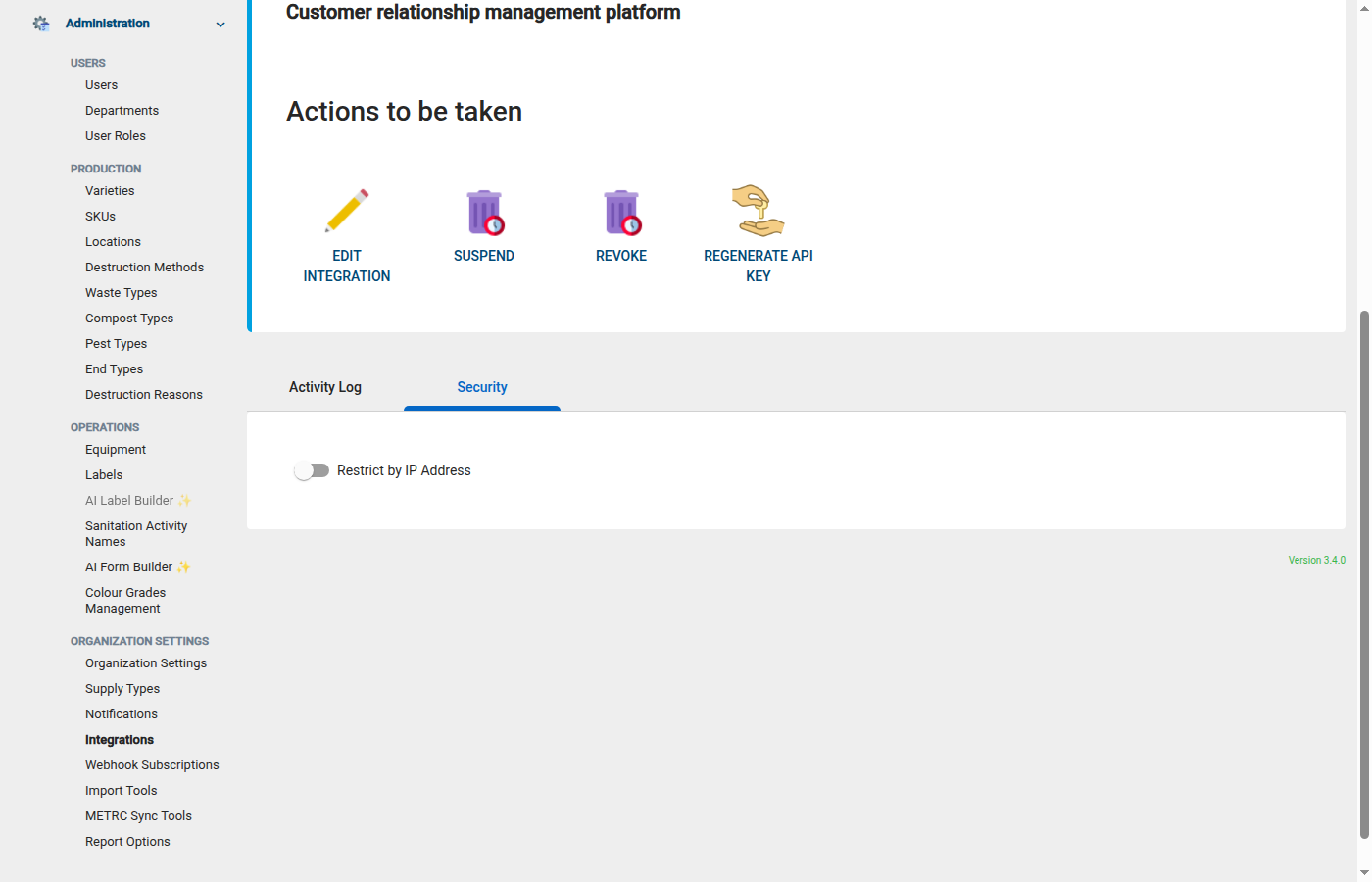
IP allowlisting restricts API access to requests originating from specific network addresses. When enabled, any request from an IP not in the allowlist receives 403 Forbidden.
- Format: CIDR notation (e.g.,
10.0.0.1/32for a single IP,192.168.1.0/24for a subnet) - Maximum entries: 50 per integration
- Default: Disabled (all IPs permitted)
To configure an allowlist:
- Navigate to Administration > Integrations and open the integration.
- Locate the IP Allowlist section.
- Add one or more CIDR entries.
- Save.
Best suited for static IPs
IP allowlisting is most useful for integrations running on infrastructure with predictable, static IP addresses: on-premises ERP systems (SAP, Dynamics), cloud services with published IP ranges, or VPN exit nodes. For serverless or dynamic-IP environments, rely on API key authentication and scope restrictions instead.
Lock yourself out? Remove the entry.
If an integration stops working after enabling IP allowlisting, verify that the calling system's egress IP matches an entry in the allowlist. Cloud providers sometimes rotate IPs without notice. Remove or update the stale entry to restore access.
Responding to a Security Incident
If you suspect an integration's credentials have been compromised or you observe unexpected API activity, follow these steps:
1. Suspend immediately
Open the integration in Administration > Integrations and click Suspend. Suspension takes effect instantly, invalidating the API key and blocking all requests. Configuration and logs are preserved.
2. Review API logs
Navigate to QA > Integration API Logs and filter by the affected integration. Look for:
- Unusual request volumes or patterns
- Requests from unexpected IP addresses
- Access to scopes the integration should not be using
- Requests outside normal operating hours
3. Check webhook delivery logs
If the integration has webhook subscriptions, review the delivery log for the subscription. Verify that payloads were not redirected to an unauthorized endpoint.
4. Regenerate credentials
Generate a new API key and, if applicable, a new webhook signing secret. Store the new credentials in your secrets manager before distributing them.
5. Contact GrowerIQ support
Share the relevant Request IDs from the API logs with GrowerIQ support. The support team can correlate server-side logs and help determine the scope of the incident.
6. Reactivate with new credentials
Once the investigation is complete and new credentials are deployed, a different administrator (not the one who suspended) must reactivate the integration. This dual-control requirement ensures no single person can suspend and reactivate without oversight.
Suspension is non-destructive
Suspending an integration does not delete its configuration, scope assignments, webhook subscriptions, or logs. Only the API key is invalidated. After reactivation with new credentials, the integration resumes normal operation.
Quarterly Review Checklist
Schedule a quarterly review of all active integrations. Use this checklist to ensure your security posture stays current:
- [ ] Are all active integrations still in use? Suspend or delete any that are no longer needed.
- [ ] Do assigned scopes still match actual usage? Remove scopes that are no longer required.
- [ ] Are credentials held only by authorised personnel? Rotate credentials if team members have changed.
- [ ] Are rate limits appropriate for current traffic patterns? Adjust up or down based on API log data.
- [ ] Is IP allowlisting enabled for integrations with static infrastructure? Add it where feasible.
- [ ] Have partner contacts changed? If the integration is managed by a third party, confirm that only current contacts hold credentials and rotate if needed.
Export a summary for your SOC 2 auditor
The quarterly review checklist aligns with SOC 2 access-review requirements. Document your findings and retain them alongside your other compliance artefacts.