Webhooks let GrowerIQ notify external systems when something happens, such as a lot being created, an order shipped, or a harvest recorded. Instead of polling the API on a schedule, GrowerIQ pushes event data to a URL you specify the moment an event occurs.
In this article
- How Webhooks Work
- Creating a Webhook Subscription
- Choosing Activity Types
- Testing Your Webhook
- Managing the Signing Secret
- Editing and Deleting Webhooks
How Webhooks Work
When an event occurs in GrowerIQ, the system follows this sequence:
- An event occurs (for example, a lot is created or a shipment is marked as delivered).
- GrowerIQ checks for webhook subscriptions that match the event's activity type.
- For each matching subscription, GrowerIQ sends an HTTP POST request to the configured endpoint URL.
- The payload is signed with HMAC-SHA256 using the subscription's signing secret so your receiver can verify authenticity.
- The delivery attempt and response are recorded in the delivery log.
Organisation-wide subscriptions
Webhooks are configured at the organisation level, not per-integration. A single webhook subscription receives events from all integrations and internal operations that match the selected activity types.
Creating a Webhook Subscription
Follow these steps to create a new webhook subscription:
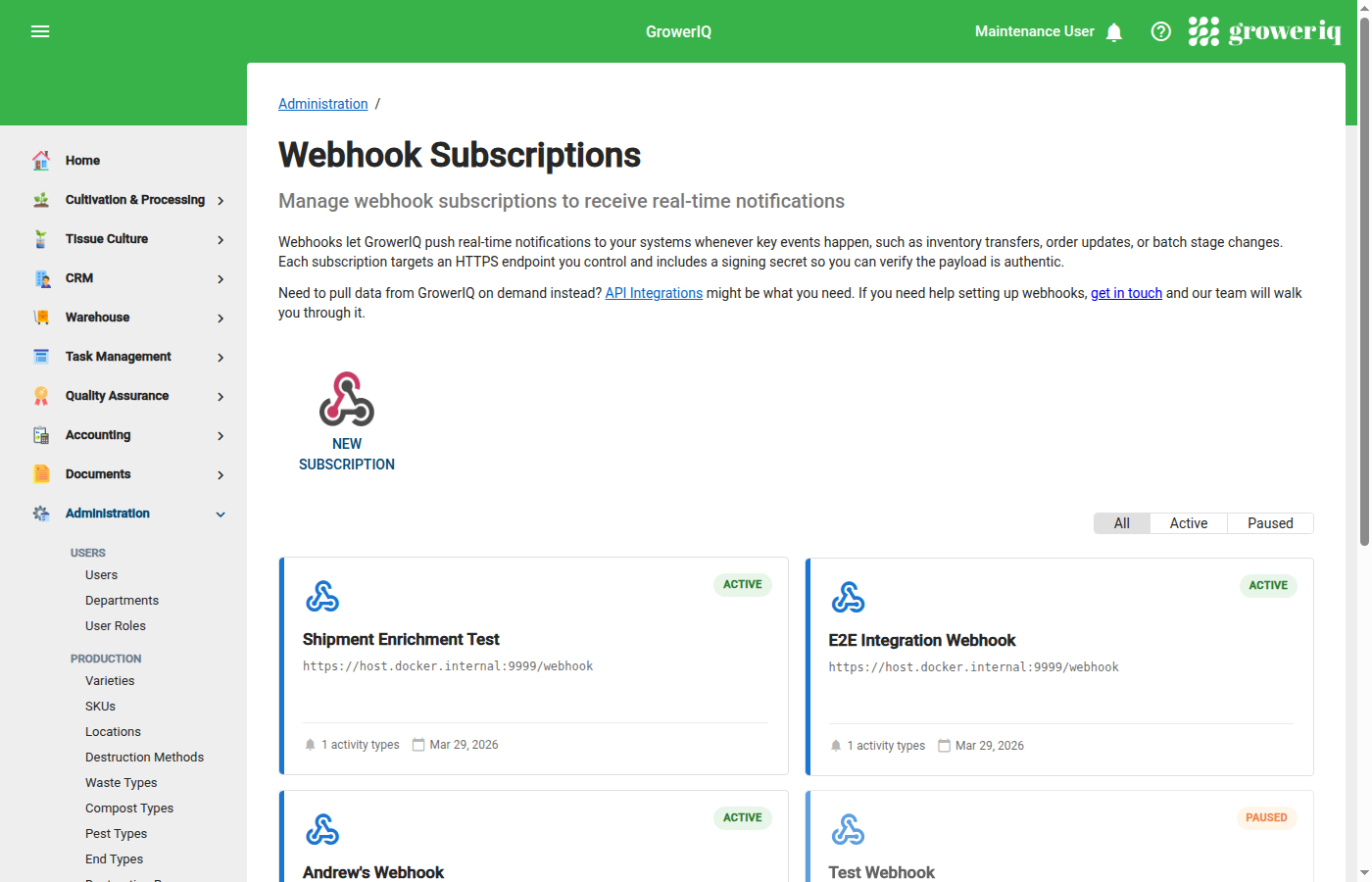
- Navigate to Administration > Webhooks.
- Click Create Webhook.
- Enter the Endpoint URL for the system that will receive events. The URL must use HTTPS.
- Select one or more Activity Types that should trigger a delivery to this endpoint.
- Click Create.
After creation, GrowerIQ displays the signing secret for this subscription.
Save your signing secret immediately
The signing secret is displayed only once at creation time. Copy it and store it in a secrets manager or password vault before closing the dialog. You cannot retrieve this secret later. If it is lost, you must regenerate it (which invalidates the previous secret).
Choosing Activity Types
Activity types determine which events trigger a webhook delivery. Select only the types your receiver needs.
| Category | Activity Types |
|---|---|
| Cultivation | Batch created, harvest recorded, drying complete, curing complete |
| Inventory | Lot created, lot transferred, weight adjusted, destruction queued, destruction completed |
| Orders & Shipments | Order created, order status changed, shipment shipped, shipment delivered |
| Quality & Compliance | Sample created, lab results received, CAPA opened, deviation recorded, recall initiated |
| Plant Care | Pesticide applied, fertiliser applied, cuttings propagated, seeds germinated |
| Production | Crude extraction recorded, distillation recorded, final product weights recorded |
Start narrow, expand later
Subscribe to only the activity types your integration needs right now. You can add more types at any time by editing the subscription. Fewer subscriptions means less noise and easier debugging.
Testing Your Webhook
Before relying on a webhook in production, verify that your endpoint receives and processes payloads correctly.
- Open the webhook subscription detail page by clicking on the subscription in Administration > Webhooks.
- Click Test Webhook. GrowerIQ sends a sample payload to your endpoint.
- Check the Delivery Log on the subscription detail page. A successful delivery shows a 2xx status code. A failed delivery shows the HTTP status or error returned by your endpoint.
Use webhook.site for initial testing
If you do not have a receiver ready, create a temporary endpoint at webhook.site and use that URL when creating the subscription. This lets you inspect the exact payload structure and headers GrowerIQ sends before you write any receiver code.
Managing the Signing Secret
The signing secret is a shared key used to compute the HMAC-SHA256 signature included in every webhook delivery. Your receiver uses this secret to verify that payloads genuinely come from GrowerIQ and have not been tampered with.
Regenerating the secret
If the signing secret is lost or compromised:
- Update your receiver first. Prepare your receiver to accept a new secret so there is no gap in verification.
- Navigate to the webhook subscription detail page.
- Click Regenerate Secret.
- Copy and store the new secret immediately.
- Deploy the new secret to your receiver.
Regeneration invalidates the previous secret
As soon as you regenerate, the old secret stops working. Any deliveries signed with the old secret will fail verification on your receiver. Update your receiver before or immediately after regenerating to avoid missed events.
Editing and Deleting Webhooks
Editing a subscription
To change the endpoint URL or update the selected activity types:
- Navigate to Administration > Webhooks.
- Click on the subscription you want to modify.
- Update the Endpoint URL or toggle Activity Types as needed.
- Click Save.
Changes take effect immediately for all subsequent events.
Deleting a subscription
To remove a webhook subscription:
- Navigate to Administration > Webhooks.
- Click on the subscription you want to remove.
- Click Delete.
- Confirm the deletion.
Deleting a subscription cancels any pending deliveries and stops all future deliveries for that endpoint. This action cannot be undone.