Getting Started with Tissue Culture in GrowerIQ
Learn how to navigate the Tissue Culture module and understand its key features.
Before You Start
Make sure you have:
- A GrowerIQ account with access to the Tissue Culture module
- Your login credentials from your administrator
Step 1: Open the Tissue Culture Module
From any page in GrowerIQ, look at the left sidebar menu.
Click Tissue Culture to expand the module menu.
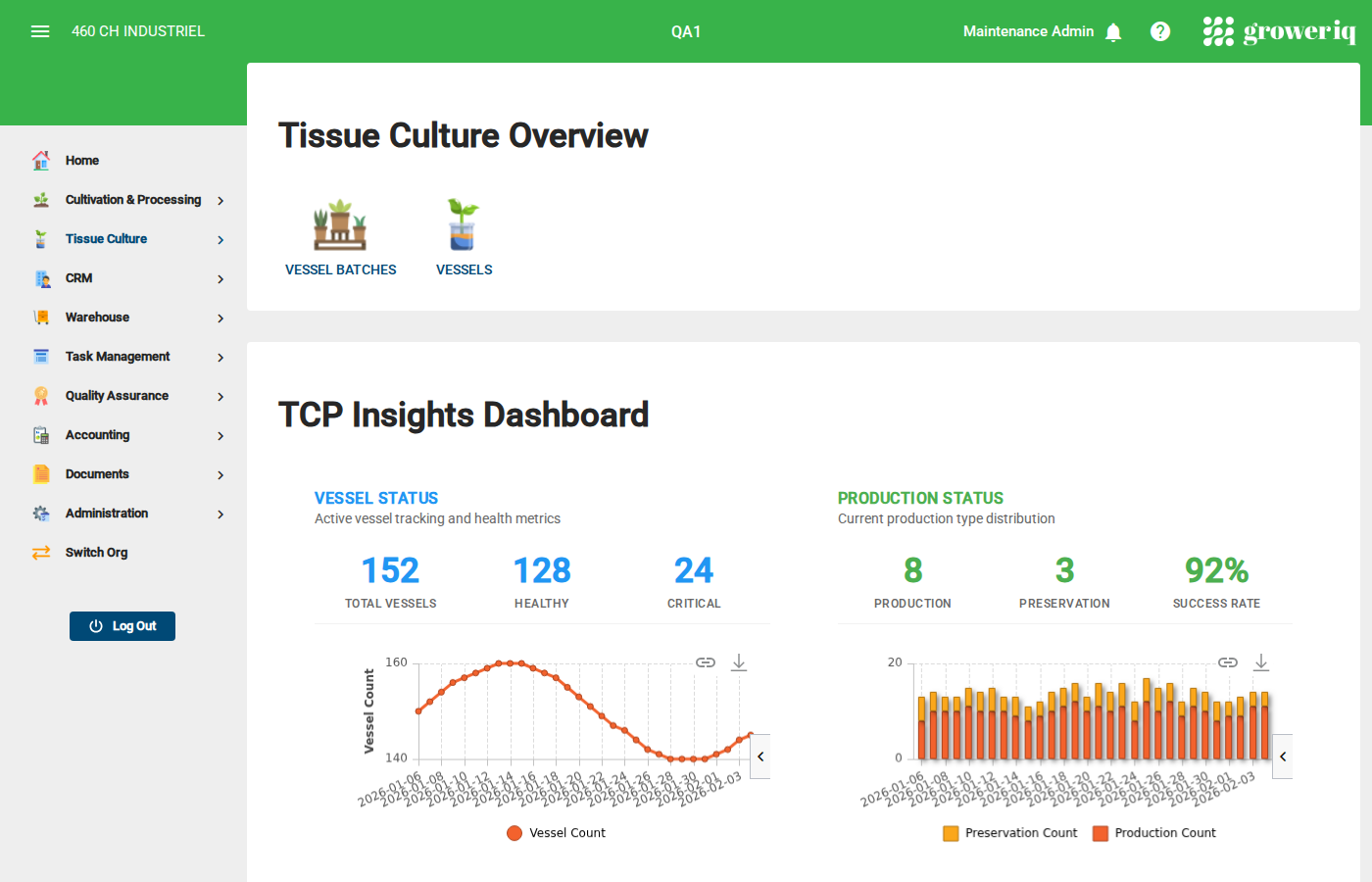
Step 2: View the Dashboard
Click Overview (or just Tissue Culture) to see the main dashboard.
The dashboard shows a summary of your tissue culture operations, including vessel counts and stage distribution.
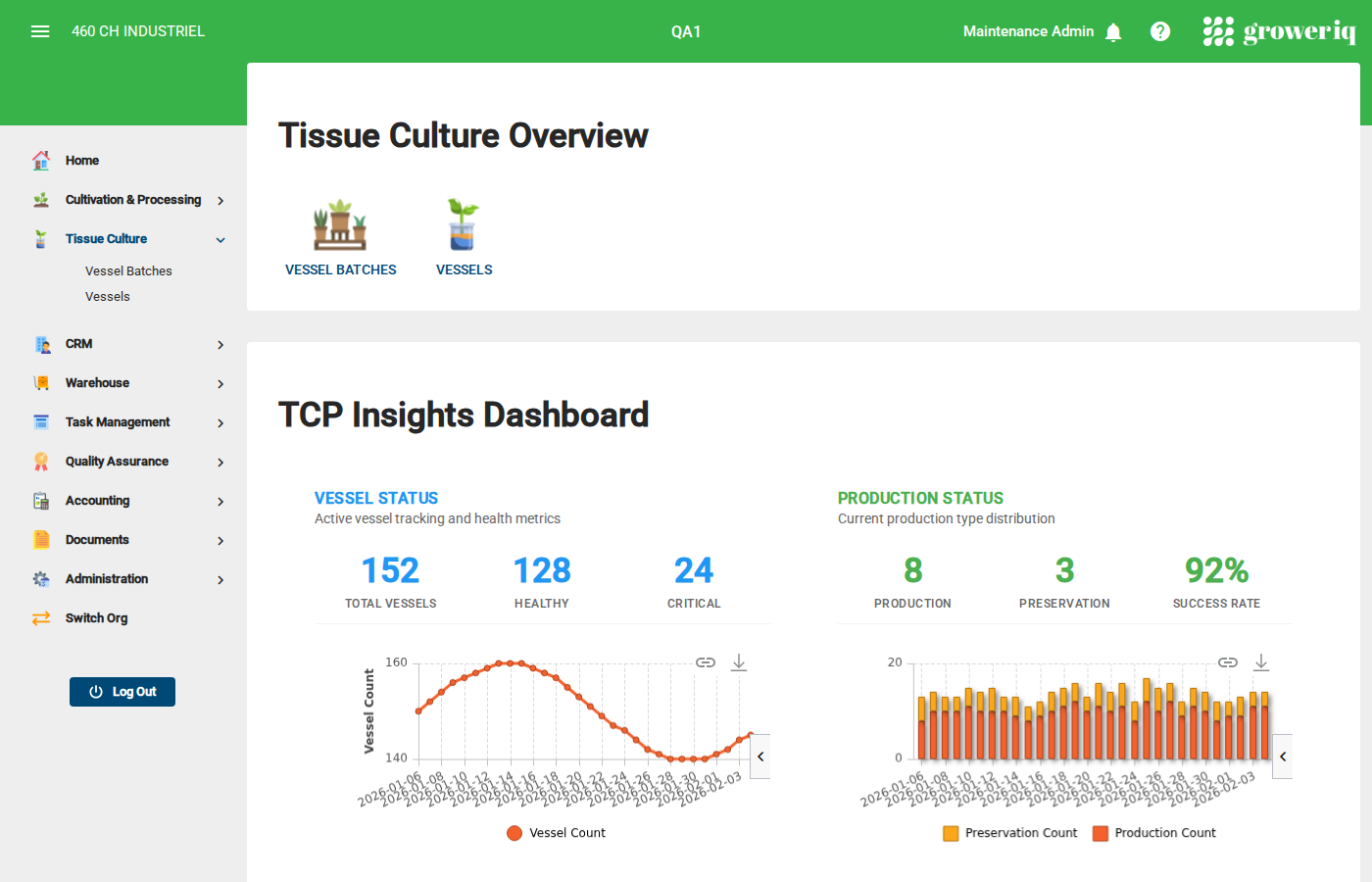
Step 3: Explore the Navigation
The Tissue Culture menu has these sections:
- Overview - Dashboard with summary information
- Vessel Batches - Groups of vessels managed together
- Vessels - Individual tissue culture vessels
Click Vessel Batches or Vessels to view those lists.
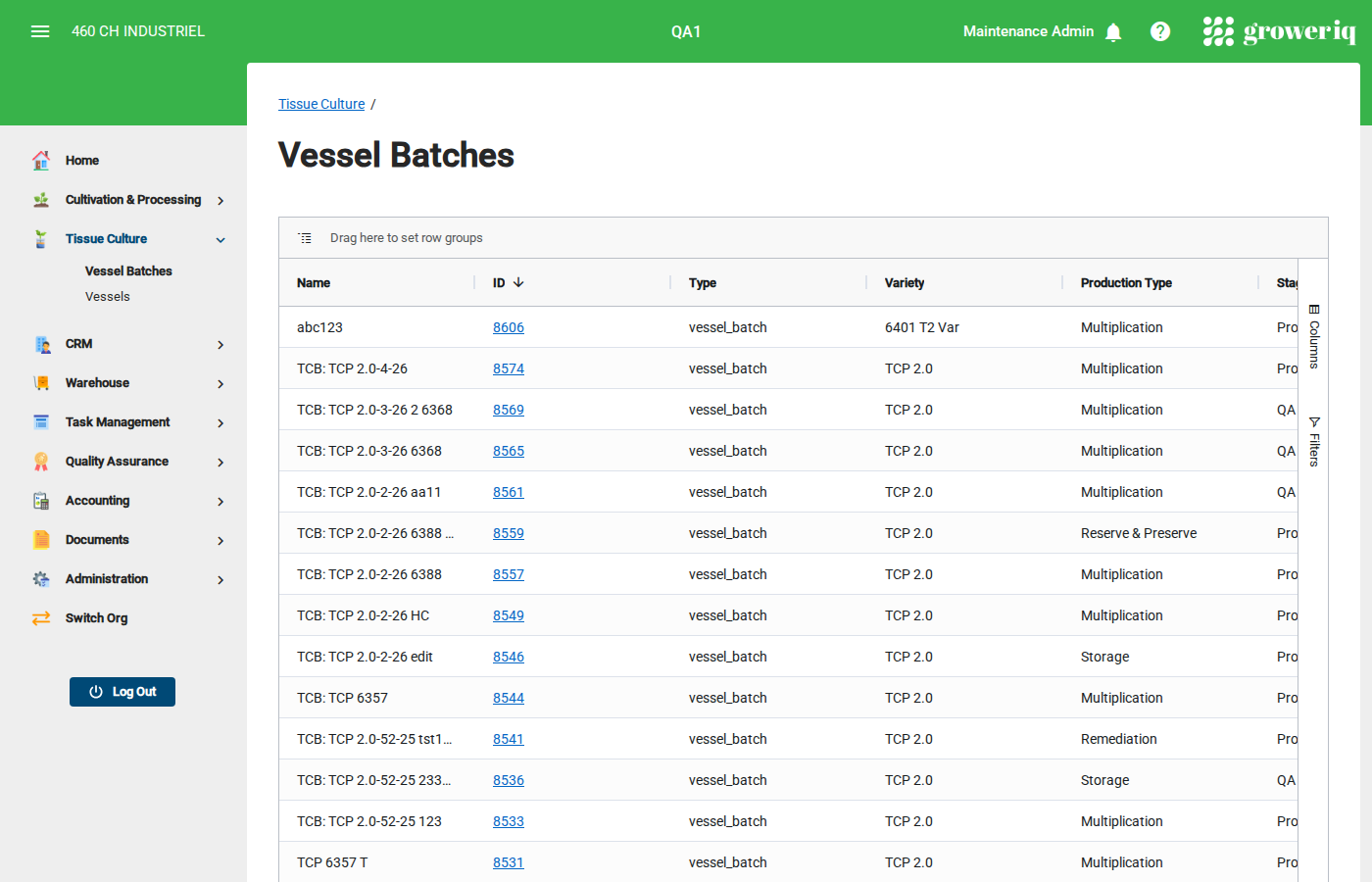
Step 4: View the Vessels List
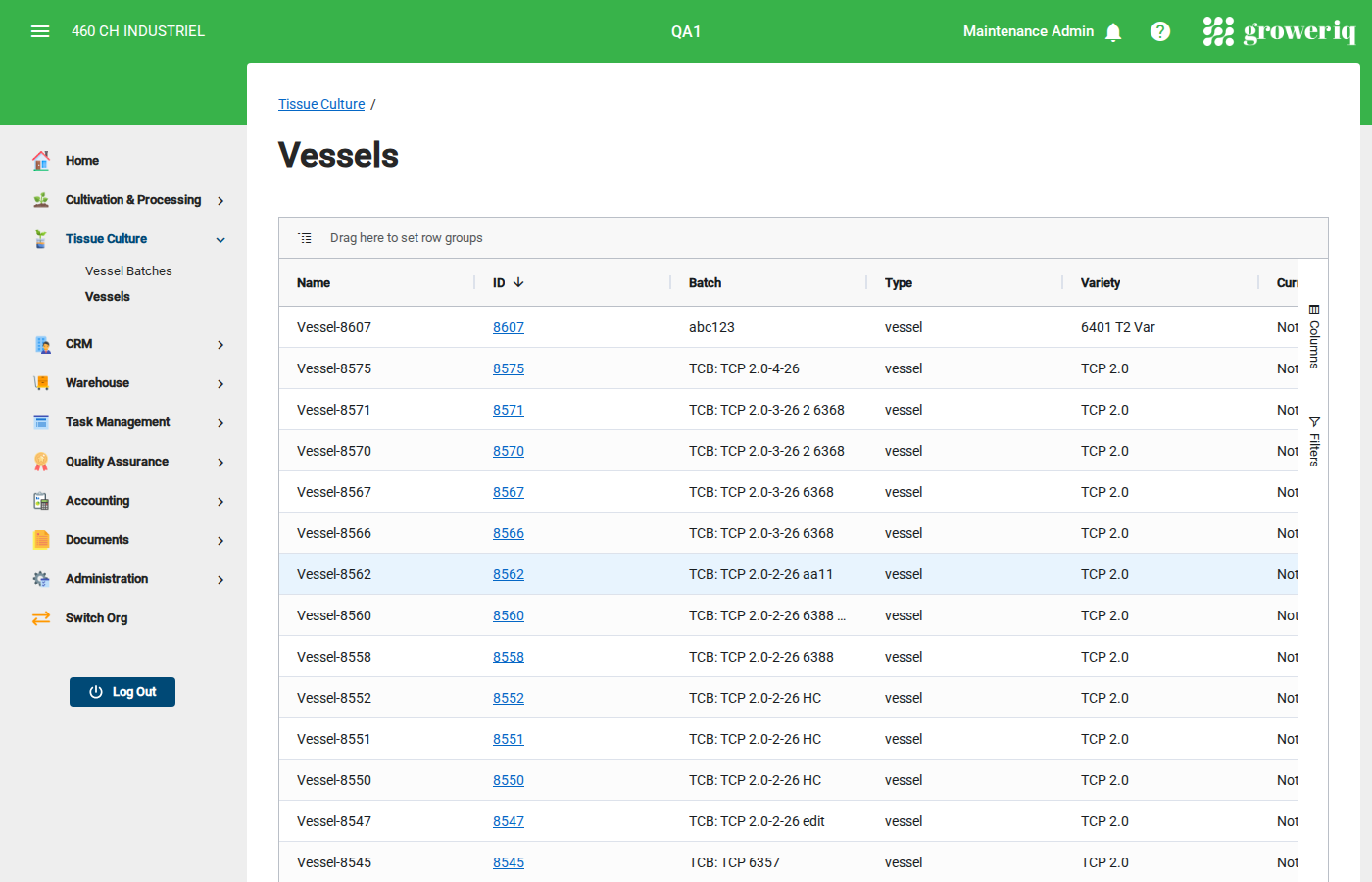
Click Vessels in the sidebar to see all individual vessels.
The grid shows each vessel with its:
- Name - Unique vessel identifier
- Plant Count - Number of plants in the vessel
- Stage - Current stage in the tissue culture process
- Health Indicator - Current health status
- Variety - Plant variety in the vessel
Click any vessel name to view its details.
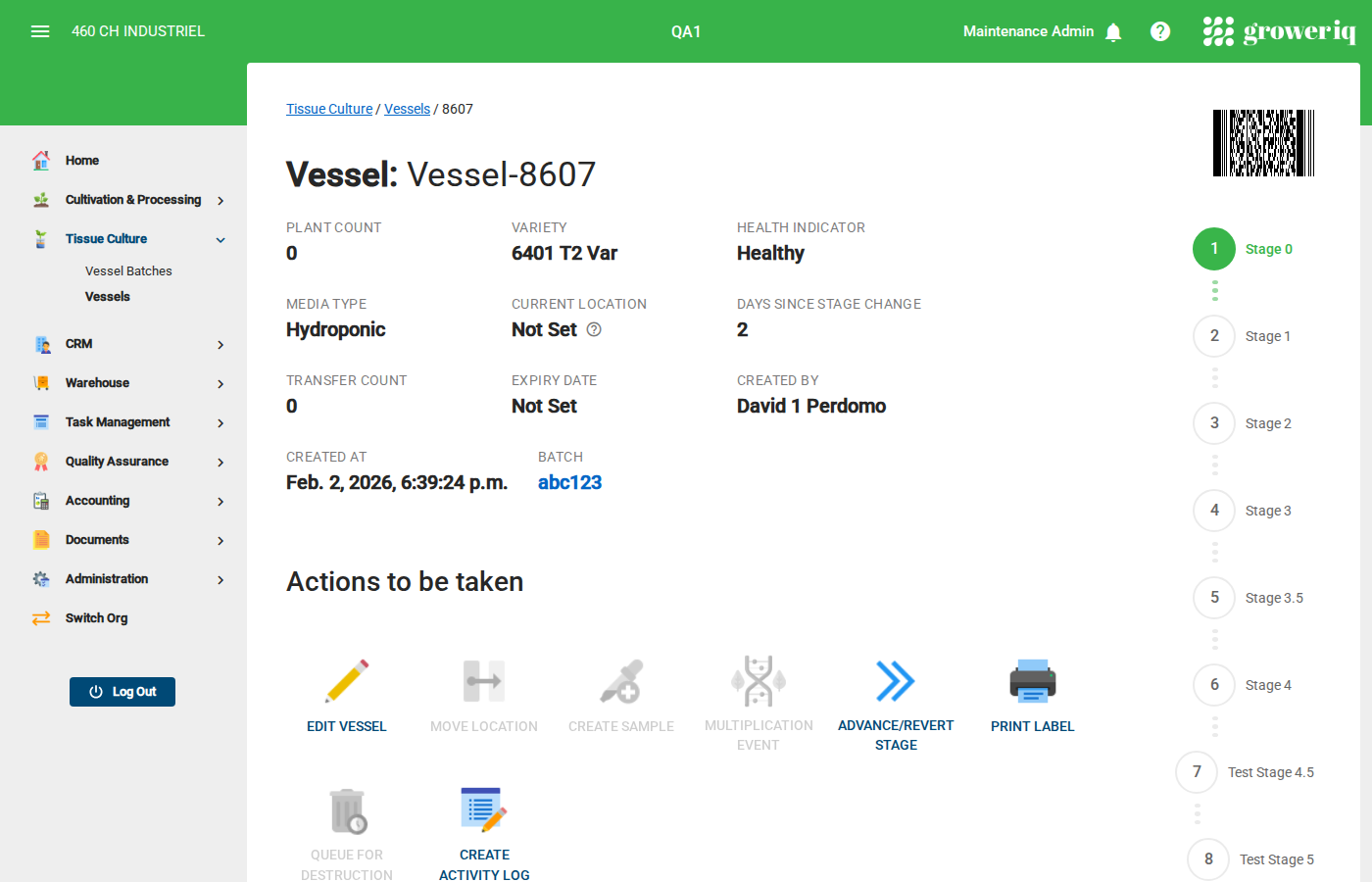
Step 5: Understand a Vessel Detail Page
When you click on a vessel, you see its full detail page with:
- Properties - Plant count, variety, health indicator, media type, location, and more
- Stage Chart - Visual progress showing which stage the vessel is in
- Actions - Buttons to perform operations on the vessel
- Activity Log - History of all events for this vessel
- Samples - Any samples created from this vessel
You're Done!
You now know how to navigate the Tissue Culture module in GrowerIQ.
Next steps:
- Learn how to manage vessel batches
- Learn how to record a multiplication event
- Learn how to advance vessels through stages
Need Help?
If you run into issues, contact support at support@groweriq.ca