How to Advance or Revert a Vessel Stage in GrowerIQ
Learn how to move a vessel forward or backward through the tissue culture stages.
Before You Start
Make sure you have:
- Access to the Tissue Culture module
- A vessel that you want to change the stage for
Step 1: Navigate to the Vessel
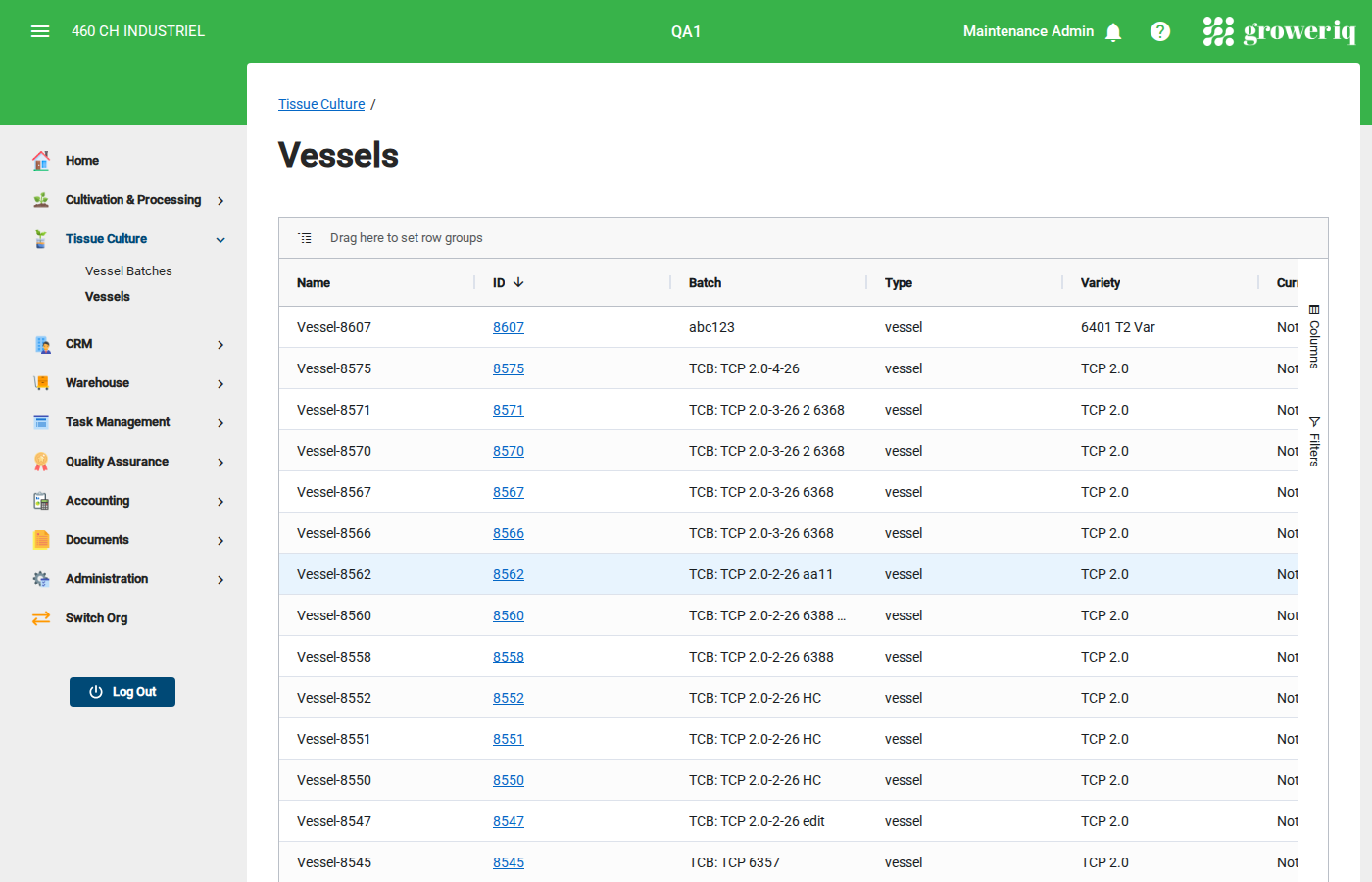
From the main menu, click Tissue Culture then Vessels.
Find and click on the vessel you want to change the stage for.
Step 2: Check the Current Stage
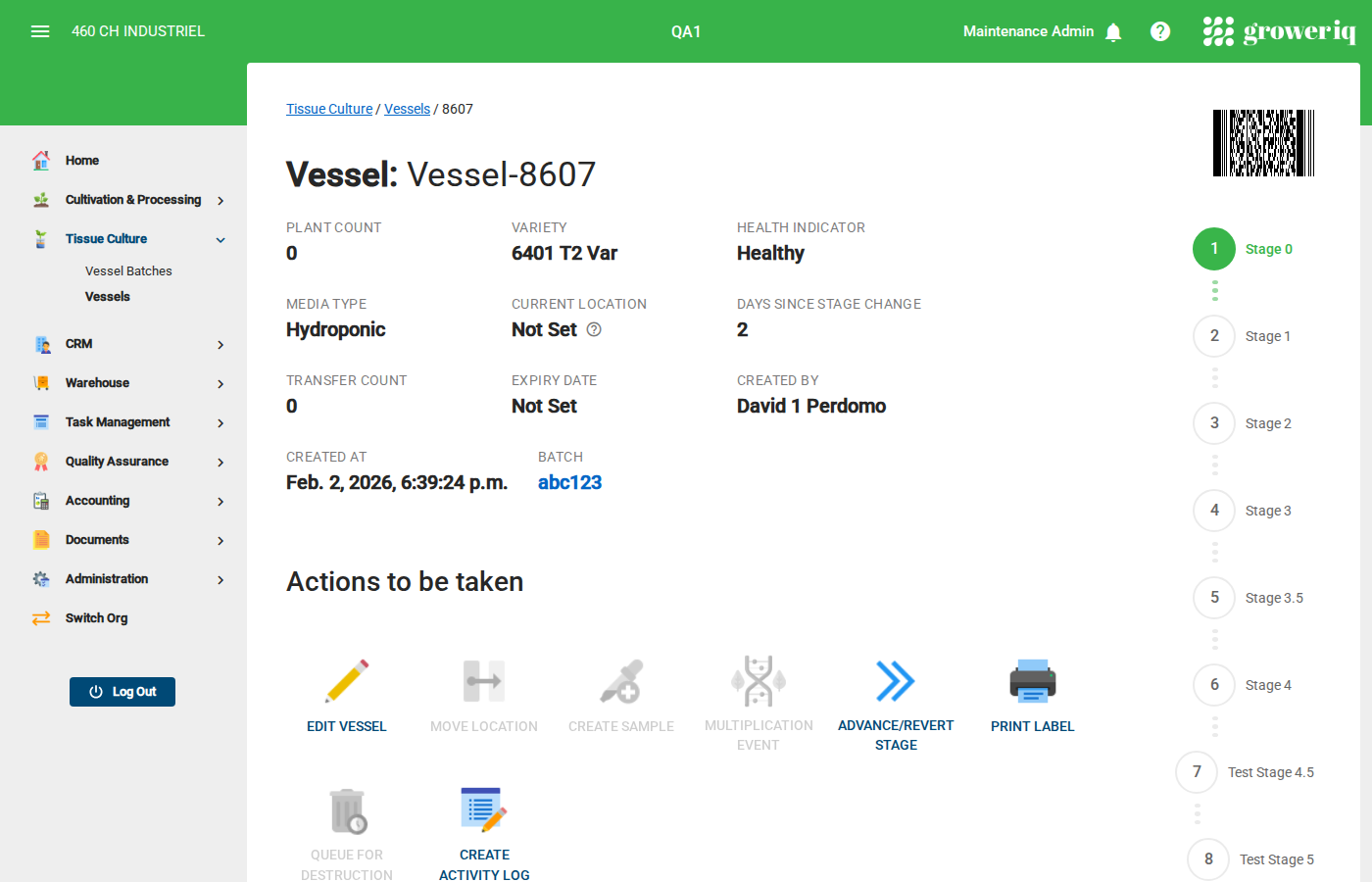
On the vessel detail page, look at the Stage Chart at the bottom of the properties section.
The stage chart shows:
- Completed stages - Shown with a filled circle
- Current stage - Highlighted as the active step
- Upcoming stages - Shown with an empty circle
This tells you where the vessel is in the process.
Step 3: Open the Stage Dialog
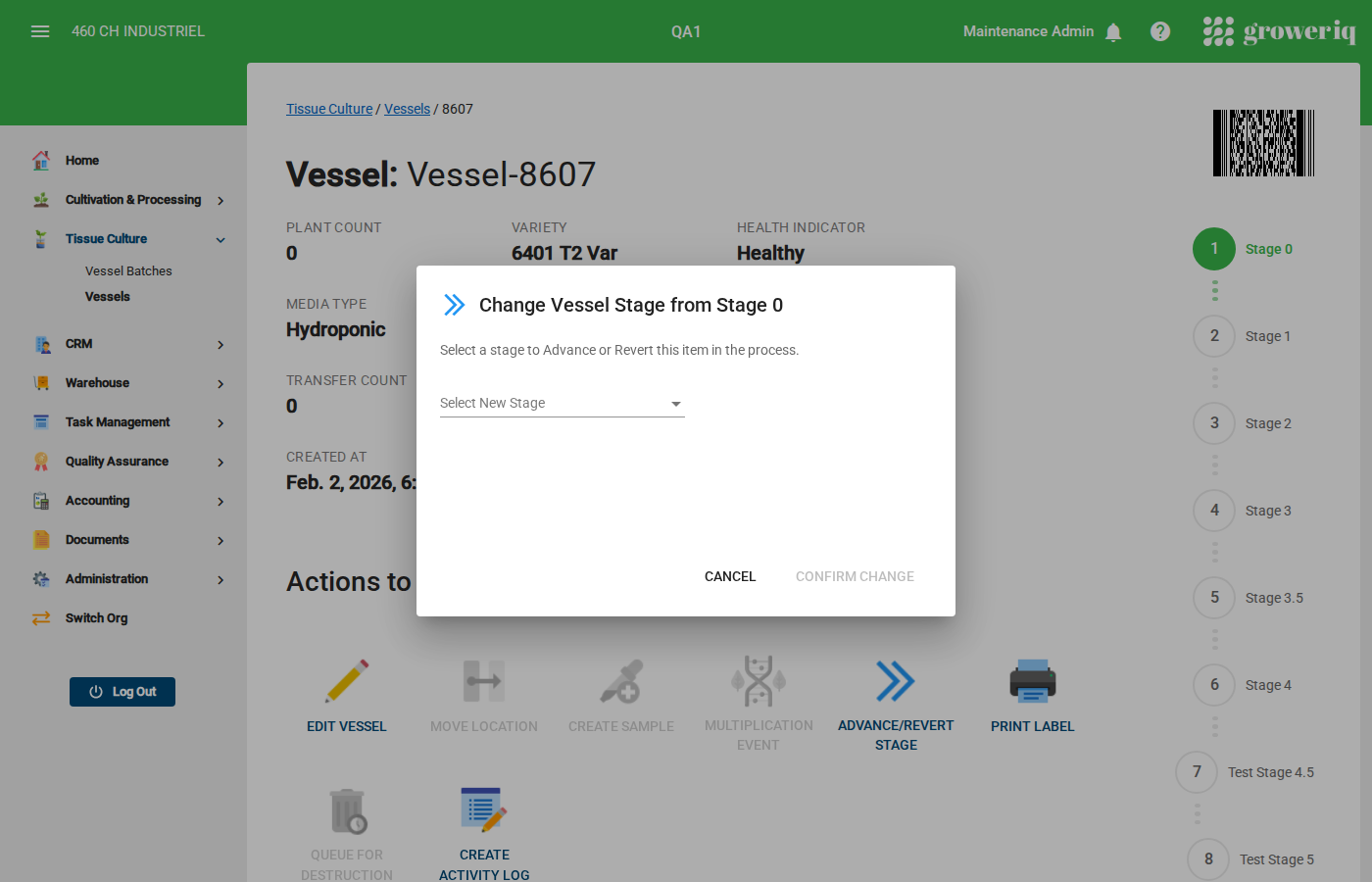
Click the Advance/Revert Stage button in the Actions section.
A dialog will open showing the available stage options.
Step 4: Select the New Stage
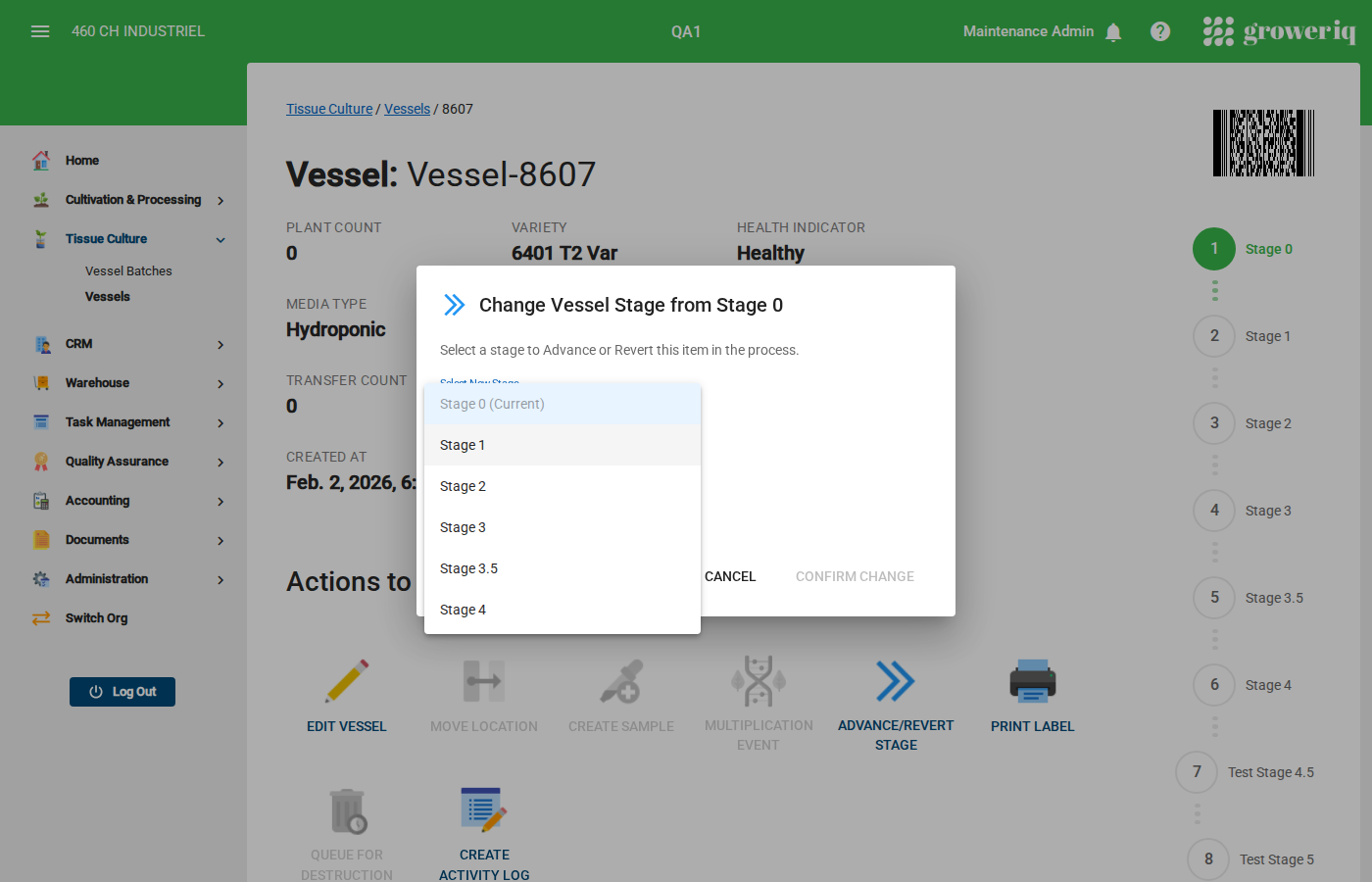
Click the Stage dropdown to see all available stages.
- To advance, select a stage that comes after the current one
- To revert, select a stage that comes before the current one
Tip: Stages are listed in order. The current stage is indicated so you know which direction you're moving.
Step 5: Confirm the Change
After selecting the new stage, click Confirm to apply the change.
The vessel detail page will update to show the new stage in the stage chart.
The stage change will also be recorded in the vessel's Activity Log.
You're Done!
You have successfully changed the vessel's stage.
Next steps:
- Check the Activity Log tab to see the stage change recorded
- Advance the entire batch at once from the batch detail page
- Continue monitoring vessels at each stage
Need Help?
If you run into issues, contact support at support@groweriq.ca