How to Create a Sample from a Vessel in GrowerIQ
Learn how to create a quality assurance sample from a tissue culture vessel.
Before You Start
Make sure you have:
- Access to the Tissue Culture module
- A vessel with at least 1 plant (empty vessels cannot have samples created)
- Knowledge of the sample type and testing requirements
Step 1: Navigate to the Vessel
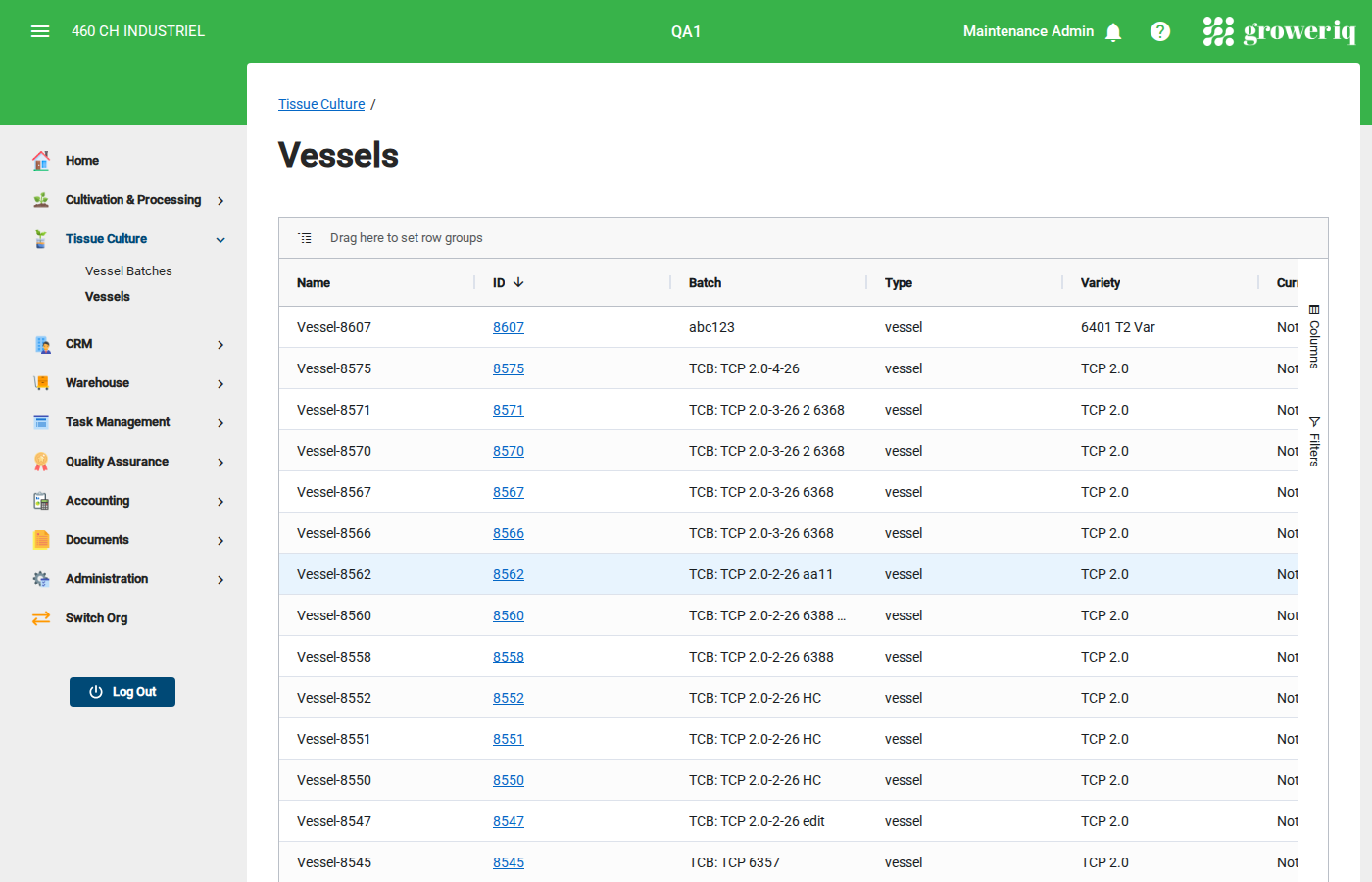
From the main menu, click Tissue Culture then Vessels.
Find and click on the vessel you want to create a sample from.
Step 2: Check the Vessel Has Plants
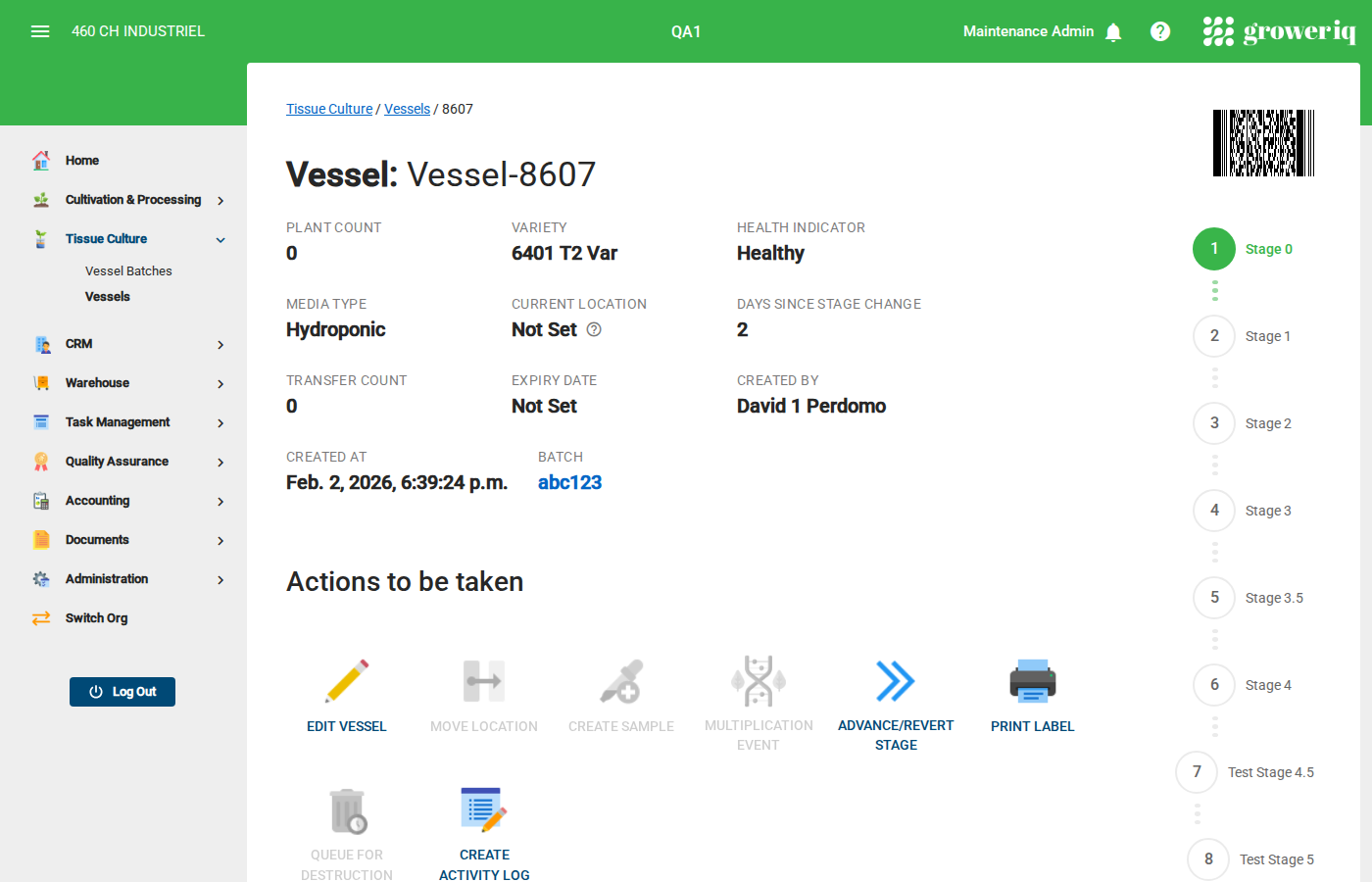
On the vessel detail page, verify the Plant Count is greater than 0.
The Create Sample button in the Actions section will only be active when the vessel has plants.
Step 3: Open the Create Sample Dialog
Click the Create Sample button in the Actions section.
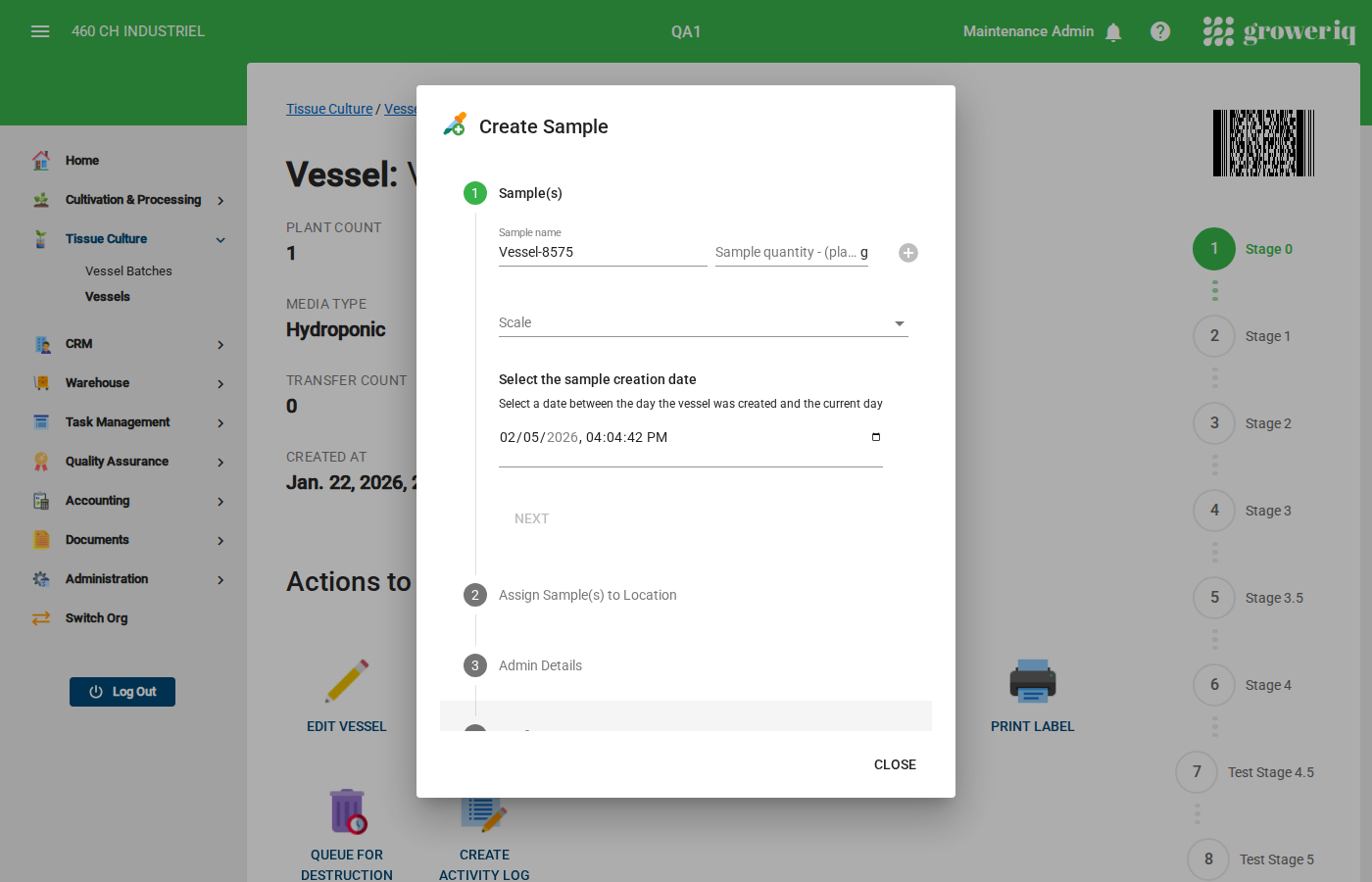
A dialog will open where you can configure the sample details.
Step 4: Configure the Sample
In the dialog, fill in the sample details:
- Sample Type - Select the type of test to be performed
- Quantity - Enter the number of plants for the sample
- Notes - Add any relevant notes about the sample
Tip: The sample quantity will be deducted from the vessel's plant count.
Step 5: Submit the Sample
Click Create to generate the sample.
The system will:
- Create a new sample record linked to this vessel
- Reduce the vessel's plant count by the sample quantity
- Record the sample creation in the activity log
Step 6: View the Sample
After creation, click the Samples tab on the vessel detail page to see all samples created from this vessel.
You can click on a sample to view its details and test results.
You're Done!
You have successfully created a sample from a tissue culture vessel.
Next steps:
- View the sample in the Samples tab on the vessel detail page
- Send the sample for testing through the Quality Assurance module
- Check back for test results
Need Help?
If you run into issues, contact support at support@groweriq.ca