Learn how to view, edit, and work with vessel batches in the Tissue Culture module.
Before You Start
Make sure you have:
- Access to the Tissue Culture module
- At least one vessel batch already created in the system
Step 1: Navigate to Vessel Batches
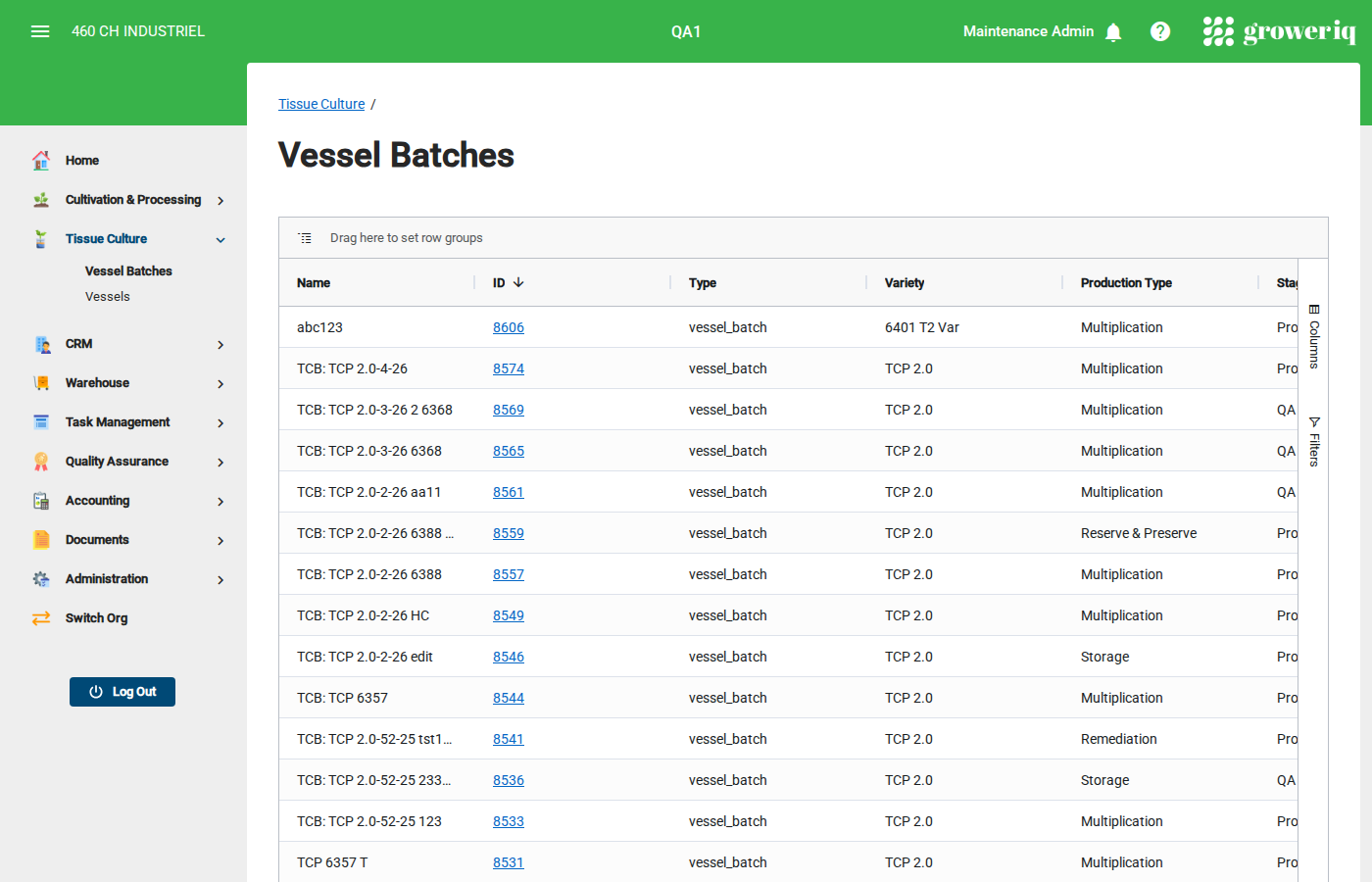
From the main menu, click Tissue Culture then Vessel Batches.
You will see a list of all vessel batches with their name, stage, vessel count, and other details.
Step 2: Open a Batch
Click on a batch name in the list to view its details.
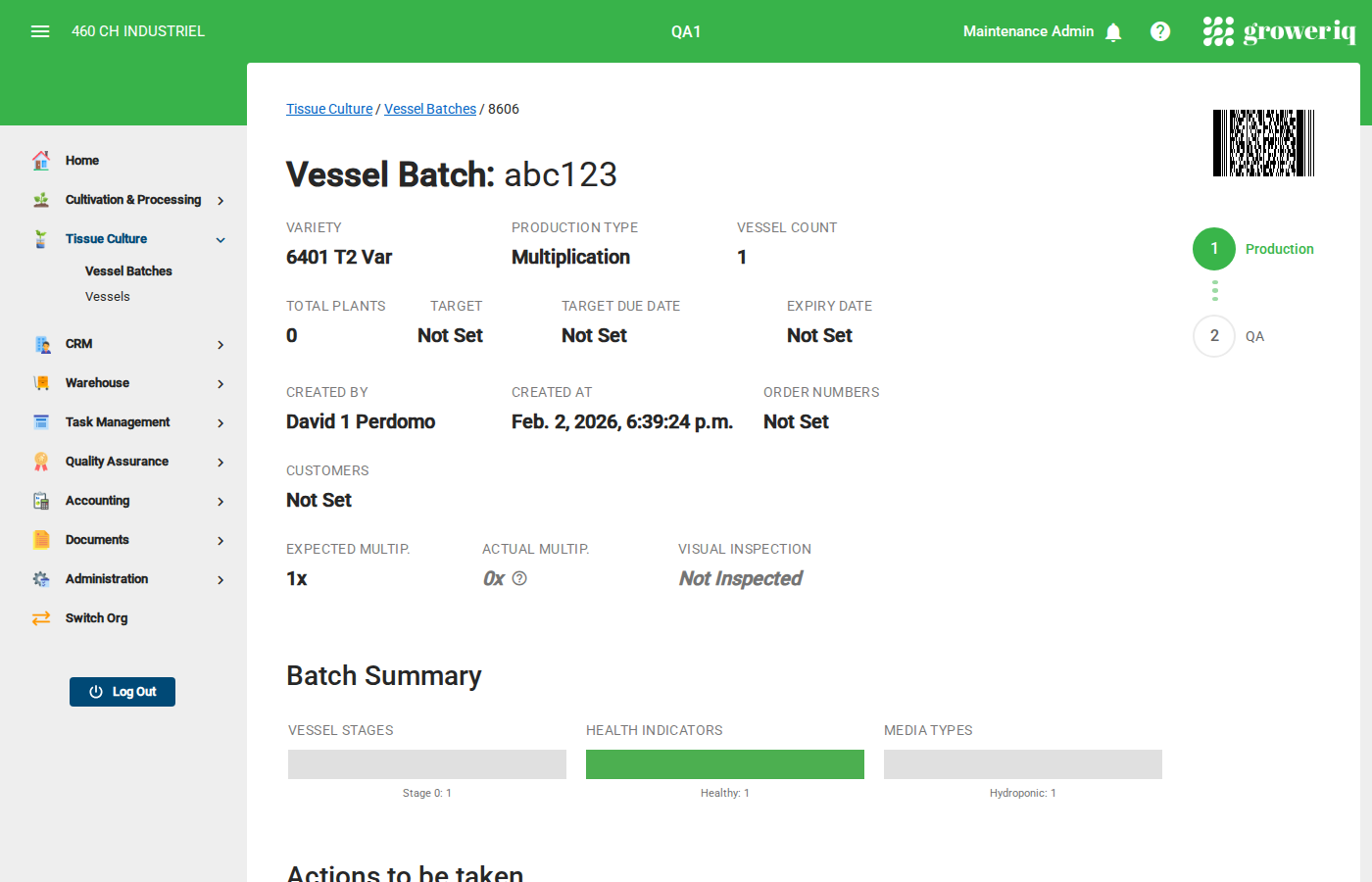
The batch detail page shows:
- Batch Name and current stage
- Stage Chart - Visual progress through the tissue culture stages
- Vessel Count - How many vessels belong to this batch
- Action Buttons - Operations you can perform on this batch
Step 3: Edit Batch Details
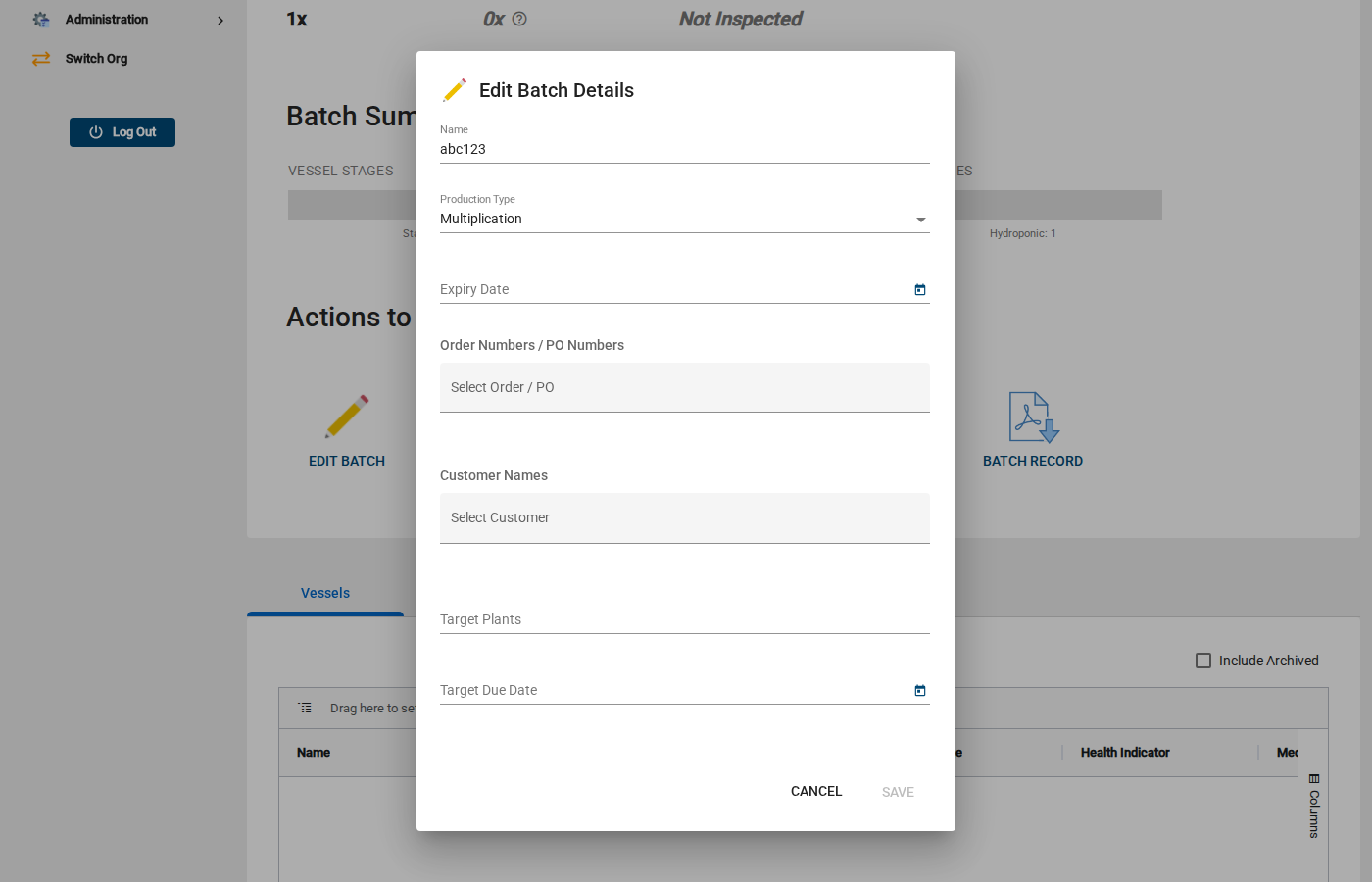
To update a batch's information, click the Edit Batch button.
In the dialog, you can update:
- Name - Change the display name for the batch
- Production Type - Select the production type from the dropdown (e.g., Multiplication)
- Expiry Date - Set or change the batch expiry date
- Order Numbers / PO Numbers - Link the batch to one or more order or PO numbers using the search field
- Customer Names - Associate the batch with one or more customers using the search field
- Target Plants - Set the target plant count for the batch
- Target Due Date - Set the target completion date for the batch
Click Save when finished, or Cancel to discard changes.
Step 4: View Vessels in the Batch
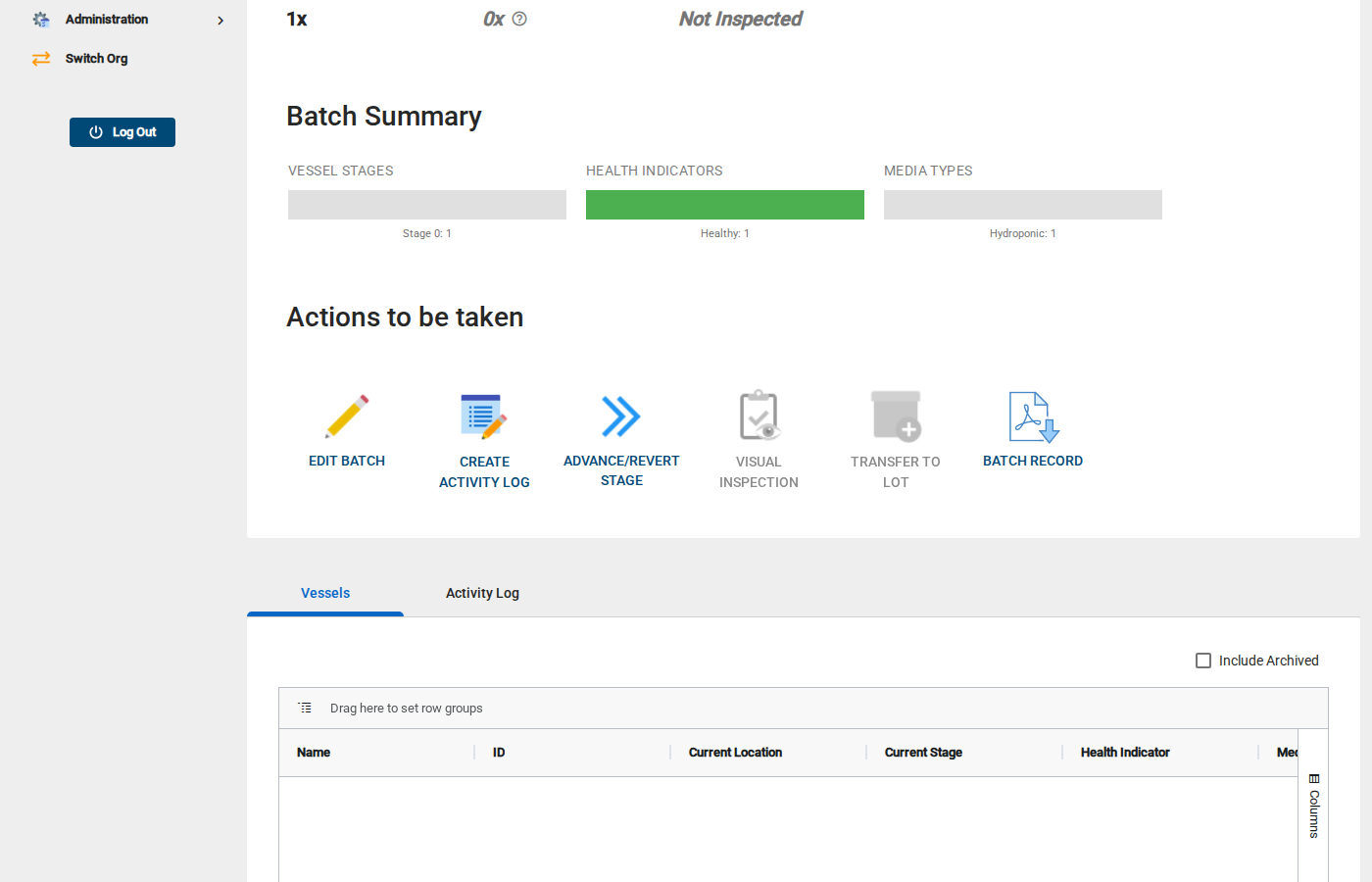
Click the Vessels tab to see all vessels that belong to this batch.
The grid shows each vessel's name, plant count, stage, health indicator, and more.
Click any vessel name to navigate to that vessel's detail page.
Step 5: Advance the Batch Stage
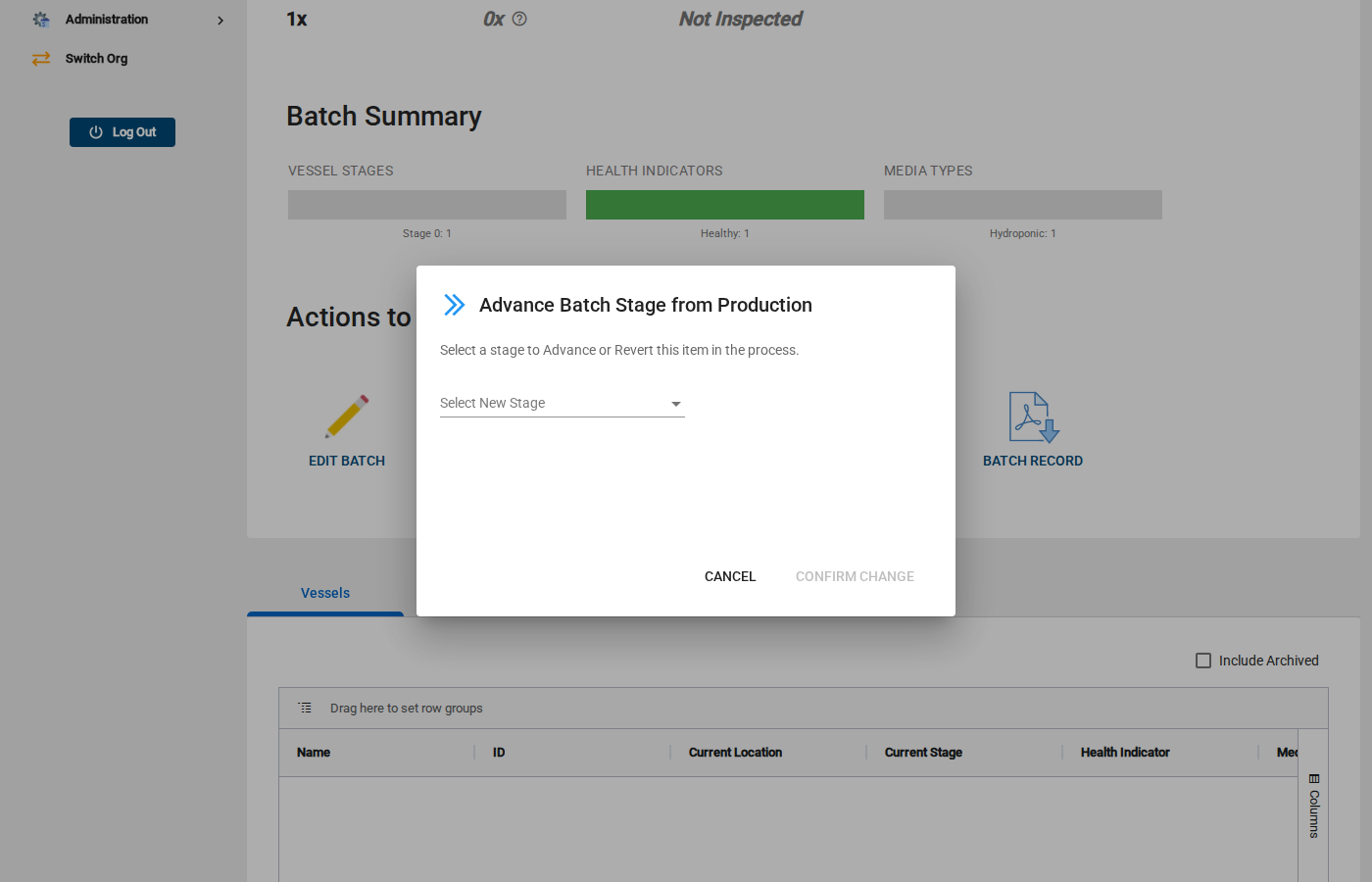
To move all vessels in the batch to the next stage, click Advance Stage.
Select the new stage from the dropdown and click Confirm.
Note
This will advance all vessels in the batch at once. To advance individual vessels, go to the vessel detail page instead.
You're Done!
You now know how to manage vessel batches in GrowerIQ.
Next steps:
- View individual vessel details by clicking a vessel in the Vessels tab
- Record multiplication events on individual vessels
- Transfer the batch to a lot when ready
Need Help?
If you run into issues, contact support at support@groweriq.ca