How to Queue a Vessel for Destruction in GrowerIQ
Learn how to queue a tissue culture vessel for destruction when plants are contaminated or no longer needed.
Before You Start
Make sure you have:
- Access to the Tissue Culture module
- A vessel with at least 1 plant (empty vessels cannot be queued for destruction)
- A valid reason for destruction (contamination, failed inspection, expiry, etc.)
Step 1: Navigate to the Vessel
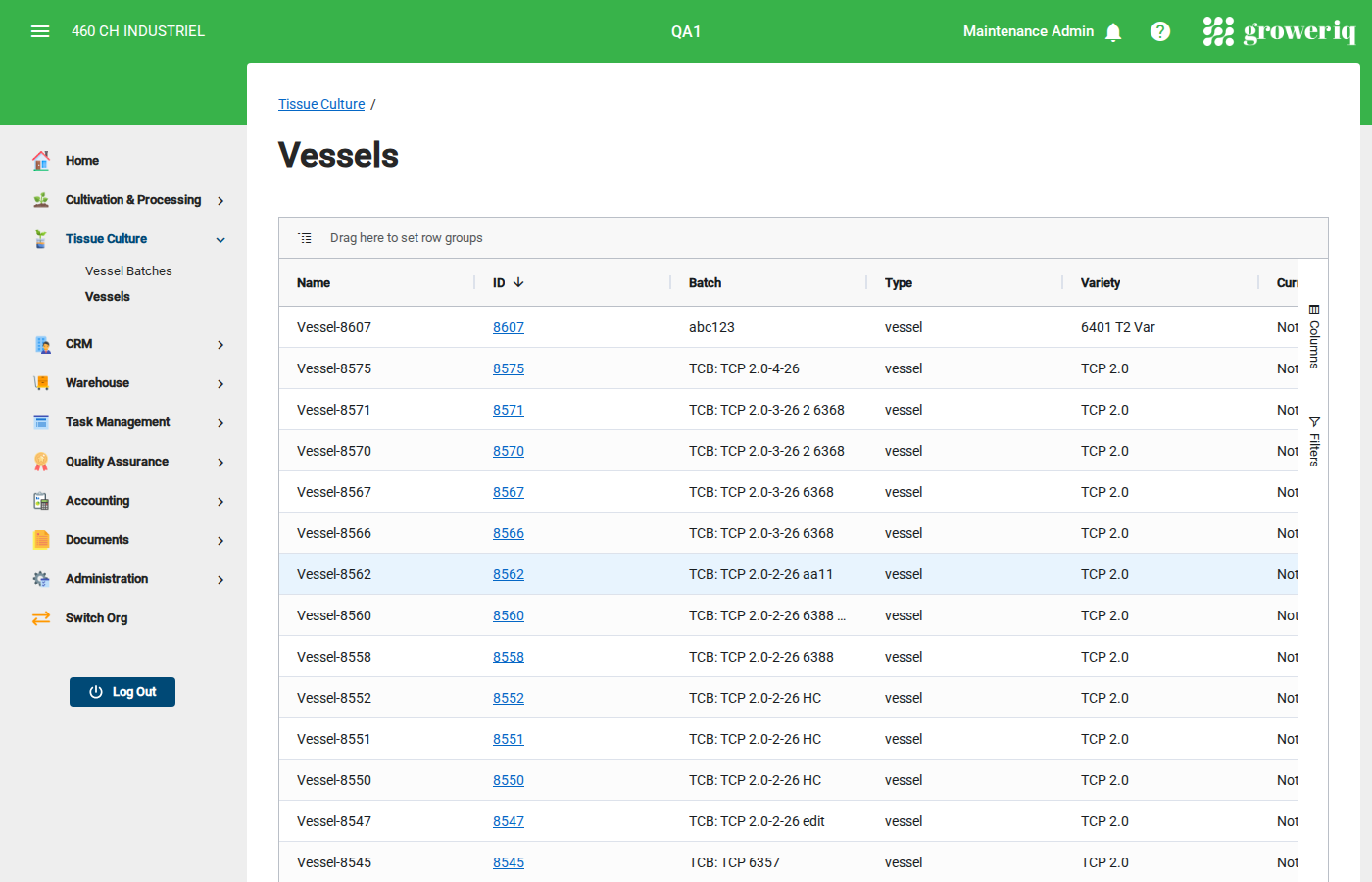
From the main menu, click Tissue Culture then Vessels.
Find and click on the vessel you want to queue for destruction.
Step 2: Verify the Vessel
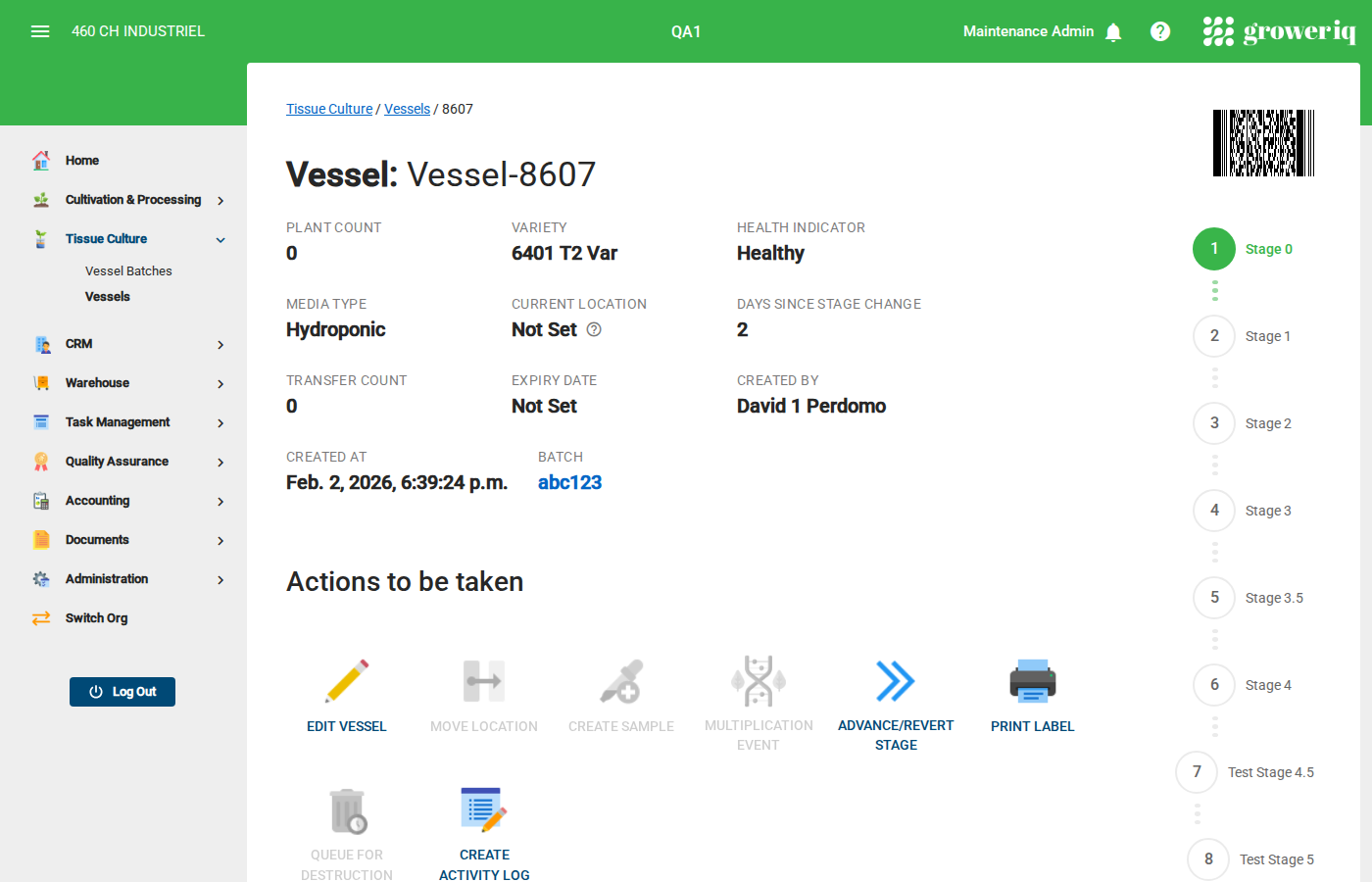
On the vessel detail page, confirm this is the correct vessel by checking:
- Vessel Name - The unique identifier
- Plant Count - Number of plants that will be destroyed
- Batch - The batch this vessel belongs to
Important: Destruction cannot be undone. Double-check that you have the right vessel.
Step 3: Open the Destruction Dialog
Click the Queue For Destruction button in the Actions section.
Note: This button is only active when the vessel has plants (plant count > 0).
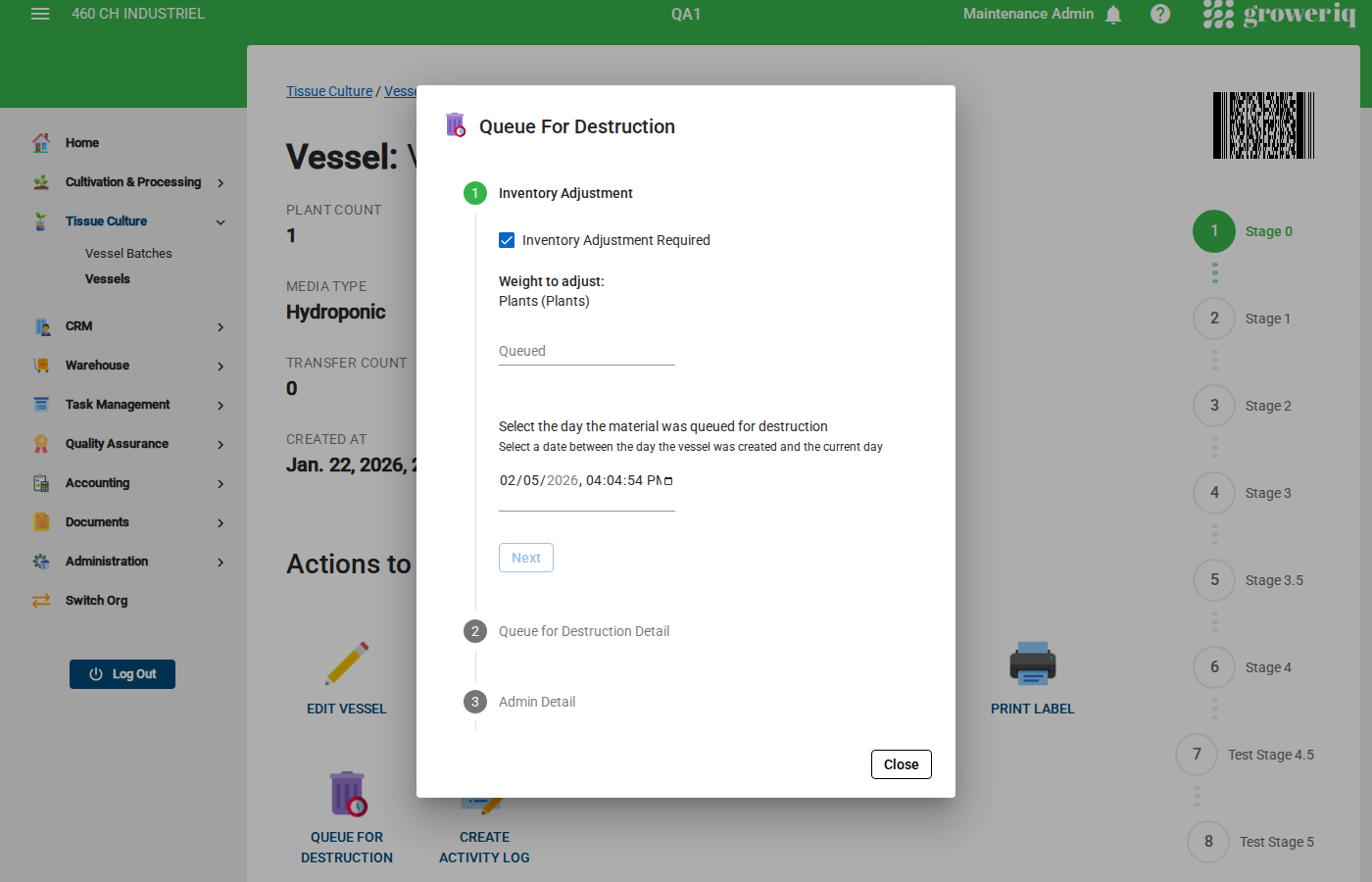
A confirmation dialog will open.
Step 4: Enter Destruction Details
In the dialog, provide:
- Reason - Select or enter the reason for destruction (e.g., contamination, failed QA, expired)
- Notes - Add any additional details about why this vessel is being destroyed
Tip: Be specific with the reason. This information is important for compliance and record-keeping.
Step 5: Confirm the Destruction
Click Confirm to queue the vessel for destruction.
The system will:
- Mark the vessel as queued for destruction
- Set the plant count to 0
- Record the destruction event in the activity log
- The vessel will appear in the destruction queue for final processing
You're Done!
You have successfully queued a vessel for destruction.
Next steps:
- The vessel will appear in the destruction queue for final processing
- Check the Activity Log tab to verify the destruction was recorded
- If you need to destroy multiple vessels, repeat this process for each one
Need Help?
If you run into issues, contact support at support@groweriq.ca