How to Record a Multiplication Event in GrowerIQ
Learn how to record when plants multiply and distribute the new plants to vessels.
Before You Start
Make sure you have:
- Access to the Tissue Culture module
- A vessel with at least 1 plant (empty vessels cannot multiply)
- Knowledge of the health status and media type for new vessels
Step 1: Navigate to the Vessel
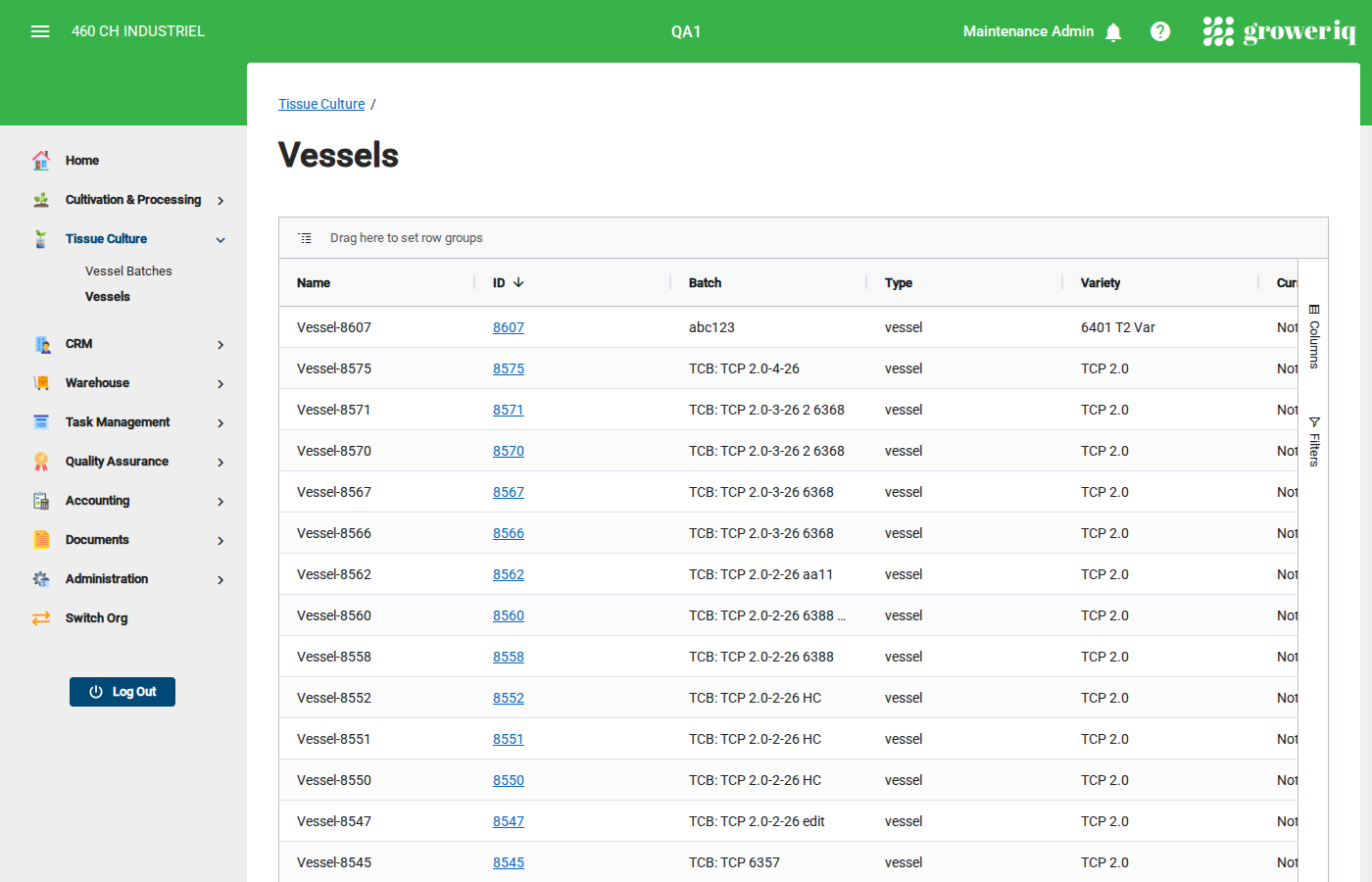
From the main menu, click Tissue Culture then Vessels.
Find and click on the vessel you want to multiply from.
Step 2: Open the Multiplication Event Dialog
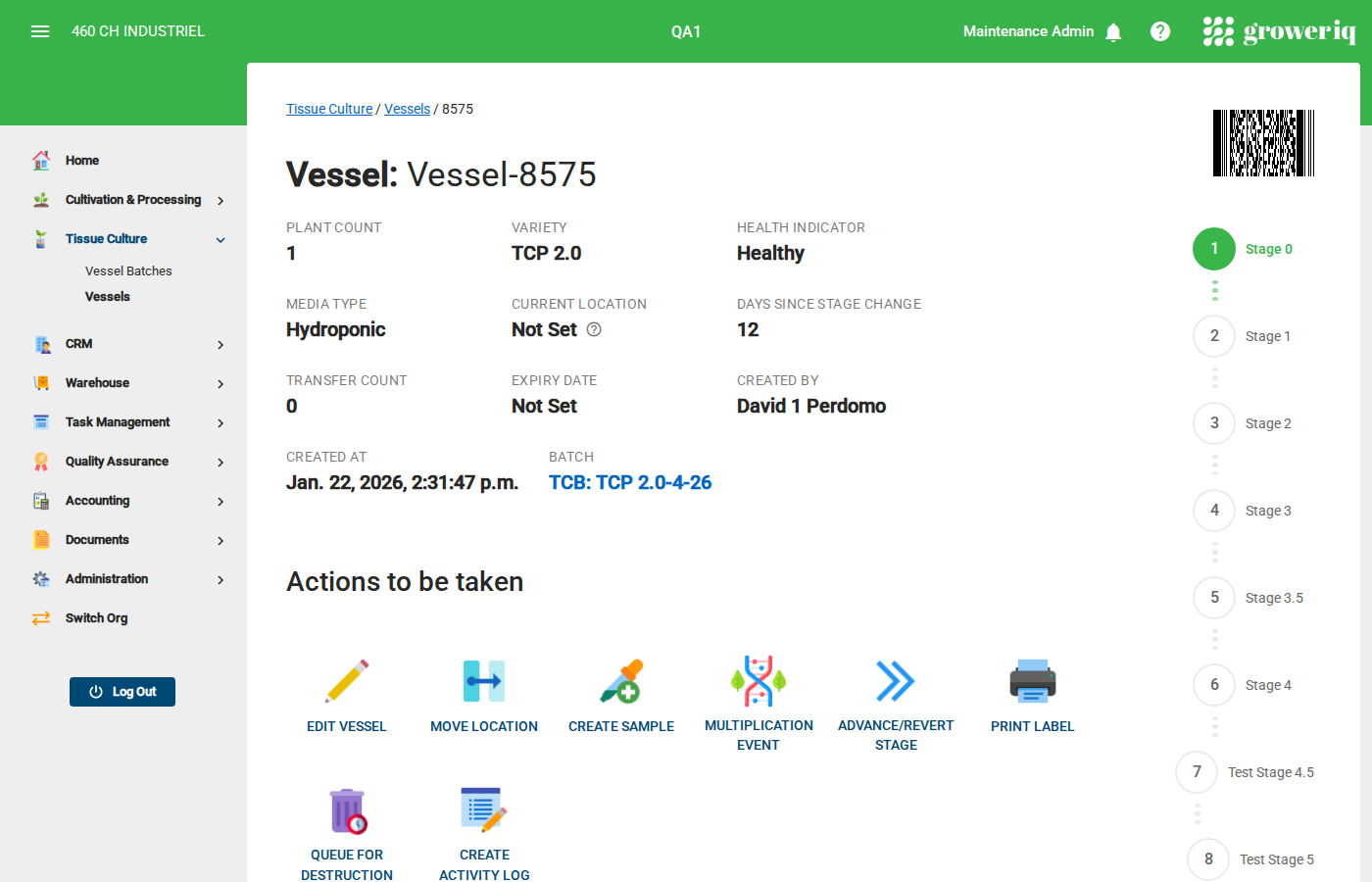
On the vessel detail page, click the Multiplication Event button.
Note: This button is only available when the vessel has plants.
Step 3: Enter Multiplication Details
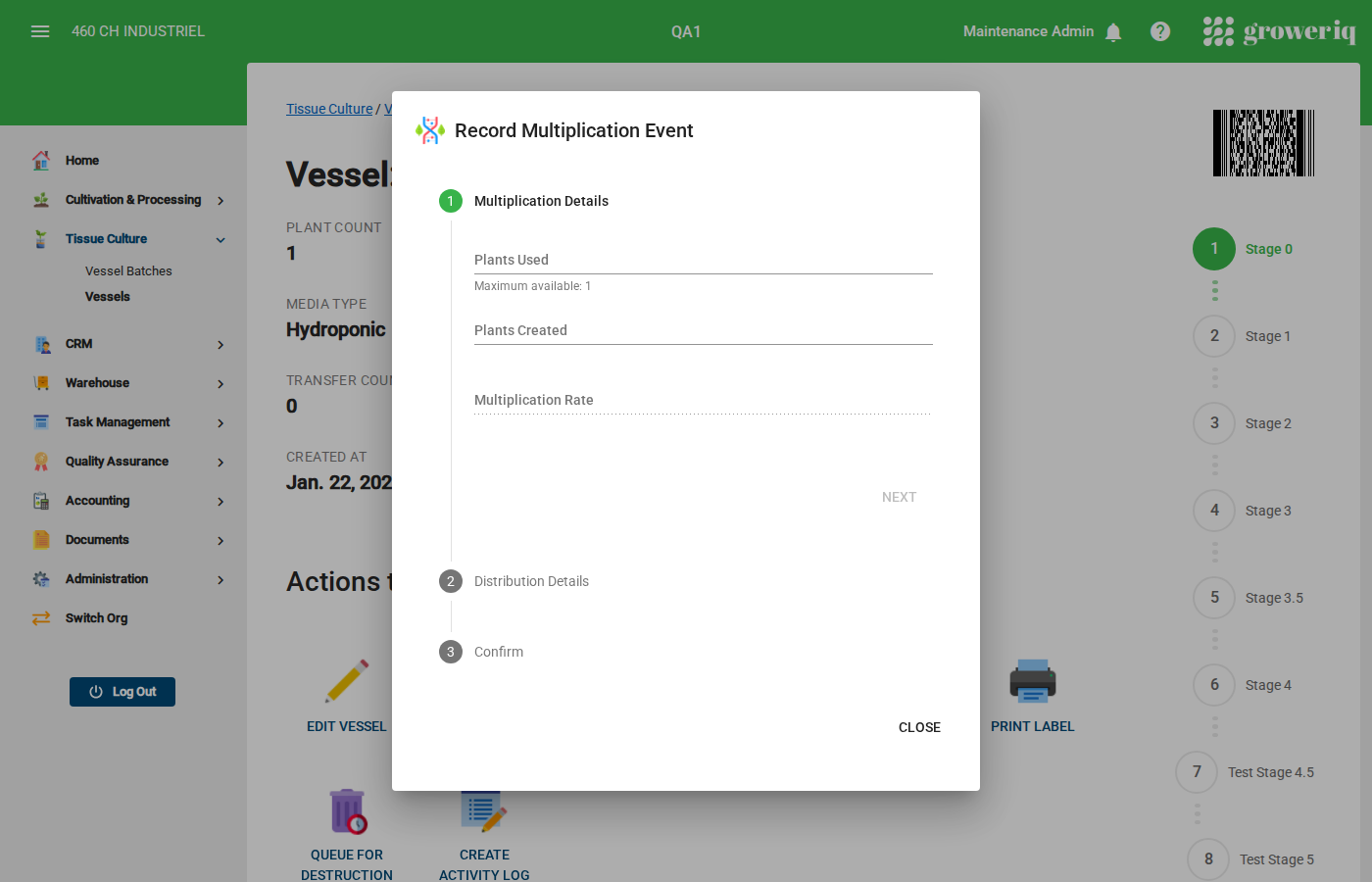
In the first step of the dialog:
- Enter Plants Used - how many plants from this vessel were used
- Enter Plants Created - how many new plants resulted from the multiplication
- The Multiplication Rate calculates automatically
Click Next to continue.
Step 4: Choose Distribution Type
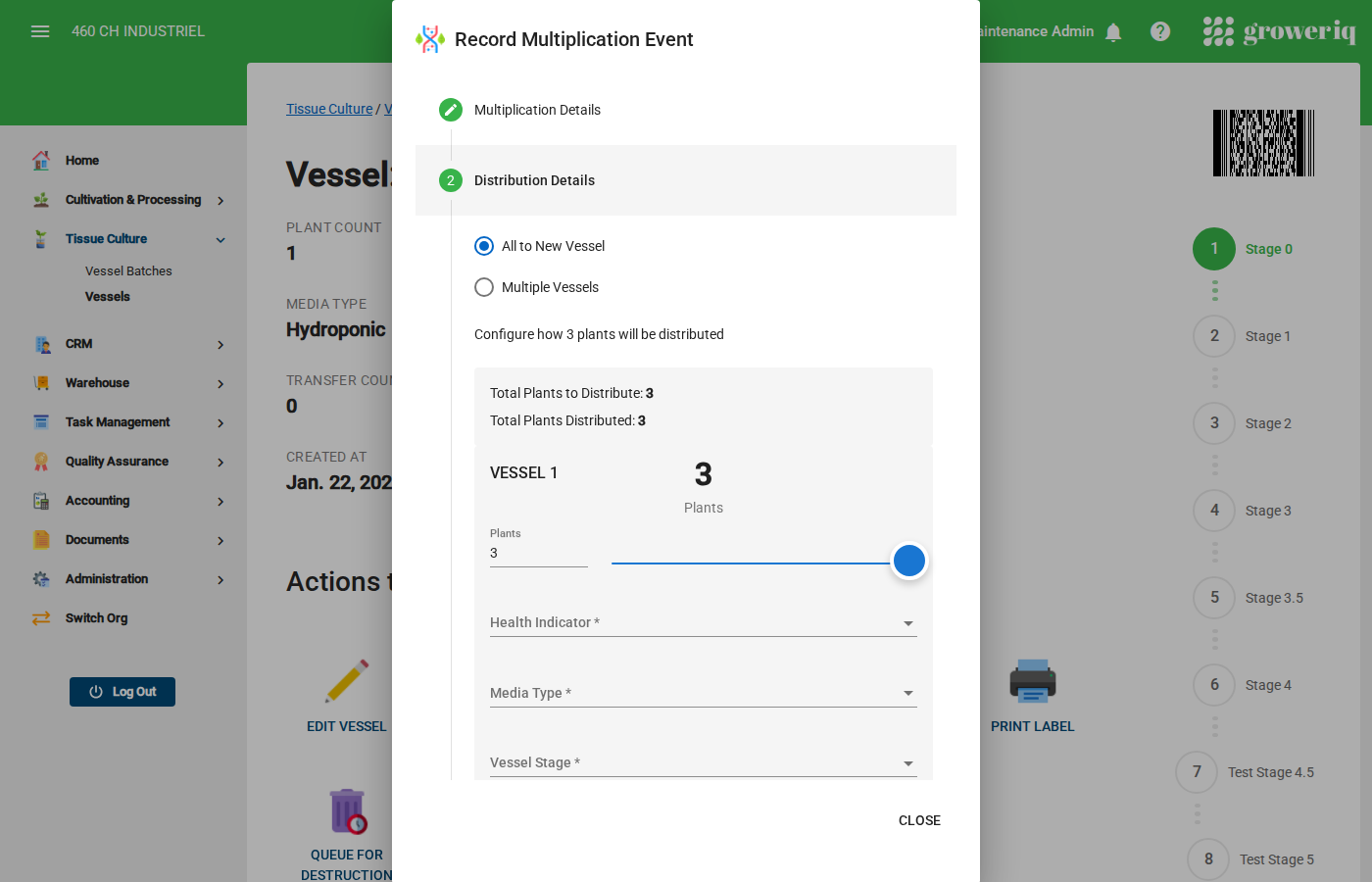
Select how you want to distribute the new plants:
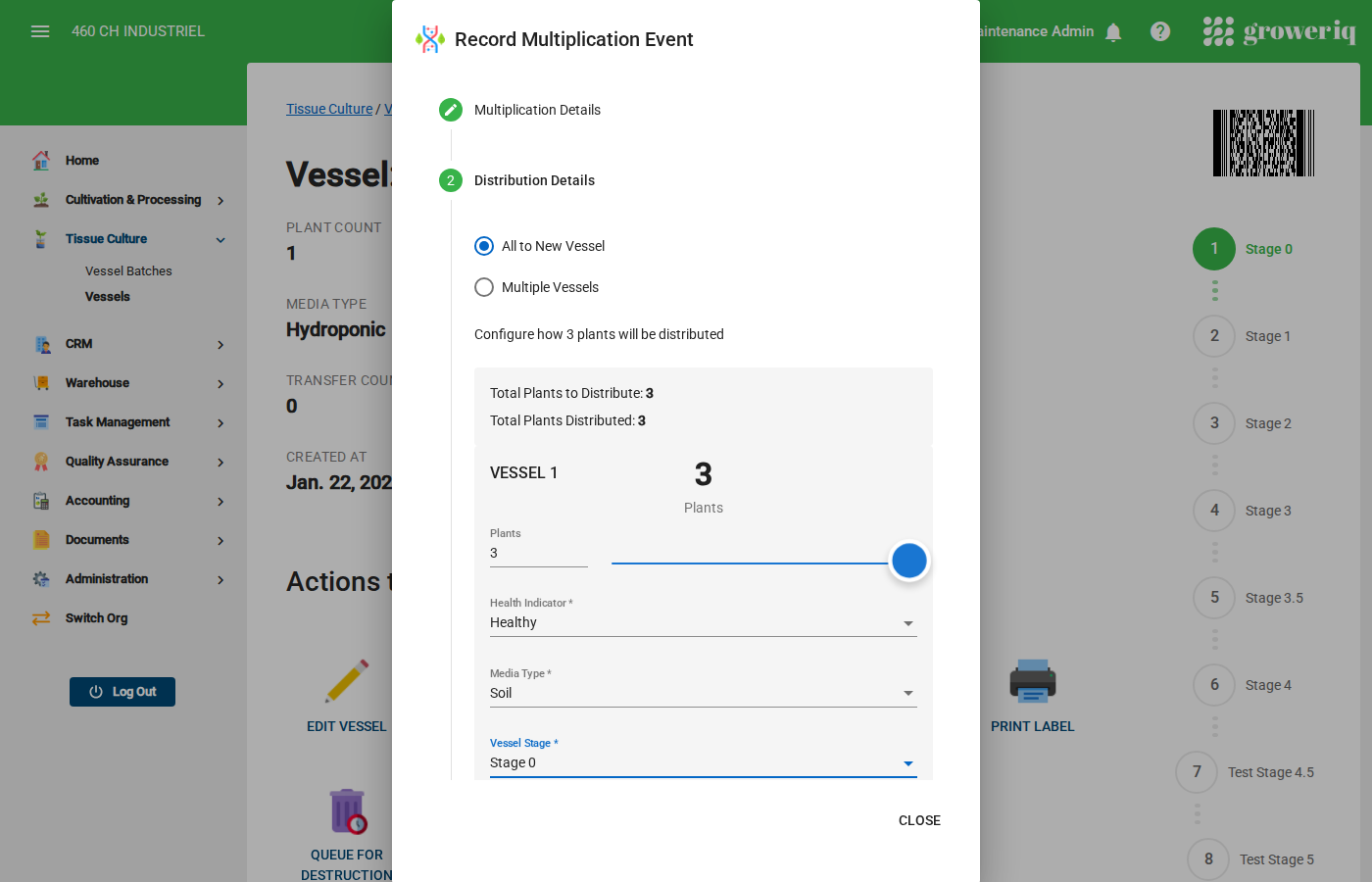
- All to New Vessel - Put all plants in one new vessel
- Multiple Vessels - Split plants across several new vessels
Step 5: Configure New Vessel(s)
For each new vessel, set:
- Plant Count - Use the slider or type a number
- Health Indicator - Select the plant health status
- Media Type - Select the growth media used
- Vessel Stage - Select the starting stage
Tip: Click Distribute Evenly to split plants equally across all vessels.
If creating multiple vessels:
- Click Add Vessel to add more vessels
- Click the trash icon to remove a vessel
The total plants must equal the plants created in Step 3.
Step 6: Review and Submit
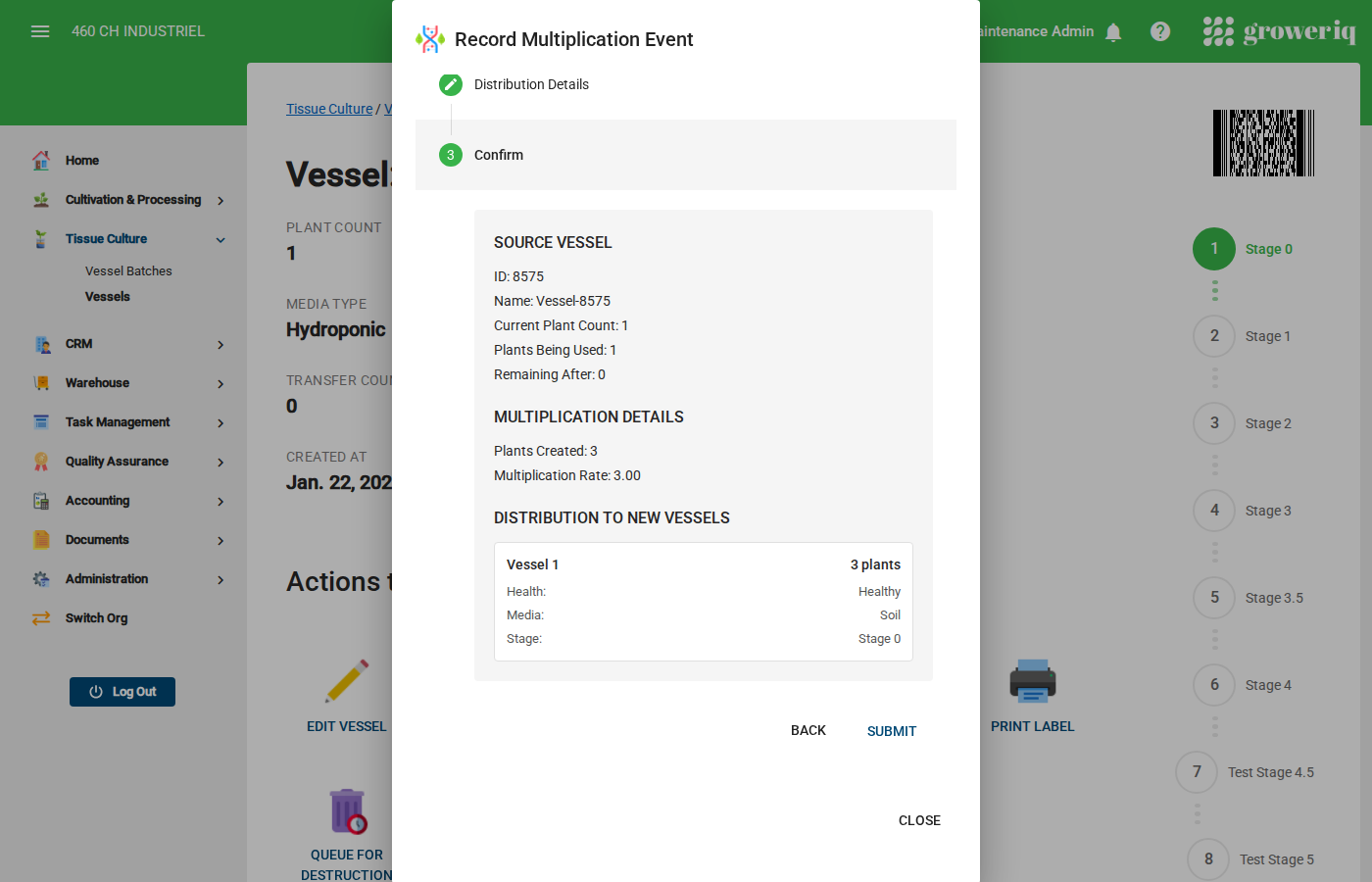
Review the summary showing:
- Source vessel information
- Multiplication rate achieved
- Details of each new vessel to be created
Click Submit to complete the multiplication event.
You're Done!
You have successfully recorded a multiplication event. The system will:
- Reduce the plant count on the source vessel
- Create the new vessel(s) with your settings
- Record the multiplication in the activity log
Next steps:
- Click the vessel links in the success message to view new vessels
- Continue monitoring vessel health indicators
- Record the next multiplication when plants are ready
Need Help?
If you run into issues, contact support at support@groweriq.ca