This guide connects a Priva Horticulture account to GrowerIQ so climate readings flow in automatically. You will create an application in the Priva portal, enter its credentials in GrowerIQ, and register the sensors you care about.
In this article:
- Prerequisites
- Step 1: Create a Priva Application
- Step 2: Enter Credentials in GrowerIQ
- Step 3: Discover Datapoints
- Step 4: Register Sensors
- Reading the Sync Health Card
- Troubleshooting
✅ Prerequisites
- The Environmental Monitoring module enabled for your organization
- Access to your company's Priva developer portal account
- Administration access in GrowerIQ
🎬 Watch the demo (80 seconds)
See the whole flow end to end: connecting Priva, live room conditions on a batch, and the climate charts on the batch record.
📝 Step 1: Create a Priva Application
In the Priva developer portal, create an application for GrowerIQ:
- Sign in to the Priva portal
- Create a new application with the Data Retriever role
- Note down the Application ID and the Application Secret
Save the secret when it is shown
Priva shows the Application Secret once, when the application is created. Store it somewhere safe until you have entered it in GrowerIQ.
The Data Retriever role is read-only. GrowerIQ never writes anything back to Priva, so this connection cannot change setpoints or affect your climate control.
📝 Step 2: Enter Credentials in GrowerIQ
- Go to Administration > Organization Settings and open the Priva Settings tab
- Paste the Application ID and Application Secret
- Choose your Facility timezone - Priva timestamps everything in UTC, and daily averages on the batch record are grouped by the calendar day in this timezone
- Click Test connection - GrowerIQ signs in to Priva and lists the sites your credentials can reach
- Click Save
The secret is write-only
After saving, the Application Secret is never displayed again. When you come back to change something else, leave the secret field blank to keep the saved one.
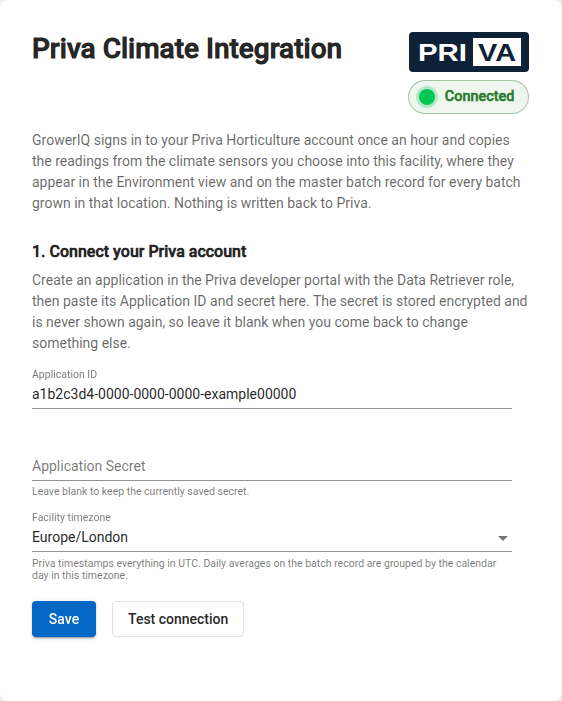
The status light in the top corner of the card tracks your progress: it turns green once sensors are registered and readings are arriving.
📝 Step 3: Discover Datapoints
After saving, GrowerIQ fetches the list of every measurement point your Priva account exposes. This happens automatically each hour, or click Refresh in the Sync health card to pull the list right away.
A typical greenhouse exposes hundreds of datapoints, and most are not sensors:
| Kind | What it is | Charted? |
|---|---|---|
| Reporting | A real measurement that updates through the day | ✅ Yes |
| Setpoint | A target value that only changes when someone edits it in Priva | Flat line |
| Control point | A valve position, pump switch or similar - no reading to record | ❌ No |
GrowerIQ works out which is which by watching how often each datapoint reports, and the sensor picker shows only the reporting ones by default.
📝 Step 4: Register Sensors
Go to Administration > Equipment and click Add from Priva. Select the datapoints for one location, assign that location, confirm, and register.
Registering a datapoint starts an hourly collection for it and backfills its recent history. If you register the wrong one, select the sensor on the Equipment page and click Remove Sensor - its readings are deleted and the Priva datapoint returns to the picker.
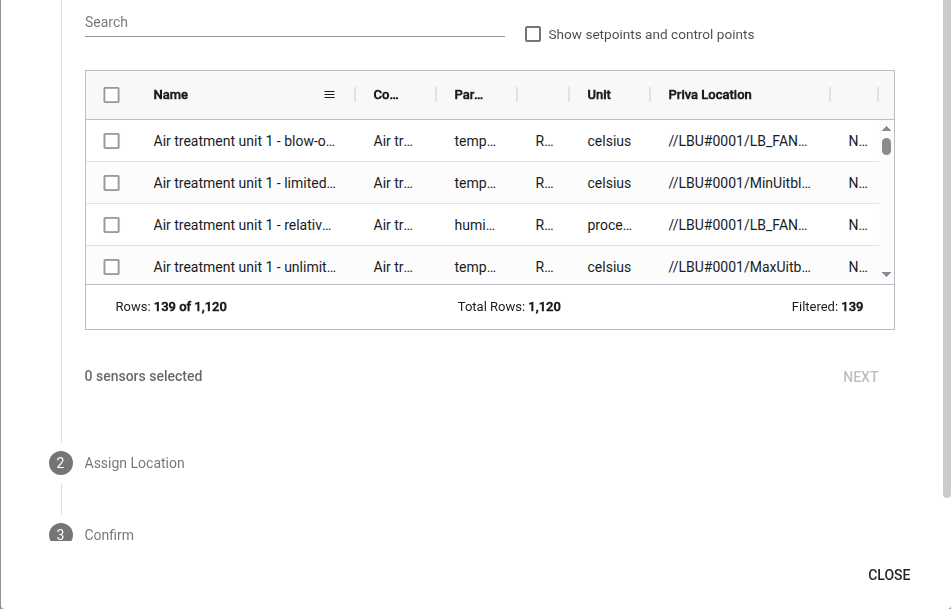
The full walkthrough, including how sensors reach the batch record, is in Connecting Climate Sensors and Seeing Readings on the Batch Record.
Compartments
Priva groups datapoints by compartment (its name for a separately controlled growing area). Filter the Compartment column to find everything for one area, then assign it to the matching GrowerIQ location.
Pick the location, not the shelf
Assign sensors to the location they sit in rather than a shelf, rack or other sub-location. A batch record looks for sensors on the location the batch was in, so a sensor filed under a sub-location is not found for batches recorded at the location above it.
🔄 Reading the Sync Health Card
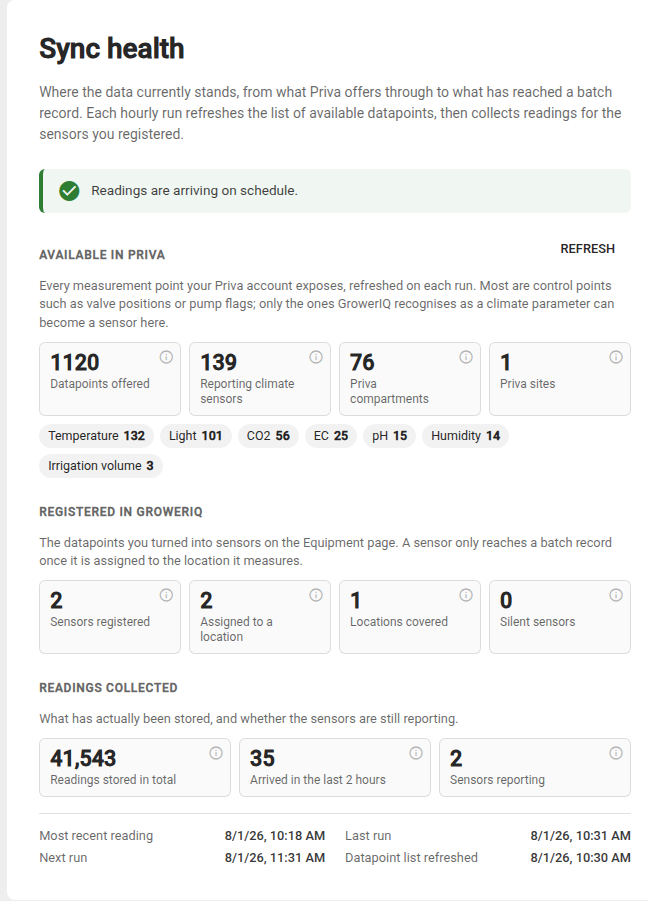
The Sync health card on the Priva Settings tab shows where the data stands, from what Priva offers through to what has reached a batch record.
| Status light | Meaning | What to do |
|---|---|---|
| Not connected | No credentials saved yet | Enter the Application ID and Secret above |
| Nothing discovered yet | Credentials saved, no datapoints found yet | Click Refresh, or wait for the next hourly sync |
| No sensors registered | Datapoints discovered, none registered | Go to Equipment > Add from Priva |
| No recent readings | Sensors registered, nothing arrived recently | Normal right after registering - first readings arrive on the next hourly sync |
| Connected (green) | Readings arriving on schedule | Nothing - it works |
| Connection error (red) | The last sync could not reach Priva | Check the error shown, then use Test connection |
The card also counts what Priva offers (datapoints, compartments, sites), what you have registered, and the readings collected so far, with a hover explanation on every figure.
🔧 Troubleshooting
Priva rejected these credentials?
Re-check the Application ID and Secret against the Priva portal, and confirm the application has the Data Retriever role. Test connection tells you immediately whether a sign-in works.
Credentials saved but nothing discovered?
Click Refresh in the Sync health card. If the list stays empty, confirm in the Priva portal that the application has access to your site.
Sensors registered but silent?
The first readings arrive on the next hourly sync. If a sensor stays silent for longer, open it on the Equipment page - the drawer shows the Priva datapoint it is linked to and when it last reported.
A sensor charts as a flat line?
It is a setpoint, not a measurement. Select it on the Equipment page, click Remove Sensor, and register a reporting datapoint instead - the picker's Kind column tells them apart.
Older readings show as "Hourly average" in the Environment view?
That is expected. Recent readings are kept exactly as Priva reported them; older ones are condensed to one average per sensor per hour so long histories stay fast to chart. The Granularity column tells the two apart.