GrowerIQ builds the INFARMED cannabis workbook for a calendar year from the seed-to-sale records you already keep, and gives you a review workbook that explains every row.
📋 In This Article
- What the Report Is
- Who Can See It
- Before You Start
- How to Generate the Report
- Reading the Result
- When a Report Cannot Be Generated
- The Review Workbook
- Common Questions
💡 What the Report Is
INFARMED collects this file every quarter, and it is one workbook for the whole calendar year. Every lot movement goes into INFARMED's own template, and each new quarter's rows are added after the last.
GrowerIQ rebuilds the year from your seed-to-sale history each time you generate it. A correction you make to an earlier quarter lands on the original row, so you never patch last quarter's file by hand.
Each run gives you two files:
| File | What it is |
|---|---|
| Submission workbook | The calendar year in INFARMED's own template, one row per lot movement. This is the file you submit. |
| Review workbook | GrowerIQ's explanation of each row and the records behind it, the work still open grouped by cause, and the movements the records could not prove. |
GrowerIQ Does Not Guess
GrowerIQ flags what it cannot prove rather than filling it in. Read the review workbook before you submit, and settle those rows yourself.
🎬 Watch the demo (95 seconds)
See the report end to end: generating the year, the verdict and the two workbooks, the report settings, and amending a destruction reason.
🔑 Who Can See It
Two things must be in place before you can open the report:
- The report is switched on for your organization. It is off by default and GrowerIQ switches it on, so contact your GrowerIQ representative if you cannot see it.
- You have the INFARMED Report permission. Your administrator adds the INFARMED Report permission to your user role under Administration > User Roles.
Once the report is switched on, an INFARMED Annual Report card appears on Quality Assurance > Reports with an Open Report button.

If you open the report without the permission, you land on the INFARMED Annual Report module page instead. From there you can click Start my free trial to get access. A trial cannot start until the report is switched on for your organization.
Settings Use the Same Permission
The INFARMED Report tab in Administration > Organization Settings is shown to the same people: the report must be switched on and you must hold the INFARMED Report permission.
⚙️ Before You Start
The workbook is built from the report settings as they stand when you press Generate. Before your first run, complete the settings on the INFARMED Report tab of Administration > Organization Settings. The report settings link under the Generate button opens that tab.
See Portugal: INFARMED Report - Settings for each setting.
📝 How to Generate the Report
- Go to Quality Assurance > Reports and click Open Report on the INFARMED Annual Report card.
- Under Report year, pick the year. The list runs from the year of your organization's first recorded activity up to the current year, newest first.
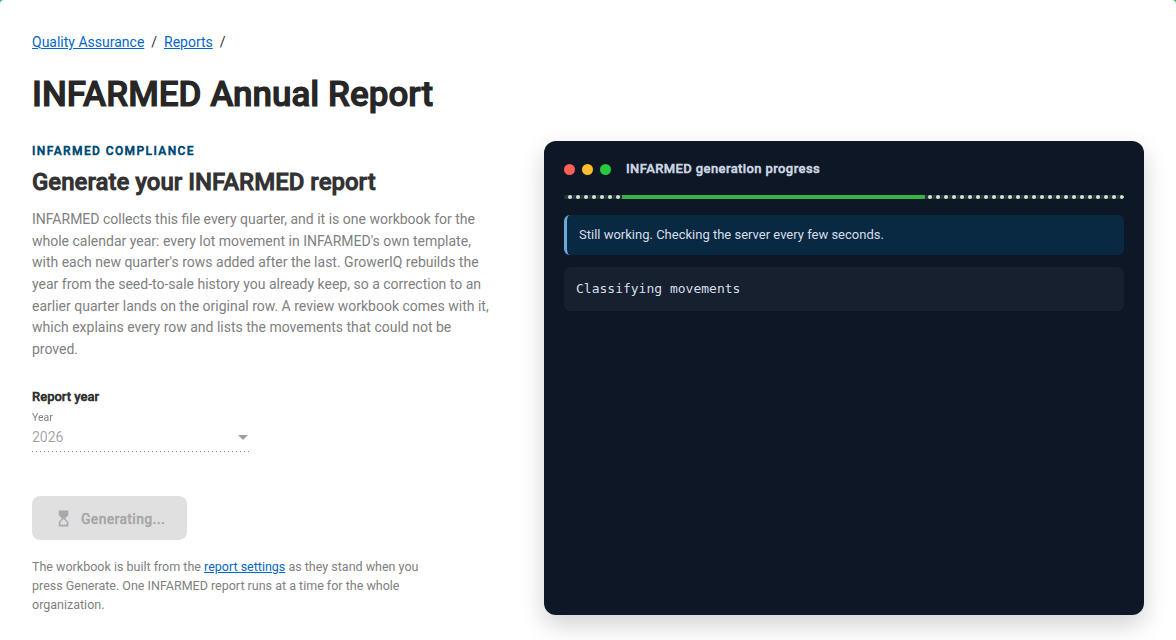
- Click Generate Report. The button changes to Generating... and the year is locked while the run is going.
- Watch the INFARMED generation progress panel. It shows Still working. Checking the server every few seconds. and adds a line for each step, newest at the top: for example Checking the report size..., Reading the history, Classifying movements, Validating rows, Writing the submission workbook..., Writing the review workbook... and Report generated.
- When the run finishes, the verdict and the download buttons appear. See Reading the Result.
One Report at a Time
One INFARMED report runs at a time for the whole organization. If a run is already going when you click Generate Report:
| Situation | What you see |
|---|---|
| Your own run for the same year is going | The page joins that run and shows its progress. Nothing is started twice. |
| A colleague's run, or your own run for a different year, is going | A report is already being generated. Try again in a few minutes. |
| Another organization's INFARMED report is generating on GrowerIQ | The same message. Wait a few minutes and click Generate Report again. |
Leaving the Page
The report is generated on GrowerIQ's servers, not in your browser. You can leave the page or close the tab while it runs. When you open the report page again, it picks up your latest run: a run still going carries on showing its progress, and a finished run shows its result and downloads. The year picker switches to that run's year.
Connection Trouble
A short connection problem does not stop the run. If the page cannot read the status, it shows The report status could not be read. Still trying. If that keeps happening, it stops asking and shows The report may still be generating, but its status cannot be read. Check again in a moment. with a Check again button.
If your click never got an answer, the page shows The report was requested but no answer arrived, so it may already be generating. Check again rather than starting a second one. Click Check again: the page asks about the same request, so it either finds the run that was started or starts it once.
Check Again Keeps Your Original Request
If you changed the report settings between your click and Check again, you may see This report was already started by an earlier attempt, so it uses the report settings as they were then. Generate the report again if you need the new settings in the file.
✅ Reading the Result
The Verdict
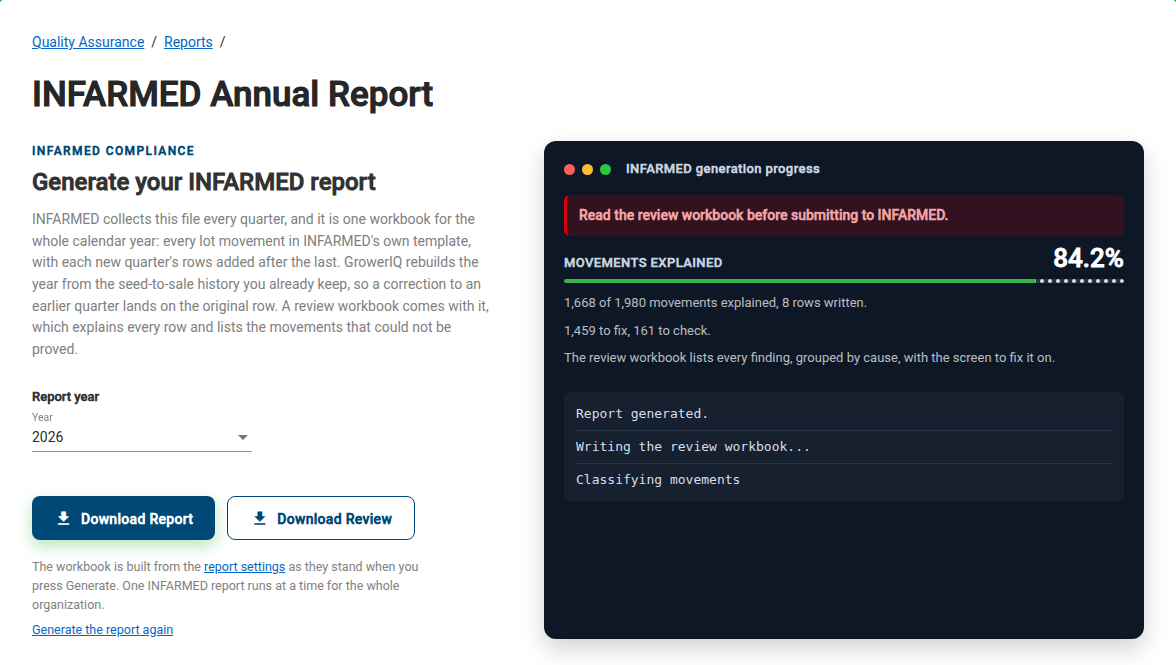
When the run finishes, a banner at the top of the progress panel gives the verdict:
| Banner | Colour | What it means |
|---|---|---|
| Ready to submit to INFARMED. | Green | No Required or Recommended findings. The review workbook may still hold notes for information. |
| Read the review workbook before submitting to INFARMED. | Amber | There are Recommended findings and no Required ones. They do not block the submission but should be checked. |
| Read the review workbook before submitting to INFARMED. | Red | There is at least one Required finding. Something is missing or wrong in the submission until you fix it. |
The Figures
Below the verdict, the page summarises the run:
- Movements explained, with a percentage and a bar. A year with no movements shows no percentage.
- [n] of [n] movements explained, [n] rows written.
- [n] to fix, [n] to check. "To fix" counts the Required findings and "to check" counts the Recommended ones.
- The review workbook lists every finding, grouped by cause, with the screen to fix it on.
The Downloads
| Button | File name |
|---|---|
| Download Report | INFARMED [year] [organization name].xlsx |
| Download Review | INFARMED [year] [organization name] - GrowerIQ review.xlsx in English, or INFARMED [year] [organization name] - Revisão GrowerIQ.xlsx in Portuguese |
The submission workbook's template and file name are the same whatever language you use.
Files Are Kept for One Hour
Both files stay available for 60 minutes after the run ends. After that they are removed, the page opens empty, and a download no longer works. Download both workbooks straight away, or click Generate Report again later.
To rebuild the file after fixing records or settings, click Generate the report again under the buttons. Each run is a fresh rebuild of the whole year.
🔧 When a Report Cannot Be Generated
Some runs stop without producing files. The progress panel shows a message in a red banner with a Retry button. Nothing is downloaded.
| Message | What to do |
|---|---|
| This organization has [number] activities in its history, above the limit of [limit] one run can read. The [year] report needs all of them. Contact support. | The history is larger than one run can read. Contact GrowerIQ support. |
| This organization has [number] adjustment observations in the report's lineage, above the limit of [limit] one run can read. Contact support. | The same limit, for stock adjustments. Contact GrowerIQ support. |
| The report size check did not finish within [time]. The report was not generated. Contact support. | The size check before the run ran out of time. This says nothing about your data being too large. Try again later; if it repeats, contact support. |
| The report would have [number] rows, above the limit of 50000 per file. Contact support. | One workbook holds at most 50,000 rows. Contact GrowerIQ support. |
| The generated files take [size] bytes, above the limit of [limit]. Contact support. | The two workbooks together are too large to store and deliver. Contact GrowerIQ support. |
| The reviewed import groups cannot be applied in full, so no file was produced. Check the import groups in the report settings, or contact support. | Review the import groups in the report settings, then generate again. |
| The report generation stopped before it finished. Generate the report again. | The run stopped reporting progress and was abandoned. Click Retry. |
| Internal error while generating the report. | Click Retry. If it happens again, contact GrowerIQ support. |
Before a run starts, you may also see a refusal next to the year picker:
- You do not have permission to generate the INFARMED report. Ask your administrator for the INFARMED Report permission.
- The INFARMED report is not enabled for this organization. Contact your GrowerIQ representative.
If a download fails, the page shows The submission workbook could not be downloaded. Try the download again. (or the same for the review workbook). Click the button again. If the hour has passed, generate the report again.
📜 The Review Workbook
The review workbook is written in your GrowerIQ language: English or Portuguese. If you use GrowerIQ in any other language, it is written in English. It has five tabs:
| Tab (English) | Tab (Portuguese) | What it tells you |
|---|---|---|
| Start here | Comece aqui | The verdict, the key numbers (rows written, lots in the year, movements with no open question, lots affected by a Required item) and a table of contents. |
| To fix | A corrigir | Work you can do in GrowerIQ, on a screen or in the report settings. One section per kind of problem, Required first, each with what it is, why INFARMED needs it, how to fix it and one row per item. |
| To prepare | A preparar | What the records could not prove, to settle with GrowerIQ support, and a list of Movements to prepare by hand with the lot, dates, quantity and counterparty the records hold. |
| Notes | Notas | The values the report used and the limits of the report itself. |
| Settings used | Definições usadas | The report settings as they stood for this run. |
Each finding has a priority: Required blocks the submission, Recommended does not block it but should be checked, and Note is information. The Submission rows column gives the row numbers in the Canábis_Registo sheet of the submission workbook, so you can find each item in the file you submit.
Technical sheets for GrowerIQ support are hidden at the end of the workbook. You do not need them, but keep them in the file if you send it to support.
Fix the Records, Then Generate Again
Work through the To fix tab, correct the records in GrowerIQ, then click Generate the report again. Fixing the source records keeps the next quarter's file right as well.
❓ Common Questions
Do I generate a new file each quarter? Yes. INFARMED collects the workbook every quarter, and each time you generate the whole calendar year. The new quarter's rows are added after the previous ones.
I corrected a record from an earlier quarter. Where does the change go? On the original row. GrowerIQ rebuilds the year from your history on every run, so the corrected values appear where that movement was first reported.
Can a colleague download the report I generated? No. Each run and its files belong to the person who generated it. Your colleague can generate their own once your run has finished.
Why is the Generate Report button greyed out? A run is in progress on this page. Wait for it to finish, or use Check again if the page could not read its status.
Can I type rows into the submission workbook myself? The To prepare tab lists movements the records could not prove, with what the records hold for each. Check each line before you add or complete a row by hand, and keep your GrowerIQ records as the source.
Why does the page show a year I did not pick? The page picked up your latest run when you opened it, and switched the year picker to that run's year. Pick another year, then click Generate the report again (or Retry after a failed run) to start a new run.