These settings tell the INFARMED annual report how to read your GrowerIQ records. Most are set once at go-live and revisited only when something changes.
📋 In This Article
- Before You Start
- Open the Settings
- Workbook
- Stock Loaded at Go-Live
- Third-Party Storage
- Retained Samples
- Room Names From Before Locations
- Go-Live Records That Are One Lot
- Destruction Methods
- Destruction Reasons
- Laboratory
- Saving Your Changes
- When the Report Reads These Settings
- Tips
- Troubleshooting
🔑 Before You Start
You see the INFARMED Report tab only when all three of these are true:
| Requirement | Where it is set |
|---|---|
| You can open Organization Settings | Your user role, under Administration |
| The organization has the INFARMED report turned on | The Show INFARMED Annual Report option on the Feature Flags tab of Organization Settings (visible to GrowerIQ super administrators only) |
| You hold the INFARMED Report permission | Your user role |
The same INFARMED Report permission is needed to save changes. Anyone who can see the tab can edit it.
Not seeing the tab?
If your organization reports to INFARMED and the tab is missing, ask GrowerIQ support to turn on the INFARMED Annual Report for your organization, then ask your administrator to add the INFARMED Report permission to your role.
📝 Open the Settings
- Go to Administration > Organization Settings.
- Select the INFARMED Report tab.
The page is headed INFARMED report settings. You can also reach it from the INFARMED report page: the report settings link in the help text on that page opens this tab directly. The tab has its own web address, so you can bookmark it or share the link with a colleague.
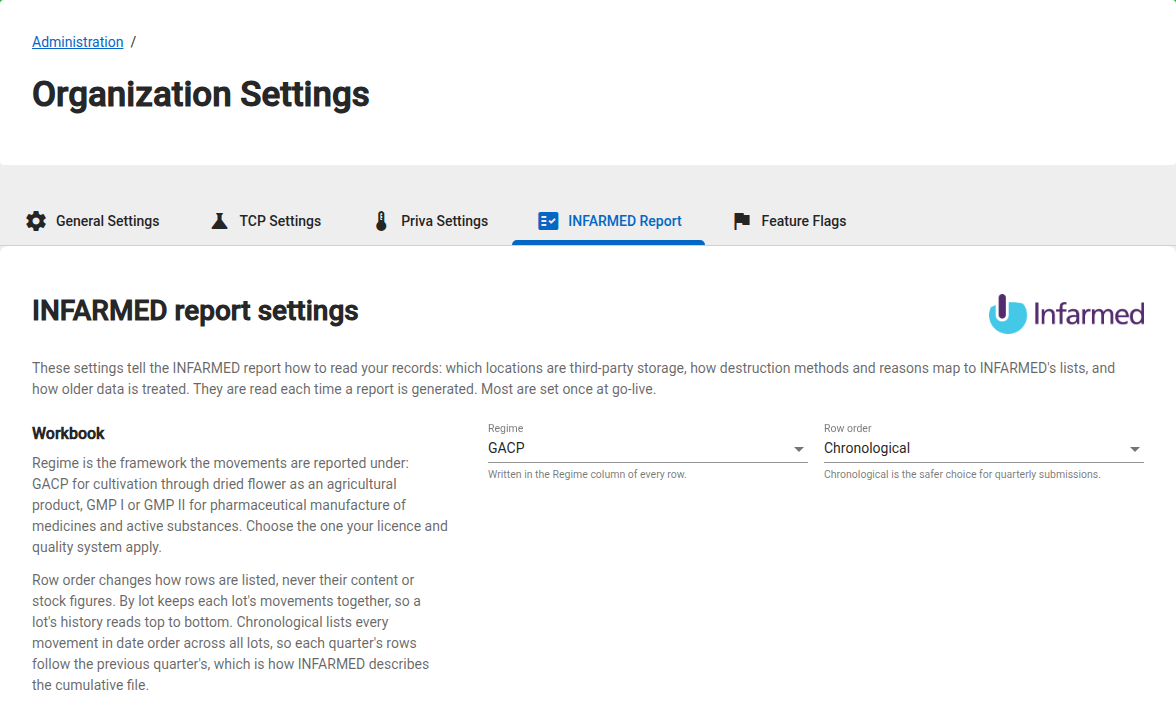
The sections below follow the order the page shows them. Each one has a short explanation on the left and its fields on the right. For what the report itself contains, see Portugal: INFARMED Annual Report - Overview.
⚙️ Workbook
| Field | What it controls in the report | Allowed values | Default |
|---|---|---|---|
| Regime | Written in the Regime column of every row | GACP, GMP I, GMP II | GACP |
| Row order | How rows are listed in the workbook. It never changes their content or stock figures | Chronological, By lot | Chronological |
Regime is the framework your movements are reported under: GACP for cultivation through dried flower as an agricultural product, GMP I or GMP II for pharmaceutical manufacture of medicines and active substances. Choose the one your licence and quality system apply.
Row order:
- Chronological lists every movement in date order across all lots, so each quarter's rows follow the previous quarter's. This is how INFARMED describes the cumulative file.
- By lot keeps each lot's movements together, so a lot's history reads top to bottom.
Which row order to pick
The page itself says it: "Chronological is the safer choice for quarterly submissions." Keep Chronological unless you have a reason to read the file lot by lot.
⚙️ Stock Loaded at Go-Live
If you started using GrowerIQ part-way through the year, the stock you already held was loaded as imports on go-live day. This setting tells the report which imports were that opening stock.
| Field | What it controls in the report | Allowed values | Default |
|---|---|---|---|
| Last day of the go-live load | Imports dated on or before this day are reported as stock you already had. Imports after it are reported as real arrivals | A date, or blank | Blank |
Leave it blank if all your stock was recorded in GrowerIQ from the start. If you type something that is not a date, the field shows "Enter a valid date or leave blank." and the page will not save.
⚙️ Third-Party Storage
List the locations run by another company, such as a contract warehouse or a processor holding your material. A move into or out of one of these locations is reported as a change of custody to that company. Locations not listed here count as your own.
| Field | What it controls in the report | Allowed values | Default |
|---|---|---|---|
| Location | The location that is third-party storage | Any of your locations. Search by name or path | None |
| CRM account | The company that holds the stock in that location | Your CRM accounts (patients are not offered) | None |
- Select Add External Location to add a row. Both fields are required.
- Each location can appear only once. A second row for the same location shows "Each external location can appear only once."
- Use the bin icon (Remove) to delete a row.
- With no rows, the section shows "No third-party storage locations mapped yet."
If a saved location has since been archived, the row shows the location's name followed by "(archived), kept as saved." The row still applies to the report.
⚙️ Retained Samples
List the locations where retention samples are kept. A sample moved into one of these locations is reported as retained, not as consumed by a laboratory.
| Field | What it controls in the report | Allowed values | Default |
|---|---|---|---|
| Retention locations | Which locations hold retention samples | Any number of your locations | None |
Leave it empty if you keep no retention samples.
Archived retention locations are kept
The picker only offers active locations. If a location you saved here has since been archived, it appears under the picker as "(archived)" with the message "These retention locations have been archived. They still apply to the report and are kept when you save." You do not need to re-add it, and saving the section will not remove it.
⚙️ Room Names From Before Locations
This section appears only after you add at least one third-party storage row. Without third-party storage the report never needs it.
Moves recorded before locations replaced rooms carry only the room's name. A move into or out of third-party storage needs the location behind that name. A name that matches exactly one location's name or code resolves on its own. Map the rest here, such as an old room code, to the location it became.
| Field | What it controls in the report | Allowed values | Default |
|---|---|---|---|
| Name as recorded | The old room name as it appears on the older records | Text, entered exactly as it was recorded | None |
| Location | The location that room became | Any of your locations | None |
- Select Add Location Name to add a row. Both fields are required.
- Each name can appear only once. A duplicate shows "Each recorded name can appear only once."
- Names still unresolved are left out of the report and flagged in the review workbook.
- A saved location that has since been archived shows "(archived), kept as saved." and still applies.
⚙️ Go-Live Records That Are One Lot
When your stock was loaded at go-live, one lot may have been entered as several records: same name and variety, imported at the same moment, for example one per room. Left alone they export as separate lots sharing one name, which INFARMED cannot tell apart. The file is held until you either group them here to say they are one lot, or give one of them its own name.
Select Add Import Group to add a group. Each group has these fields:
| Field | What to enter | Required |
|---|---|---|
| Group reference | A reference of your choice for this group | Yes |
| Group name | A name for the group | Yes |
| Reviewed by | Who reviewed the grouping | Yes |
| Reviewed on | The date of the review, as YYYY-MM-DD | Yes |
| Why these records belong together | The reason these records are one lot | Yes |
| Record IDs in this group | At least two record IDs, separated by commas | Yes |
| Activities that split one record into several | Optional. If a record was later split by activities, list those activity IDs, one set per line | No |
The review note is your evidence if INFARMED asks, so write it for an inspector. Use Remove group (bin icon) to delete a group. Removing every group and saving clears the mapping.
If the page shows "An import mapping is stored in a form this page cannot show. The report ignores it. Ask support to replace it before generating.", the stored groups cannot be edited here. Contact GrowerIQ support.
⚙️ Destruction Methods
Match each destruction method your team records to INFARMED's treatment method and the company that carries it out, such as a licensed waste contractor. Unmatched methods are flagged in the review workbook.
| Field | What it controls in the report | Allowed values | Default |
|---|---|---|---|
| Recorded method | The method as recorded in GrowerIQ | Your organization's destruction methods (Administration > Destruction Methods), plus any name already saved here | None |
| INFARMED method | The treatment method written in the workbook | Compostagem, Digestão anaeróbia, Valorização agrícola direta, Deposição em aterro, Incineração | None |
| Treatment entity | The company that carries out the treatment | Text | None |
- Select Add Method Mapping to add a row. All three fields are required.
- Each recorded method can appear only once. A duplicate shows "Each recorded method can appear only once."
- If a method was renamed after you mapped it, the saved name stays in the list so the mapping remains readable.
⚙️ Destruction Reasons
Match each destruction reason your team records to one of INFARMED's two loss (quebra) operations. Unmatched reasons are flagged in the review workbook.
| Field | What it controls in the report | Allowed values | Default |
|---|---|---|---|
| Recorded reason | The reason as recorded in GrowerIQ | Your organization's destruction reasons (Administration > Destruction Reasons), plus any name already saved here | None |
| INFARMED reason | The loss operation the destruction is reported as | Quebra - Mortalidade (plants that died), Quebra - Resíduos Vegetais (material discarded as waste) | None |
- Select Add Reason Mapping to add a row. Both fields are required.
- Each recorded reason can appear only once. A duplicate shows "Each recorded reason can appear only once."
If a reason was recorded wrongly on a past destruction, you can correct it on the record itself. See Amending a Destruction Reason.
⚙️ Laboratory
| Field | What it controls in the report | Allowed values | Default |
|---|---|---|---|
| Default laboratory name | The laboratory named on samples sent for testing when the dispatch does not record one | Text, or blank | Blank |
Leave it blank if every dispatch names its laboratory; the report flags any that do not.
🔧 Saving Your Changes
The Save settings button is at the bottom of the page. It stays unavailable until you change something, and while any row is incomplete or duplicated. Fill in or remove the flagged rows to enable it.
What happens when you select Save settings:
- Only the sections you changed are sent. A section you did not touch keeps its stored value.
- If the save goes through, the page reloads the settings and shows "Settings saved. Review any notices below before generating the report."
- If nothing differs from what was stored (for example, you changed a value and changed it back), the page shows "Nothing has changed since the settings were loaded, so there is nothing to save." Nothing is written.
- Each save that changes something is recorded as an activity, with the old and new values of what changed.
If someone else saved first. When a colleague saves after you opened the page, your save is refused and nothing is written. The page shows "Someone else changed these settings after you opened them. Reload to see their changes." Select Reload settings to load their version, then make your change again.
Reloading replaces your unsaved edits
Reload settings loads what is stored now and discards the edits you have not saved. Note what you changed before you reload, then re-enter it.
If a value is refused. GrowerIQ checks the sections you changed with the same rules the report uses. If one is refused, the page shows "Settings could not be saved. Your changes are still here; try again." with a list of what was refused, for example:
| Message | What to fix |
|---|---|
| Reporting regime not accepted | Pick GACP, GMP I or GMP II |
| Import cutoff date not readable | Enter a valid date, or clear the field |
| Third-party storage entry ignored | Give each location one CRM account and remove rows that name neither |
| Retention location entry ignored | Pick retention locations from the list offered |
| Room mapping entry ignored | Give each room name one location and remove duplicate or empty rows |
| Treatment method mapping ignored | Give each method an INFARMED method and a treatment entity |
| Destruction reason mapping ignored | Give each reason one of the two INFARMED reasons |
| Default laboratory ignored | Enter the laboratory name as text, or leave it blank |
Problems with an import group appear on the group they concern, for example "A group has fewer than two records." or "A group is missing its review details (id, label, reviewer, date or reason)."
📜 When the Report Reads These Settings
The report uses the settings as they stand when you press Generate on the report page. To apply a change, save it here, then generate the report again. A report that was already running keeps the settings it started with.
When you open the tab, GrowerIQ also checks what is stored. If a stored value would be ignored by the report, the page lists it under "Some settings need attention. Invalid values were ignored:". The same items appear in the review workbook. Fix them here and save before you generate.
💡 Tips
- Start with the sections every organization needs: Workbook, Third-party storage (if you use any), Destruction methods and Destruction reasons. Fill in Room names and import groups when the review workbook flags old room names or go-live records that share a name.
- Map every destruction method and reason you use. Add a mapping each time a new method or reason is created under Administration.
- Name the laboratory on each result. When entering THC/CBD results, the Laboratory and Date of the result fields let the INFARMED report state the result as declared. Leave them blank if the reading is your own.
- Use the review workbook as your checklist. Findings that a setting answers point back to the section of this tab to open.
❓ Troubleshooting
| Problem | What to do |
|---|---|
| The INFARMED Report tab is missing | Check the three requirements in Before You Start |
| "Settings could not be loaded. Try again before making changes." | Select Retry loading. Do not make changes until the settings load |
| "Your settings were saved, but could not be reloaded for verification. Retry loading them." | Your save went through. Select Retry loading to see the saved values |
| Save settings stays greyed out | Look for a row with an empty required field or a duplicate message, then complete or remove it |
| The Room names section is not shown | Add at least one third-party storage row first |
| A location I need is not in the picker | The picker offers active locations only. A location archived after you saved it stays in place and is marked "(archived)" |
| A report generated after my change still shows the old behaviour | Check that the save showed "Settings saved", then generate again |