Variables are what make a label useful. Instead of typing a batch ID by hand, you drop in a variable and the real value is filled in automatically every time you print. This guide covers variables, date stamps, and barcodes.
In this article:
- Why this matters
- The Variables panel
- Variable syntax
- Preview with a real record
- Custom fields
- Date and time stamps
- Sequence and plant fields
- Barcodes and QR codes
🎯 Why this matters
A variable is a placeholder. When the label prints, each variable is replaced with the actual data from the record you are printing, so one design works for every item.
🧩 The Variables panel
Open the Variables panel using the icon on the right of the builder (hovering it shows "Show Variables").
- The panel lists the fields available for your chosen label type.
- Search to find a field quickly.
- Click a field to copy its variable, then paste it into your label.
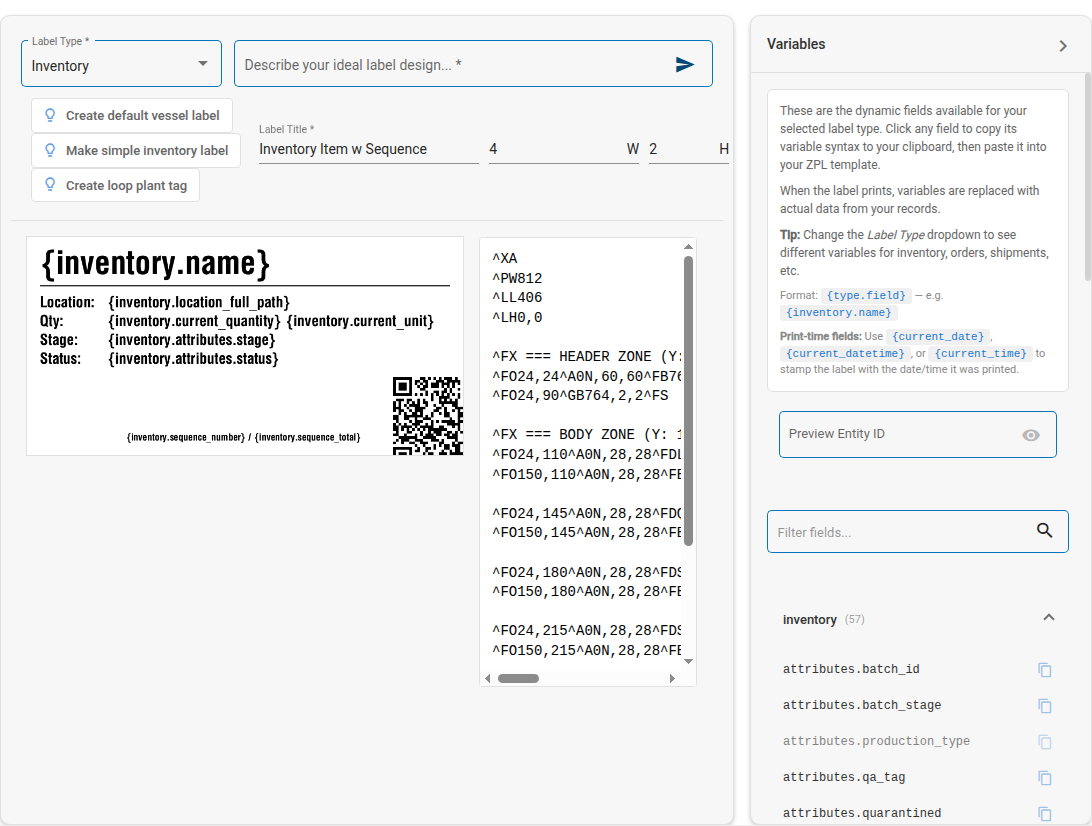
Fields depend on the type
The fields shown match the label type you picked. Switch the type and the available fields change.
✍️ Variable syntax
Variables use single curly braces: {prefix.field}.
| Example | Prints |
|---|---|
{inventory.name} |
The item's name |
{inventory.location_full_path} |
The item's full location path |
{order.id} |
The order ID |
🔎 Preview with a real record
Enter a Preview Entity ID (the ID of a real record of that type) to see your variables filled with that record's true values. This is the fastest way to confirm a label is pulling the right data before you save it.
🛠️ Custom fields
If your organization stores custom data on a record, you can put it on the label too:
{inventory.data.yourField}- a custom data field on the item
These appear in the Variables panel alongside the standard fields.
📅 Date and time stamps
Stamp when a label was printed using these built-in variables:
| Variable | Prints |
|---|---|
{current_date} |
The print date |
{current_time} |
The print time |
{current_datetime} |
The print date and time |
🔢 Sequence and plant fields
For numbered runs and plant tags:
{inventory.sequence_number}and{inventory.sequence_total}- for "1 of 50" style numbering{inventory.plant_id}- the unique plant ID, used on loop plant tags
▦ Barcodes and QR codes
Ask the builder to add a QR code or a Code 128 barcode. QR codes are recommended because they scan fastest and hold more data.
For a code that the GrowerIQ mobile scanner can read instantly, encode the item's ID and type as JSON:
{"id":"{inventory.id}","type":"inventory"}
Let the scanner do the work
When a barcode carries the id and type like this, scanning it in the GrowerIQ app jumps straight to the item, with no manual lookup.
Use the exact syntax
Variables only work with single curly braces and the correct field name ({inventory.name}, not {Inventory Name}). Copy them from the Variables panel to be safe.