Labels are easy to change after you save them. You can reopen a label, refine it, rename it, make a copy, or delete it. Here is how each works.
In this article:
- Why this matters
- Open a saved label
- Update a label
- Rename a label
- Duplicate a label
- Delete a label
- Edit the design directly
🎯 Why this matters
Your label needs change over time. Rather than rebuild from scratch, you can load any saved label back into the builder and adjust it, keeping your team's label set tidy and current.
📂 Open a saved label
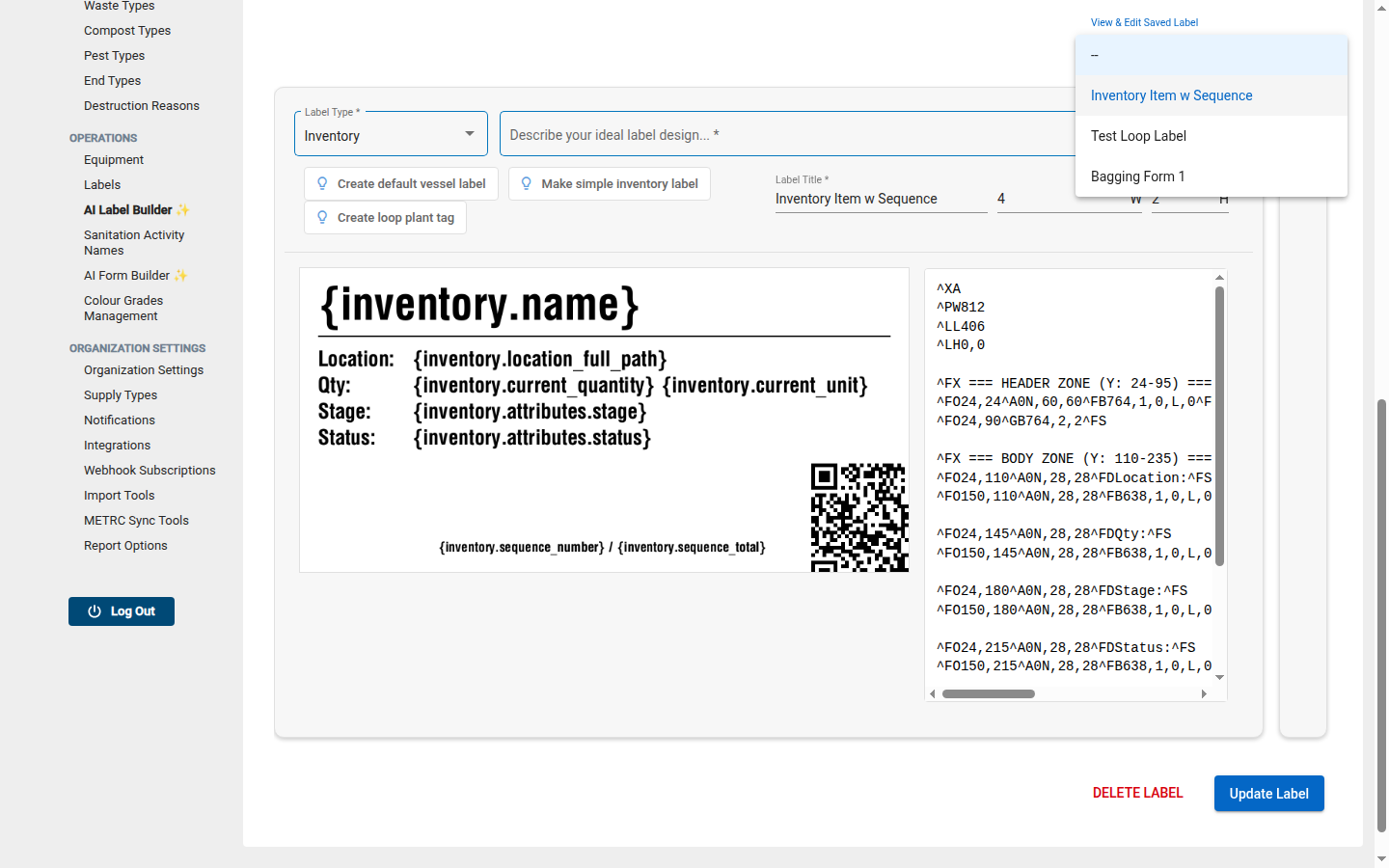
Use the View & Edit Saved Label dropdown to load an existing label back into the builder. Its design and preview appear, ready to edit.
🔄 Update a label
Once a saved label is loaded, make your changes and click Update Label. Your edits replace the original.
Refine with follow-ups
With a label loaded, you can keep asking the AI for tweaks ("make the title bigger"). It edits the current design instead of starting over.
✏️ Rename a label
To rename, load the label, change the Label Title, and click Update Label.
📑 Duplicate a label
There is no dedicated duplicate button, but you can copy a label easily:
- Load the label you want to copy.
- Change the Label Title to a new name.
- Click Save Label.
This saves a new label and leaves the original untouched.
🗑️ Delete a label
With a label loaded, click Delete Label and confirm in the dialog ("Are you sure you want to delete this label?").
Deleting is permanent
A deleted label cannot be recovered, and it disappears from everyone's Print Label dialogs. Make sure no one still needs it.
🧰 Edit the design directly
For advanced users, the design is editable as text (ZPL). You can fine-tune it by hand, or paste in a label you already have, and the preview updates as you change it.
Use Start Over to clear everything and begin a fresh label.