Once you have a saved label in the AI Label Builder, you can print it onto your label stock straight from any inventory record in the web app. This guide shows you how.
In this article:
- Why this matters
- Before you start
- Where to find the Print Label button
- Print a label
- Number labels in sequence
- Bulk-print location labels
- Troubleshooting
🎯 Why this matters
Designing a label is only half the job. The Print Label dialog turns any saved label into printed output for the exact record you are looking at, with the record's real data filled in automatically.
- Print from where you work - the button sits right on the item's detail page
- Pick any saved label - your AI Label Builder designs appear in the list
- Print one or many - set the quantity, or number each label in a sequence
✅ Before you start
- A saved label in the AI Label Builder (see AI Label Builder: overview).
- A printer added under Administration → Equipment (see Set up a printer).
Same network
Your printer and the computer you are printing from must be on the same network. The app sends the label straight to the printer's address.
📝 Where to find the Print Label button
The Print Label button (with a printer icon) appears in the action buttons on each record's detail page.
| Where | Record type |
|---|---|
| Warehouse | Lots, Received inventory, Package runs, Consumable lots |
| Cultivation | Batches, Mothers, Mother batches |
| QA | Samples, Destruction material |
| CRM | Orders (once approved), Shipments (once they have a tracking number) |
| TCP | Vessels |
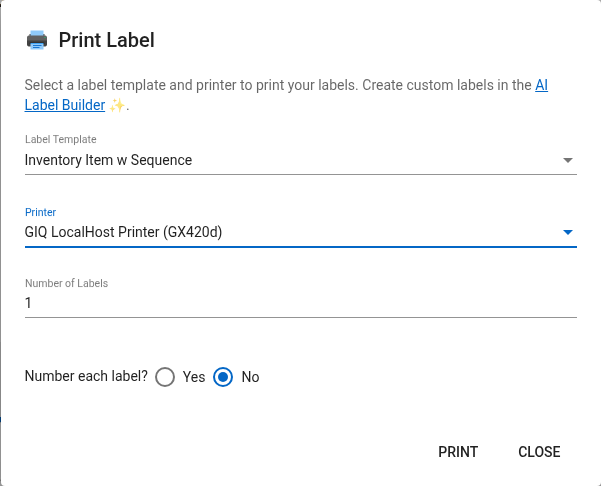
🖨️ Print a label
- Open the record you want a label for (for example, a batch or a lot).
- Click Print Label in the action buttons.
- In the Print Label dialog, choose your saved label from the Label Template list.
- Choose your Printer.
- Set the Number of Labels.
- Click Print.
Spot your AI labels
Labels you built in the AI Label Builder show a ✨ sparkle in the template list, with the tooltip "Created with AI Label Builder". Each option also shows its type and size.
🔢 Number labels in sequence
Need each label numbered (1/50, 2/50, and so on)?
- Set Number each label? to Yes.
- Enter the Start Number and the Out Of total.
- The dialog shows a live preview of the first and last label before you print.
Sequence fields on the label
For the numbers to appear, your label design needs the sequence fields. See Add data to your label for {inventory.sequence_number} and {inventory.sequence_total}.
📦 Bulk-print location labels
To print labels for many storage locations at once:
- Go to Administration → Locations.
- Click Print Labels.
- In the Print Location Labels dialog, choose your Label Template and Printer.
- Set Copies per location.
- Click Print. A progress bar tracks the job.
🔧 Troubleshooting
No printer in the list?
You need to add one first. See Set up a printer.
Your label is not in the template list?
Make sure it was saved in the AI Label Builder, and that the label's type matches the record you are printing (an Inventory label for an inventory item, and so on).
Nothing prints?
Check that the printer is powered on, has the right IP address and port, and is on the same network as your computer.