The AI Label Builder lets you create any label you can describe, in plain English. No design software, no templates to wrestle with. This guide gets you oriented and walks you through your first label.
In this article:
- Why this matters
- Before you start
- Where to find it
- The basics
- Quick-start ideas
- Refining with follow-ups
🎯 Why this matters
Every facility labels things differently. The AI Label Builder lets you describe the label you need and builds it for you, so you are not stuck with one-size-fits-all templates.
- Describe it in plain English - "a 4 by 2 inch inventory label with the product name, batch ID, and a QR code"
- No design skills needed - the builder does the layout
- Shared with your team - once you save a label, anyone in your organization can print it
✅ Before you start
- You need the AI Label Builder permission (an admin grants this).
- To print what you design, you also need a printer set up. See Set up a printer.
📍 Where to find it
Go to Administration → AI Label Builder ✨ in the left menu, or open it from the Administration overview page.
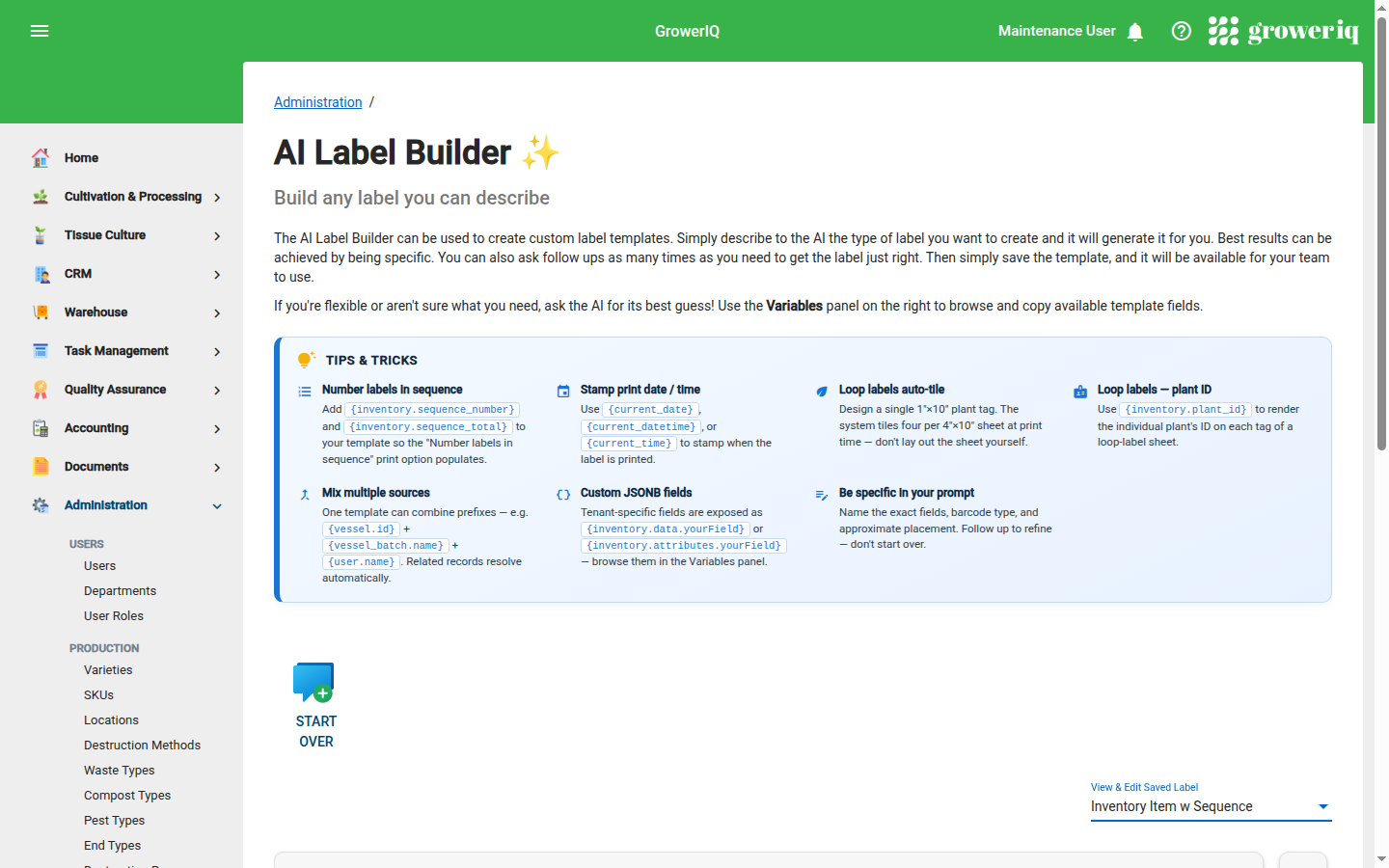
🚀 The basics
- Describe your label in the box ("Describe your ideal label design...").
- The AI builds the label and shows a live preview.
- Give it a title and click Save Label.
That is it. Your saved label is now available in every Print Label dialog across the app.
Be specific
The more detail you give, the better the result. Mention the size, what information to include, and whether you want a barcode or QR code.
💡 Quick-start ideas
Not sure where to begin? Use one of the starter suggestions to generate a label you can then tweak:
- Create default vessel label
- Make simple inventory label
- Create loop plant tag
🔄 Refining with follow-ups
You do not have to get it perfect in one go. Ask for changes and the AI adjusts the existing label rather than starting over.
- "Make the product name bigger"
- "Add the harvest date under the batch ID"
- "Move the QR code to the right"
Saved labels are reusable
A label you save here shows up for everyone in your organization, in both the web app and the mobile scanner. You design it once, the whole team prints it.
When your label looks right, head to Design your label to fine-tune the type and size, or Print a label from the web app to put it to work.