Before you can print, GrowerIQ needs to know about your printer. You add it once as a piece of equipment, and it then appears in every Print Label dialog. This guide covers setup and the most common printing problems.
In this article:
🎯 Why this matters
Printing sends your label straight to the printer over the network. For that to work, the printer has to be registered in GrowerIQ with its network address.
🖨️ Add a printer
- Go to Administration → Equipment.
- Click Add Equipment.
- Set the Type to Printer.
- Fill in the printer details (below) and save.
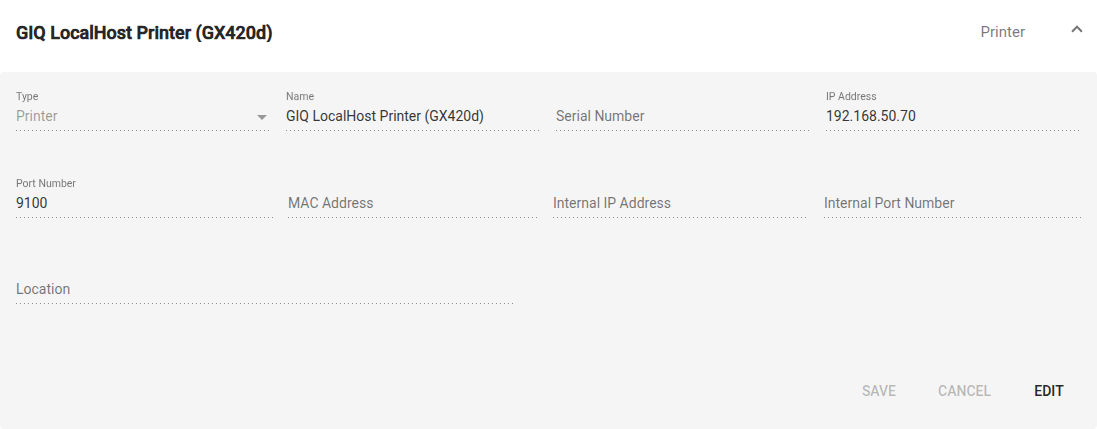
One place for all devices
Equipment covers printers, scales, scanners, and sensors. Setting the type to Printer reveals the printer-specific fields.
📋 Printer fields
| Field | What to enter |
|---|---|
| Name | A label you will recognize (e.g. "Packaging Room Zebra") |
| IP Address | The printer's network address |
| Port Number | The printer's port |
| Internal IP Address | The internal network address, if your site uses one |
| Internal Port Number | The internal port, if used |
| Location | Where the printer lives |
✅ Confirm it works
Once saved, your printer appears in the Printer dropdown of every Print Label dialog, in both the web app and the mobile scanner.
To test, open any record, click Print Label, pick the printer, and print a single label.
Test with one label first
Print a single label to confirm the connection and the size before running a large batch.
🔧 Troubleshooting
Nothing prints?
- Check the printer is powered on and online.
- Confirm the IP Address and Port Number are correct.
- Make sure the printer and your computer are on the same network.
Label is cut off or off-centre?
The label's size does not match your stock. Edit the label's Width and Height to match the labels loaded in the printer. See Design your label.
Barcode will not scan?
Check the code's size on the label, and that it uses the right format. For scanner-readable codes, see Add data to your label.
Printer not in the dropdown?
It was not saved, or its type is not set to Printer. Reopen it under Administration → Equipment and check the type.