The GrowerIQ Mobile Scanner puts seed-to-sale tracking in your hand. Instead of walking back to a computer, your team scans an inventory tag and records the action right where the work happens. It runs on just about any Android device, whether that is a warehouse phone, a tablet, or a Zebra handheld scanner. This guide walks you through installing the app, signing in, and finding your way around for the first time.
In this article:
- What the Mobile Scanner Does
- What You Can Do With It
- Before You Begin
- Install the App
- Keep the App Updated
- Sign In for the First Time
- Your First Scan
- Troubleshooting
- What's Next
🎯 What the Mobile Scanner Does
The Mobile Scanner is a companion app to GrowerIQ that runs on an Android device. It mirrors the actions you already perform in GrowerIQ on the web, but lets you do them on the floor, in the room, next to the plants.
- Scan, then act - scan a batch, lot, or vessel tag and pick an action from the screen
- Stay where the work is - no round trips to a shared computer
- Use the devices you already have - phones, tablets, or Zebra handheld scanners
- Capture weights live - connect a networked scale and let readings fill in automatically
- Work in your language - English, French, Portuguese, and more, with new languages added regularly
Two ways to scan, chosen automatically
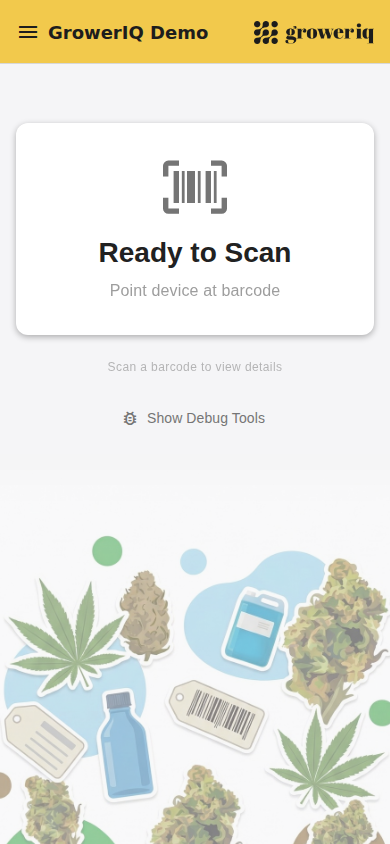
On a device with a built-in scanner, such as a Zebra handheld, you scan by pulling the trigger. On a phone or tablet, the app scans with the camera. The app detects which one your device has, so there is nothing to set up.
✨ What You Can Do With It
Once you scan an item, the scanner shows only the actions that make sense for it. At a high level, your team can:
| Area | Examples |
|---|---|
| Move and organize inventory | Move locations, split batches, rename items |
| Cultivation tasks | Advance stages, prune, flush, log fertigation, add pesticides, scout for insects, record metrics |
| Weigh and sample | Record weights, take samples, send material to a processor |
| Weigh in batches | Weigh several bags or containers and sum them into one total |
| Print labels | Print a label for the scanned item on a connected Zebra printer |
Most actions are self-explanatory
Each action opens a short form that walks you through it. The articles in this section focus on setup and the features that are unique to the scanner, like live scale weights and batch weighing.
✅ Before You Begin
Make sure you have:
| You need | Details |
|---|---|
| An Android device | A phone, tablet, or Zebra handheld scanner. Phones and tablets scan with the camera; Zebra handhelds use the built-in scanner. |
| Your GrowerIQ login | The same email and password you use for GrowerIQ on the web. |
| The install QR code | Provided by GrowerIQ. The QR code below always installs the latest version. |
| Scanner access on your role | A GrowerIQ administrator must enable scanner access for your user role. Without it, you will see an "Access Denied" message after logging in. |
📲 Install the App
The app installs from a file you download through the device's browser, rather than from an app store.
- On the device, scan the QR code below:
- Phone or tablet: open the Camera app, point it at the QR code, and tap the link that appears.
- Zebra handheld: open Chrome, tap the address bar so the cursor is active, scan the QR code with the trigger, then press Go.
- Your browser opens the GrowerIQ download page. Tap Download.
- When the download finishes, tap the file (or the download notification) to open it.
- If the device asks, allow installs from this source, then tap Install.
- Tap Open to launch GrowerIQ.
Cannot scan the code? Open this link in your device's browser instead: drive.google.com/file/d/1A4qlczKKPRnOpsLei56YRBSm093pZ-Mc/view
One QR code for every update
The download link never changes, so the same QR code always installs the newest version. Keep it posted near your devices and use it again whenever an update is released.
Installing from a file is normal
Installing directly from a file (sometimes called sideloading) is expected when an app is delivered outside of an app store. You are not missing anything.
🔄 Keep the App Updated
When GrowerIQ releases a new version, you do not need a new link. Because the QR code always points to the latest build:
- Scan the same QR code again - with the camera on a phone or tablet, or through the Chrome address bar on a Zebra handheld.
- Download and open the file as you did during installation.
- Tap Update (or Install) to replace the old version. Your data and login are not affected.
🔑 Sign In for the First Time
When you open the app:
- Choose your site - start typing your organization name. The app checks it as you type and shows a green check with your organization name once it matches. If it is close, it suggests a correction ("Did you mean ...?"); if it cannot find a match, it shows "Organization not found." Once your organization is confirmed, tap Continue.
- Enter your email and password - the same credentials you use for GrowerIQ on the web.
- Tap Log In.
If you belong to more than one organization, you will be asked to pick which one to work in after you log in.
Scan your badge to sign in faster (Zebra handhelds)
On a Zebra handheld, tap the email field on the login screen and scan a badge that contains your email address. The scanner fills your email in for you, so you only type your password. Need badges? The GrowerIQ Customer Success team can load a standard badge template into your system, or you can design your own, for example with the AI Label Builder. The badge simply needs to hold the user's email address.
For the complete walkthrough, see Logging In and Choosing Your Organization.
🧭 Your First Scan
Once you are signed in, the rhythm of the app is always the same:
- Scan a tag - pull the trigger on a Zebra handheld, or point your phone or tablet camera at the inventory label.
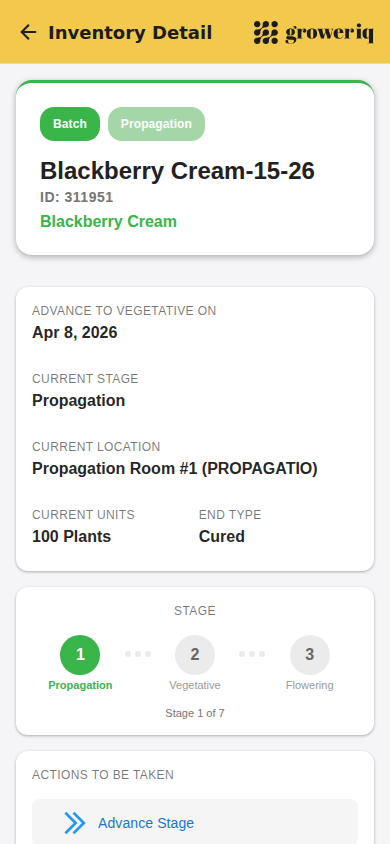
- Review the detail screen - the item opens, showing its details and the actions available for it.
- Tap an action - choose what to do, fill in the short form, and submit.
That is the whole app: scan, tap, confirm.
Allow camera access
The first time you scan on a phone or tablet, allow camera access when your device asks. Zebra handhelds with a built-in scanner do not need this.
🔧 Troubleshooting
The QR code will not scan, or the link will not open?
On a phone or tablet, make sure the Camera app can read QR codes, or type the download link into your browser by hand. On a Zebra handheld, tap the Chrome address bar first so the cursor is active, then scan again.
The downloaded file will not open or install?
Open it again from your browser's downloads, and allow installs from this source if the device asks.
The camera will not scan a tag?
Make sure you allowed camera access, then hold the label steady inside the frame. Tap the flashlight icon if the label is hard to read.
You see an "Access Denied" message after logging in?
Your user role needs scanner permissions. Ask your GrowerIQ administrator to enable scanner access for your role.
Still stuck?
See Troubleshooting the Mobile Scanner or contact GrowerIQ support.
➡️ What's Next
Now that the scanner is installed, explore the rest of this section:
- Logging In and Choosing Your Organization - sites, switching organizations, and the badge-scan shortcut
- Switching Languages on the Mobile Scanner - work in English, French, Portuguese, and more
- Weighing in Batches - weigh multiple bags and sum them into one total
- Connecting a Scale for Live Weights - auto-fill weights from a networked scale
- Printing Labels from the Scanner - print to a connected Zebra printer
- Troubleshooting the Mobile Scanner - fixes for common issues