Signing in to the GrowerIQ Mobile Scanner takes two quick steps: choose your site, then enter your email and password. This guide also covers resetting a forgotten password, the short pause after a wrong password, and how to pick or switch organizations.
In this article:
- Choose your site
- Enter your email and password
- Scan your badge to fill your email (Zebra handhelds)
- Forgot your password
- Why login pauses after a wrong password
- Pick your organization after login
- Switch organizations later
- Spotting a test site
🏢 Choose your site
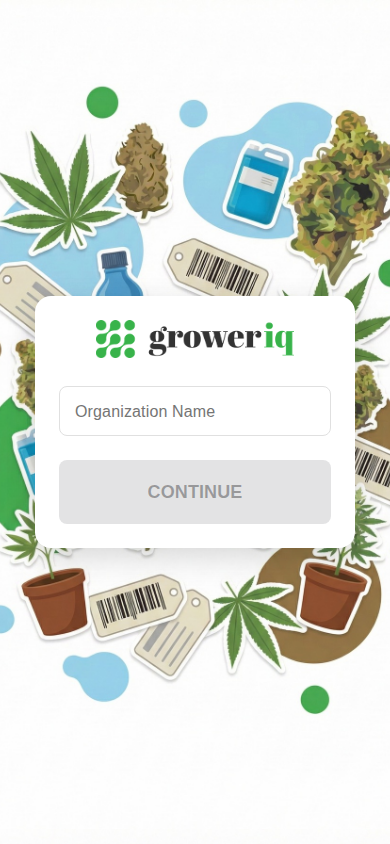
The first screen has a single box. Type your organization name (or short name) into it. As you type, the app checks the name for you:
| What you see | What it means |
|---|---|
| A green check mark with your organization's name | Found it. You can continue. |
| An amber "did you mean" with a suggested name | It matched a close spelling and filled in that organization. Check the name shown is yours, then tap Continue. |
| A red "not found" message | Check the spelling and try again. |
Small typos are usually fine. Spaces, dashes, dots, and capital letters don't matter, so the app still finds you.
The Continue button stays greyed out until the app recognizes a valid site. Once your organization name appears (a green check, or an amber match with the name shown), tap Continue to move to the password screen.
Good news: the app remembers your site. Next time you open the scanner, it jumps you straight to the password screen for the same organization.
Let the app remember your site
After your first sign-in, the scanner takes you straight to the password screen for the same organization. To use a different site, tap the green organization badge on the login screen (look for the small pencil icon on the right edge of the badge).
🔑 Enter your email and password
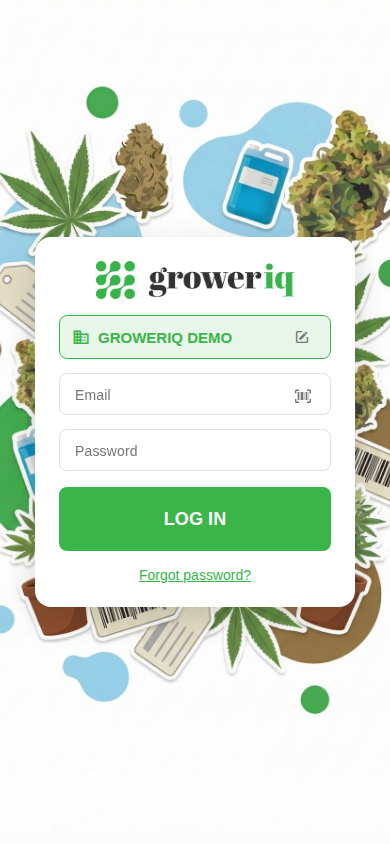
On the login screen, first check the green organization badge near the top. It shows the site you're signing in to. If it's wrong, tap the badge (the small pencil icon on the right is your cue that it's tappable) to go back and choose a different site.
Then:
- Type your work email. The email box is not case sensitive, so capital letters don't matter.
- Type your password.
- Tap Log In.
If your email or password is missing, or the email looks misspelled, a short message appears in red so you can fix it before trying again.
The Forgot password? link sits just below the Log In button.
📷 Scan your badge to fill your email (Zebra handhelds)
The email box has a small barcode icon. On a Zebra handheld scanner, you can use the hardware trigger to fill in your email instead of typing it.
Point the handheld at a badge that holds your email, then pull the trigger. The scanner fills in your email and jumps the cursor to the password field, so all you do is type your password.
Tapping the small barcode icon in the email box just shows a short reminder to scan your badge; it does not start a scan by itself. On a Zebra handheld, the scan is started by pulling the hardware trigger. On phones and tablets there is no badge scan, so type your email instead.
For more on how the scanner picks the camera or the hardware trigger automatically, see Getting Started with the Mobile Scanner.
The badge shortcut is for Zebra handhelds only
Tapping the barcode icon only shows a reminder. On a Zebra handheld, pulling the trigger on a badge that holds your email fills it in and moves to the password field. On phones and tablets, type your email.
🔐 Forgot your password
Tap Forgot password? on the login screen. The next screen opens with your email already filled in.
- Confirm your email is correct.
- Tap Send Reset Link.
- Watch for the confirmation that says to check your email for reset instructions.
- Open your inbox (check spam too), follow the link, and set a new password.
- Come back to the scanner and log in.
If the reset email is slow or the link won't work
The reset email usually arrives shortly; if you do not see it, check your spam folder. Reset links expire and can only be used once, so if the link no longer works by the time you open it, just tap Forgot password? again to send a fresh one.
If something goes wrong, you'll see an error with options to go back to login or try again. Resets are self-service, so you don't have to wait on anyone to get back in.
⏱️ Why login pauses after a wrong password
After a wrong password, the Log In button greys out for a few seconds. Each further wrong try makes the wait a little longer (about 1, then 2, 5, 10, and 15 seconds).
This is a safety feature, not a permanent lockout. A correct password clears the wait right away. If you're unsure of your password, use Forgot password? instead of guessing.
If you do sign in but see an "Access Denied" message, your role doesn't have scanner permissions yet. Ask your GrowerIQ administrator to grant scanner access to your role. For other sign-in trouble, see Troubleshooting the Mobile Scanner.
A short pause after a wrong password is normal
A wrong password greys out the Log In button briefly, and the wait grows a little with each further miss (about 1, 2, 5, 10, then 15 seconds). A correct password clears it right away. Use Forgot password? if you're unsure.
🏢 Pick your organization after login
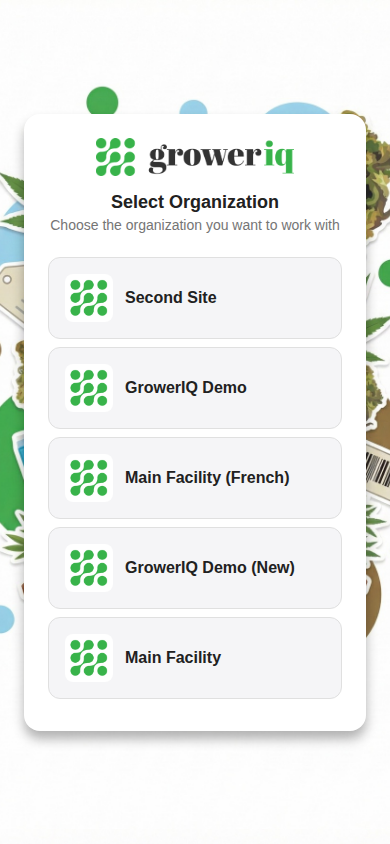
If your account is tied to more than one organization, the next screen lists each one with its logo. Tap the organization you want to work in, and you'll land on the home screen. A spinner shows briefly while the app switches you in.
If your account belongs to only one organization, the app skips this step and takes you straight to the home screen.
🔄 Switch organizations later
You can change organizations without logging out:
- Open the menu (Settings drawer).
- Tap Switch Organization.
- Pick the organization you want from the list again.
The Switch Organization button only appears if your account has more than one organization. The same menu has a Log Out button, and the app also signs you out automatically after a few minutes of inactivity to keep your account secure.
The Settings drawer is also where you change your language. The scanner supports English, French, Portuguese, and more. For details, see Switching Languages on the Mobile Scanner.
🟠 Spotting a test site
If the top banner in the Settings drawer is amber (instead of the usual green) and names an environment, you're signed in to a practice or test site, not your live production site. Anything you do there will not affect real records.
To get to your live site, tap the organization badge on the login screen and type your live organization name.
An amber banner means a test site
If the top banner in the Settings drawer is amber and names an environment, you're on a practice or test site, not live production. Your work there won't affect real records.