When one batch is split across several bags or containers, the GrowerIQ Mobile Scanner can weigh each one and add them up for you. The Weigh Multiple screen sums every entry into a single total, then drops that total straight into the weight box you opened it from.
In this article:
- When you would use it
- Opening the multi-weight screen
- Adding weights by hand
- Adding from a connected scale
- Reading the running total and entry count
- The exceeds available quantity warning
- Bringing the total back with Use Total
- Good to know
🧳 When you would use it
Sometimes a single batch is physically split across several bags, totes, or containers. Instead of weighing each one separately and adding the numbers up on paper, you weigh each container, the scanner sums them, and you record one accurate total against the batch.
This is a convenience built into the mobile scanner, so you do the math less and get back to work faster.
📱 Opening the multi-weight screen
From the action where you record a weight, tap the Weigh Multiple button above the weight box. It's there on every box that takes a weight, whether or not a scale is connected. The full-screen Weigh Multiple page opens with:
- One empty weight row, ready for your first entry.
- A batch info card at the top showing the batch name, the inventory ID, the available quantity, and the unit (when the action passes those in).
You will only see the batch info card details that the action provides. If an available quantity is not passed in, that line does not appear.
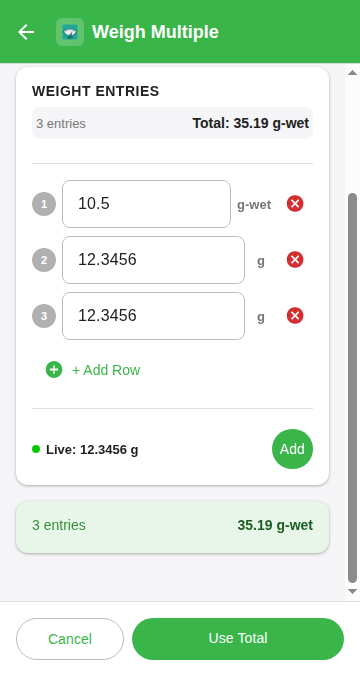
✍️ Adding weights by hand
Type each container's weight into its numbered row, then add more rows as you go.
- Tap + Add Row to add another blank row.
- Each row has a grey numbered badge (1, 2, 3...) on the left and a red close-circle remove button on the right.
- The unit shown beside a typed row is the same unit the weight box uses.
- You can remove any extra row, but the screen always keeps at least one row. The remove button is greyed out when only one row is left.
Blank rows, or rows with a zero, are ignored. They do not count toward the entry total or the entry count, so there is no harm in leaving an extra empty row at the bottom.
A negative row is outlined in red, the screen shows Negative weight detected (tare offset?), and that row is left out of the total. A weight typed with a decimal comma, for example 12,5, counts as 12.5.
⚖️ Adding from a connected scale
If a scale is connected and sending a live reading, an extra section appears below the rows. It shows the live weight and an Add button.
- Place a bag or container on the scale.
- Wait for the live reading to settle.
- Tap Add. That reading drops in as a new row.
- Repeat for each container.
This section only appears while a scale is connected and reading. A row added from the scale shows the unit the scale reports in. The scanner converts it to the weight box's unit when it adds up the total.
No scale connected?
Type each weight by hand as described above. To set up a scale so readings drop in automatically, see Connecting a Scale for Live Weights.
🧮 Reading the running total and entry count
A total bar sits above the rows and updates the moment you type a weight or add a row. The left side shows how many entries you have so far, and the right side shows the running total.
Here is what each piece means:
| On screen | What it means |
|---|---|
| "3 entries" (or "1 entry") | How many rows currently hold a weight greater than zero. Blank and zero rows are not counted. |
| "Total: ..." | The sum of every entry, in the weight box's unit. It shows as many decimals as the weight box takes, for example 2 for grams on most screens. |
| Summary card | Once you have at least one valid entry, a card restates the entry count and the total so you can double-check before saving. |
The count and total only reflect real weights, so an empty row at the bottom never throws the numbers off.
⚠️ The exceeds available quantity warning
If the batch passed in an available quantity and your running total goes past it, a red banner appears, for example "525.50 g exceeds 500 g available". Both figures are shown in the unit you are weighing in. An available quantity that is not a weight, such as a plant count, is not checked.
Exceeding the available quantity
This is a heads-up, not a stop sign. You can still tap Use Total. Treat the banner as a prompt to re-check your container weights, or to confirm you are working with the right batch, before you record the total.
✅ Bringing the total back with Use Total
When you are happy with the numbers, tap Use Total. The screen closes and the summed weight, rounded to the decimals the box takes, drops into the weight box you opened Weigh Multiple from. On screens with several weight boxes, such as Split Batch with more than one split, the other boxes are not changed.
- Use Total stays greyed out until the total is above zero, so you cannot return an empty total.
- Tapping Cancel returns you with no changes to the weight field.
- If the weight field was in live auto-fill mode when you opened Weigh Multiple, the scanner switches it back to manual mode for you. There is nothing to toggle yourself.
💡 Good to know
- If you do not see the Weigh Multiple button on a box, the box does not take a weight (for example a count or a liquid), or it is locked because its value is filled in for you.
- If you get "Access Denied" when you open an action, your role does not have scanner permissions for it yet. Ask a GrowerIQ administrator to grant scanner access to your role.
- New to the scanner? Start with Getting Started with the Mobile Scanner.