The GrowerIQ Mobile Scanner runs on any Android phone, tablet, or Zebra handheld, and it automatically detects whether to use the camera or the built-in trigger, so you never have to set that up. This article answers the most common scanner problems and shows you how to fix them yourself. If you are setting up the scanner for the first time, see Getting Started with the Mobile Scanner and Logging In and Choosing Your Organization.
In this article:
- 📷 My scans are not registering
- 📸 The camera will not open
- 🔑 I cannot log in
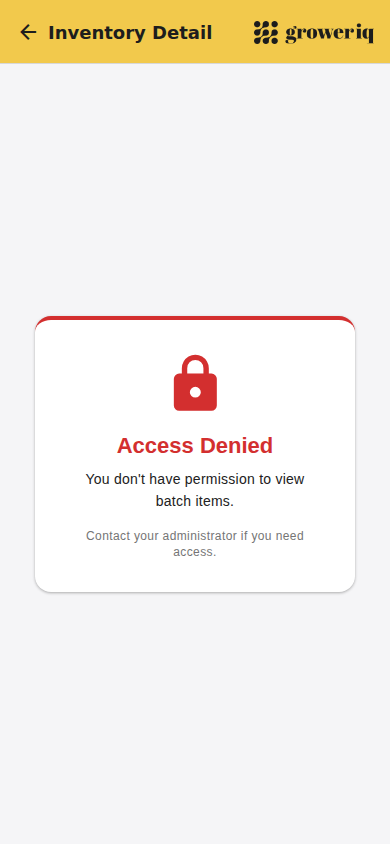
- 🚫 I see an Access Denied or No Access screen
- ⚖️ Live scale weight is not appearing
- ⬇️ The app will not install or update
- 💬 Still stuck?
Administrators: for how to grant a role scanner access, see Set Up Scanner Access for a Role.
📷 My scans are not registering
The scanner works in one of two ways, and it picks the right one for your device automatically.
| Device | How it scans |
|---|---|
| Phone or tablet (camera device) | Uses the camera to read the barcode |
| Zebra handheld | Uses the built-in hardware trigger |
On a phone or tablet (camera):
- Make sure you are on a screen that is asking for a scan.
- Allow camera access if the app asks.
- Hold the device steady and centre the barcode inside the on-screen bracket.
- Improve the lighting, or tap the flashlight (torch) toggle on the viewfinder.
- Wait a moment between scans. The app ignores the same code if it is read twice in quick succession.
On a Zebra handheld:
- Make sure you are on a screen that accepts scans.
- Pull the hardware trigger.
- Aim the red light squarely at the barcode.
The device gives a short vibration every time it reads a code, so you feel that a scan happened, but always check the screen to confirm the result, because a failed or unrecognised scan also vibrates (with a different buzz). There are two different things that can go wrong:
- The barcode will not read at all. This is usually lighting, a shaky hand, or being on the wrong screen. Steady the device, add light, and confirm the screen is asking for a scan.
- The barcode reads, but the app says it does not recognise the code or cannot find that item. Make sure you are scanning a genuine GrowerIQ label, and confirm you logged into the correct organization. An item that exists in another organization will not be found in this one.
Camera tips
Better light, a steady hand, and the on-screen flashlight (torch) toggle fix most camera scan failures. Keep the barcode inside the corner bracket and you only need to hold it for a moment.
📸 The camera will not open
Camera devices (phones and tablets) need your permission to use the camera before they can scan.
In-app fix: when you see Camera Permission Required, tap Allow Camera and accept the system prompt that appears.
If you previously tapped Deny: the app can no longer ask you again from inside the app. Open your device Settings, find the GrowerIQ Scanner app, turn the Camera permission on, then return to the app. The exact menu names vary a little between Android devices, but you are looking for the app's permissions.
Zebra handhelds scan with the hardware trigger and do not need camera permission to scan, so this issue only affects phones and tablets.
🔑 I cannot log in
There are two common reasons a login does not go through.
1. Wrong email or password. The app shows Invalid email or password. Re-check three things: the organization shown on the badge at the top of the login screen, your email address, and your password. If you cannot remember your password, tap the Forgot password? link. It keeps your email and selected organization, so you land on the right reset screen.
2. A short pause after several wrong tries. To protect your account, the app deliberately pauses logins for a few seconds after repeated failed attempts. The wait grows a little each time, up to about 15 seconds, and the login button is greyed out during the pause. Just wait a moment and try again.
The server may also return one of these messages:
| Message | What it means |
|---|---|
| Too many login attempts. Please try again later. | The server is rate-limiting your logins. Wait a little while, then try again. |
| Your account has been blocked. Contact support. | Your account is blocked. Contact your GrowerIQ administrator or GrowerIQ support to have it reviewed. |
Locked out for a few seconds
After several wrong passwords the app pauses login for a short, growing wait (up to about 15 seconds) and greys out the button. This is normal protection. Wait a moment and try again, or use Forgot password?.
🚫 I see an Access Denied or No Access screen
If you log in successfully but then land on an Access Denied screen, nothing is broken. It means your user role does not have scanner permission for the item you tried to scan. Access is tied to your role, and it can be specific: a role might be allowed some inventory types or actions but not others.
There is nothing to fix on the device, and reinstalling will not help. A GrowerIQ administrator needs to grant scanner access to your role in the web app. After that, log out of the scanner and log back in, because permissions reload when you log in.
One more thing to check first: if you only see Access Denied occasionally, or right after a patchy connection, log out and back in on a stable network. If it happens every single time, it is a role-permission setting your administrator must change.
Access Denied is a permissions setting
Access Denied after login means your role lacks scanner access for that item. Reinstalling will not fix it. Ask a GrowerIQ administrator to grant your role scanner access, then log out and back in.
Zebra badge login
On a Zebra handheld you can scan your badge to fill in your email, then just type your password. This shortcut uses the handheld's built-in scanner, so it is not available on phones or tablets.
⚖️ Live scale weight is not appearing
The scanner can pull live weights straight from a networked scale, so weight fields fill in automatically as you weigh, including multi-bag batch weighing. This is set up by an administrator in Administration > Equipment using the scale's network address.
The scale buttons only appear on boxes that take a weight in grams or kilograms (ounces or pounds for imperial organizations). Counts and liquids have a plain box with no scale buttons.
If a weight field is not auto-filling:
- Check the dot next to the scale name. Green means connected. If it is red, read the message under the scale name, if there is one.
- Confirm the scale is powered on.
- Confirm the scale and the scanner device are on the same network.
- Ask your administrator to check the scale's address in Administration > Equipment.
- If the dot is green, tap Use, or tap Auto so the box fills itself. In Manual mode the box only fills when you tap Use.
To switch scales, or to stop using one and type the weight, tap Change Scale on the weight box.
For full setup details, see Connecting a Scale for Live Weights.
⬇️ The app will not install or update
There is no app store for the Mobile Scanner. You install it by scanning a permanent QR code, or by opening the permanent download link in your device browser.
To install or update:
- Re-scan the same permanent QR code, or open the download link in your device browser: https://drive.google.com/file/d/1A4qlczKKPRnOpsLei56YRBSm093pZ-Mc/view
- Download the app file.
- Allow the install when your device asks.
- Open the app.
The same QR code and link always install the latest version, so to update you re-scan and install over the top of what you have. Two common snags: your device must be allowed to install the app (accept the install prompt when it appears), and you need a stable internet connection for the download.
💬 Still stuck?
If none of the above solves it, contact your GrowerIQ administrator or GrowerIQ support and describe what you were doing when the problem happened. (There is no need to read or share an app version number.) For first-time setup and sign-in, see Getting Started with the Mobile Scanner and Logging In and Choosing Your Organization.