The GrowerIQ Mobile Scanner can show its menus and labels in more than one language, and you can change it yourself in just a couple of taps. Switching is instant, your choice is remembered for next time, and it works the same on any device you run the scanner on, whether that is a phone, a tablet, or a handheld scanner.
In this article:
📱 Open the Settings menu
Start on the home screen of the scanner. This is where the language controls live.
- Tap the menu icon (the three-line, or "hamburger", icon) in the top-left corner of the home screen.
- The Settings panel slides in from the left side of the screen.
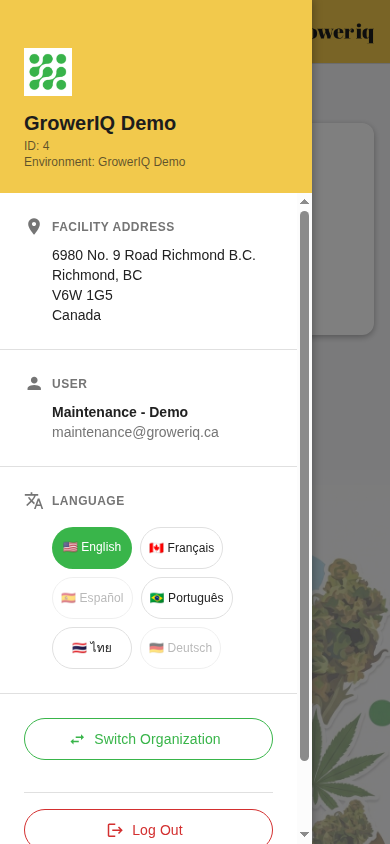
- Look for the Language section, marked with a small translate icon and the word "Language". It sits partway down the panel, so you may need to scroll a little past the organization name, the facility address, and your own user details to reach it.
To close the panel without changing anything, just tap anywhere outside it.
Set it from the home screen
The menu icon only appears on the home screen. If you are inside another screen and see a back arrow in the top-left instead, tap back until you reach home, then open the menu.
🌐 Choose your language
Each language is shown using its own native name and flag, so French reads Français and Thai reads ไทย. That makes it easy to spot your language even if the app is currently in one you do not read.
- In the Language section, tap the language you want.
- The screen updates instantly, right there in your new language. There is no need to close or restart the app.
- The language you picked stays highlighted (filled in) so you can always see which one is active.
Here are a few examples of what the buttons look like and the language each one selects:
| Button shows | Language |
|---|---|
| 🇺🇸 English | English |
| 🇨🇦 Français | French (Quebec) |
| 🇧🇷 Português | Portuguese |
| 🇹🇭 ไทย | Thai |
These are just examples of what you might see. Available languages today include English, French, Portuguese, and more, and the list grows over time as new languages are switched on.
Switches instantly
There is no Save button. The change applies the moment you tap a language.
Your choice is remembered
The scanner saves your language on that device, so it stays in your language the next time you open the app. You only set it once per device.
Each device is separate
Language is set per device. Switching the language on one handheld does not change it on another, so set it on each device you use.
🚫 If a language looks greyed out
Some languages may appear dimmed and cannot be tapped. That simply means the language is listed but not switched on yet, because it is still being prepared.
This is expected, and nothing is broken. The dimmed languages do not affect the ones you can already use, and a greyed-out language will become tappable on its own once it is ready.
Greyed-out languages are not ready yet
A dimmed language is listed but not yet switched on. It will become tappable once it is available. This is expected and does not mean anything is wrong with your scanner.
New to the scanner? See Getting Started with the Mobile Scanner to set up your device, and Logging In and Choosing Your Organization for your first sign-in.