Meet GrowerIQ 3.4.1! 🚀
The headline of this release is our brand-new Mobile Scanner app, putting seed-to-sale tracking right in your team's hands. On top of that, we've made product setup and compliance reporting faster: build one SKU that works across any variety, send batches of any end-type to a processor, and generate your CRA excise return in a single click.
Here's what's in this release:
📱 New Features
Introducing the GrowerIQ Mobile Scanner 🎉
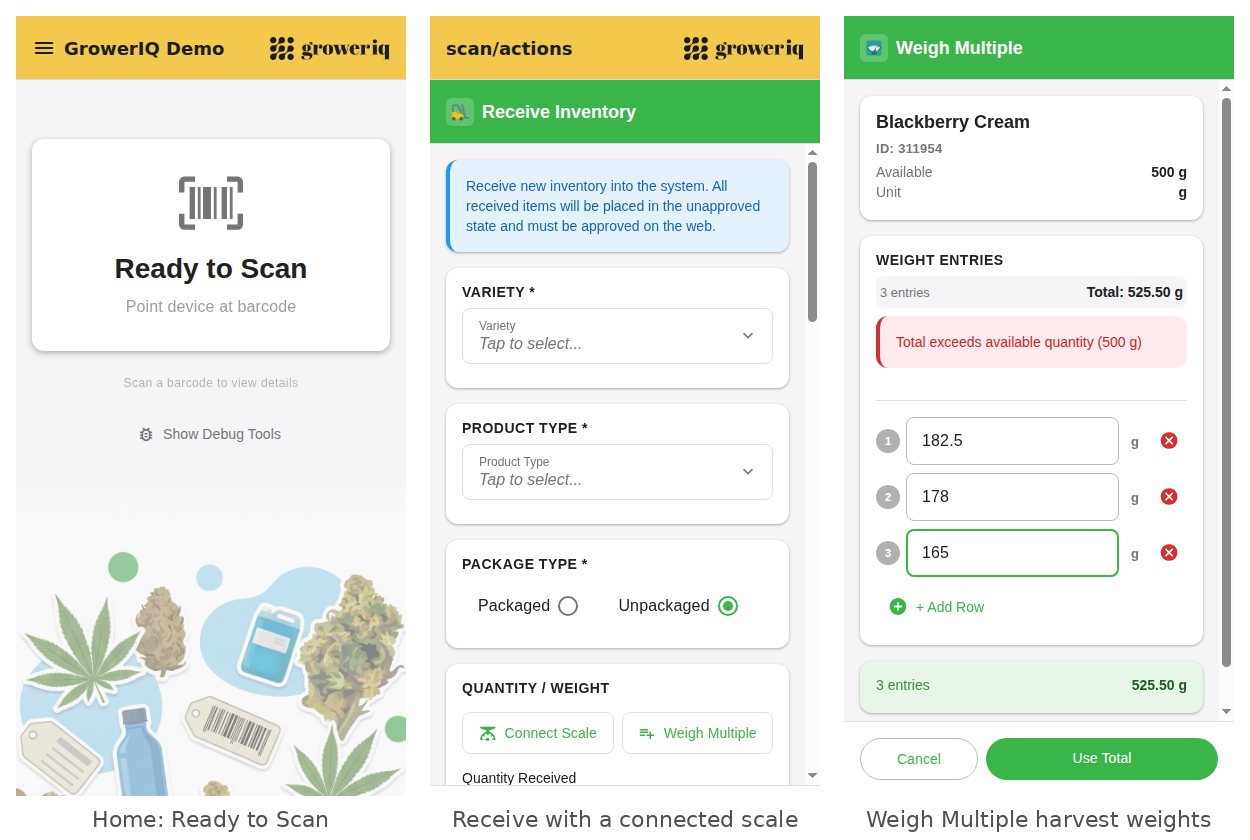
Say hello to the GrowerIQ Mobile Scanner! Instead of walking back to a computer, your team can scan an inventory tag and record the action right where the work happens, on the production floor, in the vault, or at receiving.
Best of all, it runs on just about any Android device, whether that's a warehouse phone, a tablet, or a Zebra handheld scanner. No specialized hardware required, so you can put it to work with the devices you already have.
With the Mobile Scanner your team can:
- Look up any item instantly by scanning its inventory tag
- Receive new inventory directly from the floor (received items land in an unapproved state for review on the web)
- Print labels on the spot
- Connect a scale for live weights, and use Weigh Multiple to capture several harvest weights in one go
📝 How to Get Started
- Install the app on any Android device (phone, tablet, or Zebra handheld).
- Sign in with your GrowerIQ credentials.
- Make sure each user's role has scanner access enabled (an admin sets this up once per role).
- Tap into any action, then point the device at a barcode to get started.
Ready to roll it out? We've published a full set of guides to help you get up and running:
- Getting Started with the Mobile Scanner
- Set Up Scanner Access for a Role
- Receiving Inventory from the Scanner
- Connecting a Scale for Live Weights
- Weighing in Batches
- Printing Labels from the Scanner
- Troubleshooting the Mobile Scanner
Rotational SKUs: One SKU, Any Variety
You asked, and we delivered! If you manufacture a finished product from source lots of different varieties, you no longer need a separate SKU for each one. The new Rotational SKU type lets a single SKU be filled from any compatible lot, and each Lot Item automatically inherits the variety of the source lot, so you keep full variety-level tracking without the duplicate setup.
📝 How It Works
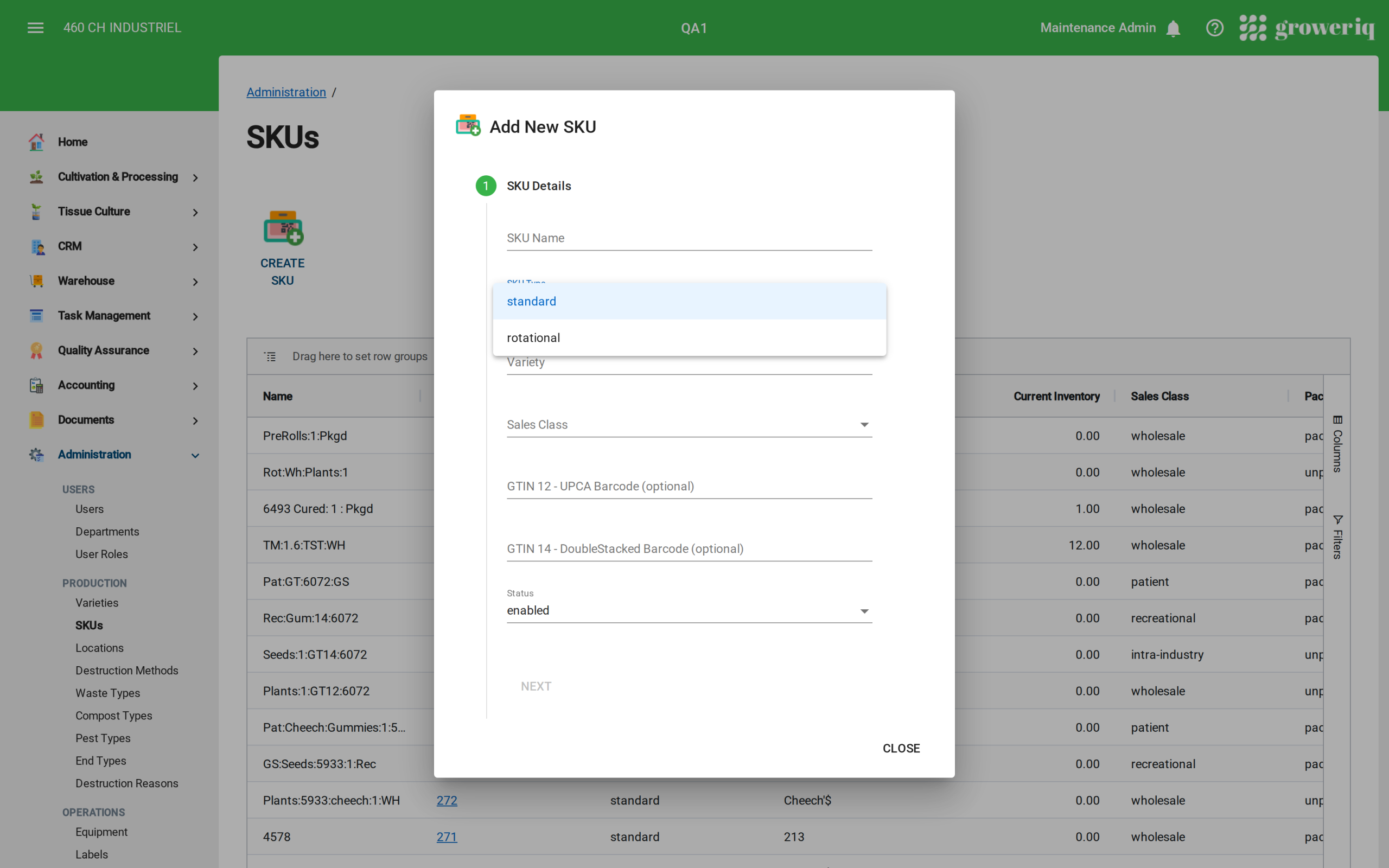
- Go to Administration > SKUs and click Create SKU (or open an existing SKU to edit it).
- Enter your SKU Name.
- For SKU Type, choose Rotational instead of Standard.
- Because the variety is now variable, you skip selecting a fixed variety. Finish the remaining details and save.
- When you create a Lot Item from this SKU, it inherits the variety of the source lot automatically.
Note: We also polished how variety is displayed for rotational SKUs across the SKU list, SKU details, order filling, and analytics, so the correct source-lot variety shows everywhere.
Send to Processor for Batches of Any End-Type
Intra-industry processing just got more flexible. The Send to Processor and Receive from Processor workflow is no longer limited to specific batch stages or end-types. You can now send a batch of any end-type to a processor, whether it's dried flower, an extract, or an edible, and when it comes back, update the end-type and weight if the processor changed them. Material movements and your Health Canada / B300 reporting stay accurate throughout.
📝 How It Works
- Go to Cultivation & Processing > Batches and open the batch you want to send.
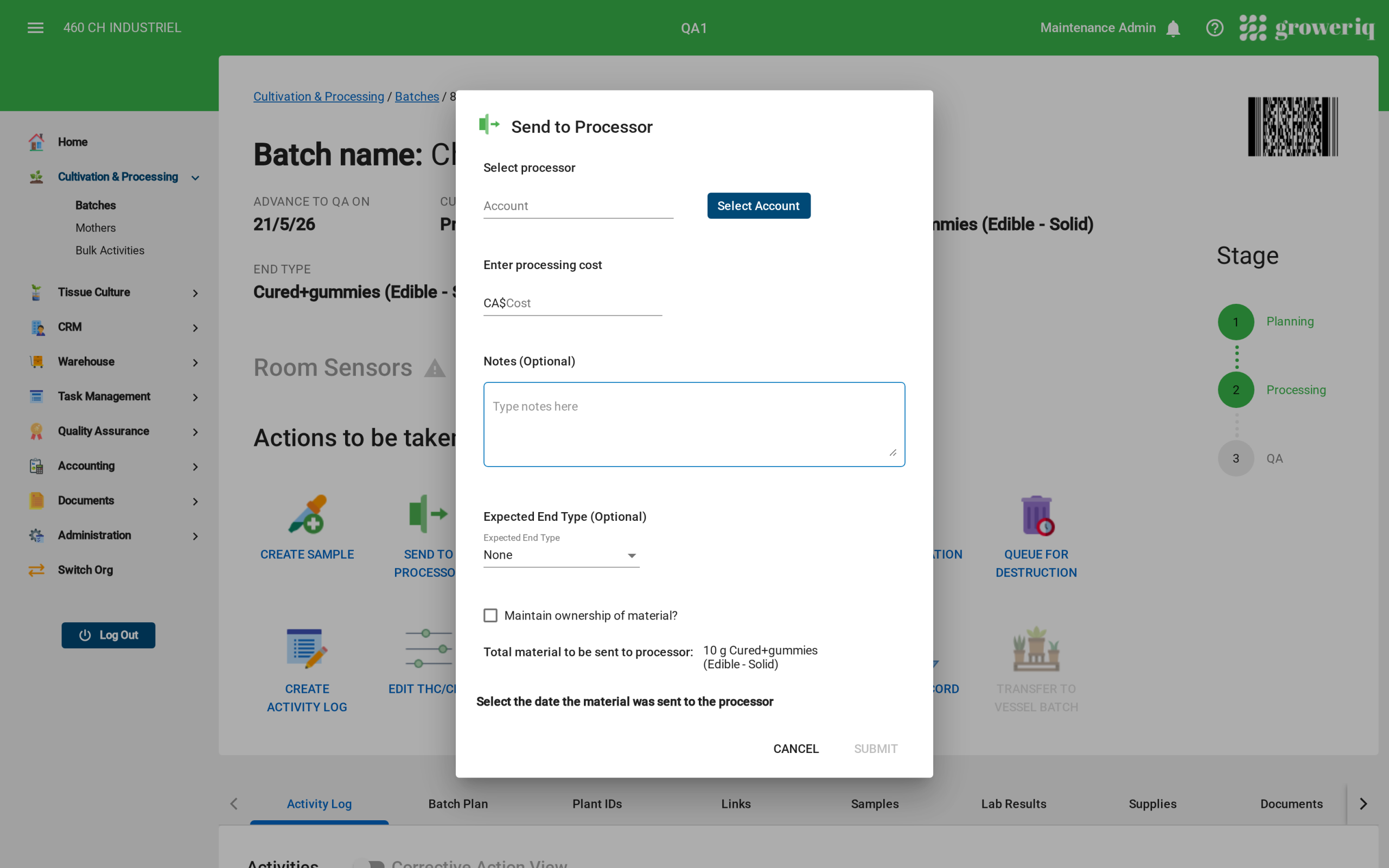
- Under the batch actions, click Send To Processor.
- Choose the processor with Select Account, then enter the processing cost and any notes.
- Optionally set the Expected End Type and choose whether to maintain ownership of material.
- Confirm the quantity being sent and the date, then Submit. The material is deducted from the batch and reported accordingly.
- When the material returns, use Receive from Processor to bring it back in, adjusting the end-type and weight if the processor changed them.
One-Click CRA B300 Excise Report
Filing your monthly CRA Cannabis Duty and Information Return (Form B300) by hand is slow and error-prone. Now GrowerIQ builds it for you. Pick a reporting period and generate a completed B300 PDF in a single click, ready to review and file, plus a supporting breakdown so you can trace every number back to its source.
Note: The CRA B300 report is a premium feature. Contact your account representative to learn more and have it enabled for your facility.
📝 How It Works
- Go to Quality Assurance > Reports.
- Find the CRA B300 Report card.
- Select the Year and Month you are reporting on.
- Click Generate B300 to produce the completed PDF, or Download Breakdown to get the supporting figures behind it.

Richer Health Canada Report Breakdowns for Validation
Validating your monthly Health Canada numbers used to mean stitching together several reports from different areas of the system. Now you can pull a supporting breakdown directly alongside the report itself, giving you the transactions and inventory figures that reconcile with your submitted totals. The breakdown now also includes your Packaged inventory (not just unpackaged), so you can validate your closing packaged inventory in the same place.
📝 How It Works
- Go to Quality Assurance > Reports.
- On the Health Canada Report card, select the Year and Month.
- Click Download Report for the submission file.
- Click Download Breakdown or Download Full Breakdown to get the supporting figures, now including packaged inventory, for reconciliation.

💡 Improvements
Smarter Shipment Selection When Filling Orders
When filling an order, it was too easy to accidentally create a brand-new shipment instead of adding to an existing one. We've reworked shipment selection so it's clear which shipment you're adding to, helping you avoid duplicate shipments and keep your fulfillment tidy.
Tighter Scanner Role Permissions
Scanner access now follows a safer default. Roles that haven't been explicitly configured for the scanner are now closed by default, so users only get scanner access you've deliberately granted. Admin access is unchanged.
🔧 Bug Fixes
We've squashed several bugs to make your day-to-day smoother:
Inventory & Lots
- Merge Lots: Previously, merging lots could fail with a "Failed. Please try again" message. Now lots merge reliably.
- Sample Reverts: Previously, you couldn't revert samples back to batches or lots that had reached zero quantity. Now those reverts work as expected.
- Transfer to Batch: Previously, the Transfer to Batch flow could show blank End Type selectors and create a batch with missing data. Now the end type is captured correctly, so the batch has complete information.
Destruction & Compliance
- Whole-Plant Destruction: Destroying whole plants now correctly requires at least one witness, keeping your destruction records compliant.
- Reverted Material: Previously, material that was reverted after destruction could appear on two reports even though it was only destroyed once. Now it's counted correctly, once.
Reports
- Unpackaged Breakdown: Previously, packaged-type package runs were incorrectly included in the Unpackaged Health Canada Report breakdown. Now only unpackaged inventory appears there.
Scanner
- User Roles: Previously, scanner user roles didn't match application permissions and couldn't be edited. Now scanner roles align with your app permissions and can be managed properly.
- Mobile Scanner Access: Restored access to the Mobile Scanner options for the appropriate roles.
Other
- Sanitation Activities: You can now log a sanitation activity with a document attached, which previously failed.
- SOP Signatures: The signature list tab on SOPs now displays and functions correctly.
- Plant Counts: Recording a plant count using a newly created variety now works without errors.
We Built This With You in Mind
💬 Have feedback or an idea for the next release? Submit an enhancement request by clicking here.
🚀 Ready to explore? Log into your environment to try it out now!